Thunderbolt Dock Not Detected? (10 Fixes That Actually Work)

That Sinking Feeling
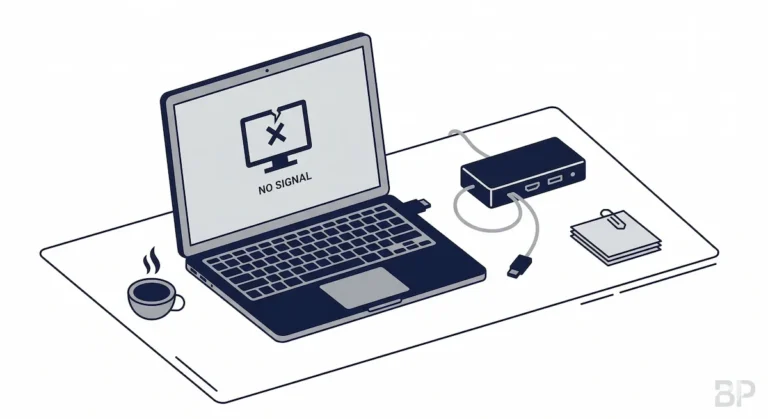
You just plugged in your $300 Thunderbolt dock. The charging light flickers… or doesn’t. Your monitors stay dark. Your keyboard and mouse are dead. Your expensive, one-cable desk solution has become a very expensive paperweight.
Before you rage-ship Thunderbolt Dock back or declare it dead, take a breath. 90% of “Thunderbolt dock not detected” problems are fixed with basic troubleshooting. The issue is almost never that your dock is completely dead—it’s that something in the chain between your laptop and the dock isn’t communicating properly.
I’ve seen this hundreds of times. The fix isn’t magic; it’s method. Here is the exact, step-by-step order of operations we use professionally, from the most likely to the least likely culprit. Follow this guide in order. Don’t skip steps. Let’s bring your dock back to life.
⚡ Quick Answer — Thunderbolt Dock Not Detected
A Thunderbolt dock that isn’t detected is almost never dead hardware — it’s a broken handshake between the dock’s controller, your cable, and your laptop’s
🟢 Skip the Deep Dive — Stop Debugging, Make It Work
If your Thunderbolt dock is not detected and you don’t want to troubleshoot, here’s the truth:
- If the dock fails after sleep, updates, or reconnects — this is not a “setting” problem. It’s a firmware tolerance problem.
- If the dock fails intermittently, it will keep failing. These issues do not age out.
- If you’ve already swapped cables once and rebooted twice, you are past the point of “easy fixes.”
At this stage, continuing to debug is usually more expensive than replacing the dock. Not sure what type of dock failure you have? Start with our complete Docking Station Not Working guide — it covers all failure classes, not just detection.
Not sure which dock fits your setup? Compare all 81 docking stations side by side — filter by connection type, displays, power delivery, and OS in our Docking Station Comparison Tool.
Not sure what type of dock failure you have? Start with our complete Docking Station Not Working guide — it covers all failure classes, not just detection.
If you want to understand why docks fail and how to prove where the fault is, continue below.
If not, stop reading and replace the problem.
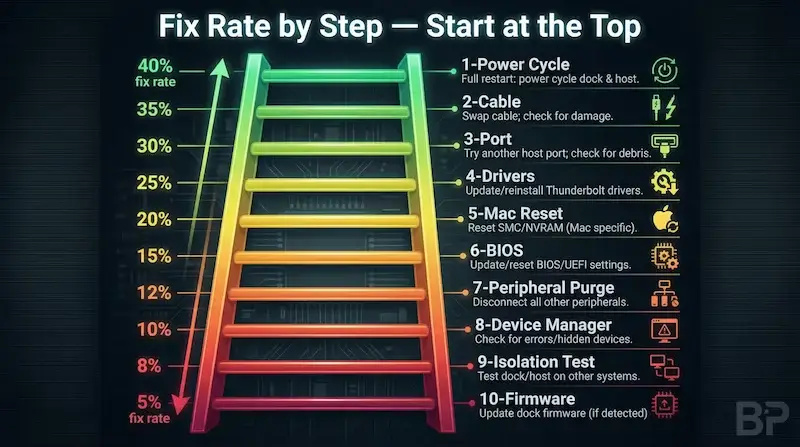
1. The 10-Second Power Cycle (The Universal Reset)
When to use this: Always. Do this first, no matter what. It’s the simplest fix for an undetected docking station and clears temporary electronic glitches.
Why it works: Your docking station has a tiny internal controller that can get “stuck” or confused. A full power cycle resets it, just like rebooting your computer.
The Correct Order (This Matters):
- Unplug the docking station’s power adapter from the wall outlet. Not just from the dock—from the wall.
- Unplug the Thunderbolt/USB-C cable from your laptop.
- Wait 10 full seconds. Count them. This drains residual power from the dock’s circuits.
- Plug the power adapter back into the wall. Wait for the dock’s power/status light to turn on (if it has one).
- Now, plug the cable back into your laptop.
Did it work? If your computer makes the connection sound or your monitors spring to life, you’re done. If not, move to the next step.
2. The Cable Culprit (Your #1 Suspect)
When to use this: Immediately after the power cycle fails. A faulty cable is the single most common reason for a Thunderbolt device not detected.
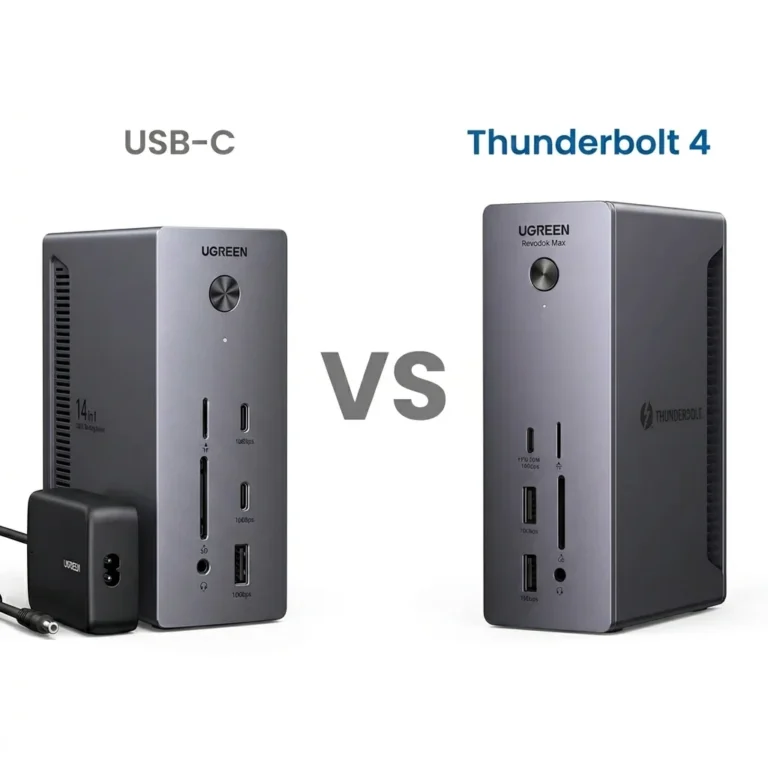
Why it works: Not all USB-C cables are created equal. Many are “charge-only” or lack the high-speed data wires needed for a Thunderbolt dock. Others are just broken. As we explained in our Thunderbolt 4 vs USB-C deep dive, the physical port (USB-C) and the protocol (Thunderbolt) are different—you need a cable built for both.
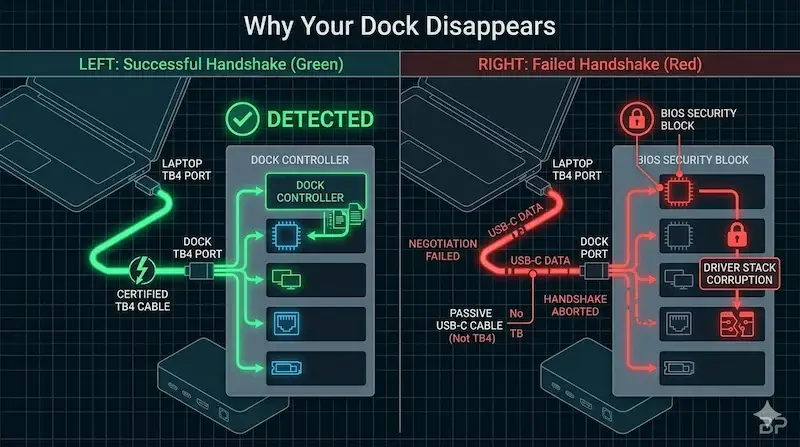
How to test:
Use the cable that came with your docking station. If you lost it, you need a replacement.
- Get a certified Thunderbolt 4 cable. Don’t guess. A proper cable will have the Thunderbolt “⚡” logo on the connector. A high-quality, certified cable like this 40Gbps Thunderbolt 4 cable is a worthwhile investment.
Test it. Swap in the new/known-good cable between your laptop and dock. Does it work?
Pro Tip: Avoid cables longer than 2 meters (6.5 feet) for docking stations. Signal degradation over longer distances can cause detection issues.
For a complete breakdown of how Thunderbolt architecture affects cable requirements and port behavior, see our Laptop Docking Station Explained guide.
3. Try Every Thunderbolt Port (Not All Ports Are Equal)
When to use this: Your cable checks out, but the dock is still not detected by your computer.
Why it works: Not all USB-C/Thunderbolt ports on your laptop are created equal. Some might be data-only (no video). Some might provide less power. One might be physically damaged or have a worn-out connection.
How to test:
- Unplug the dock from its current laptop port.
- Plug it into every other USB-C or Thunderbolt port on your laptop.
- Wait 10 seconds after each attempt for the computer to recognize the new device.
Did a different port work? If yes, your original port might be faulty, or it might be a lower-spec port not designed for full dock functionality. Check your laptop’s manual.
If your port works but monitors still won’t display correctly, the problem has moved from detection into display topology — covered in our Daisy Chain Monitors Explained guide.
For a model-specific example of how display topology failures manifest, the Plugable TBT4-UDZ guide documents the difference between MST-based quad displays on Windows and native dual displays on Mac—a distinction that confuses many users.
4. Driver Sweep: The Windows Triad (GPU, Thunderbolt, Chipset)
When to use this: You’re on Windows 11 or 10 and the dock is not recognized.
Why it works: Outdated, missing, or corrupted drivers block communication. You need to update three key drivers, in this order:
- 1. GPU Driver (Critical for Display): Go to NVIDIA, AMD, or Intel’s website. Download the latest Studio Driver (more stable) or Game Ready Driver for your graphics card. Choose “Clean Installation” during setup. This removes old, conflicting files.
- 2. Thunderbolt dock Controller Driver: Go to your laptop manufacturer’s support page (Dell, Lenovo, HP, etc.). Search for your exact model and download the latest Thunderbolt Controller or USB4 Driver.
- 3. Chipset Driver: From the same support page, download and install the latest Chipset Driver. This manages how all your motherboard’s components talk to each other. After installing all three, restart your laptop.
🟡Are You Fixing a Setup, or Babysitting a Dock?
You’ve power-cycled. You’ve swapped cables. You’ve updated drivers. Still not detected. Time to decide if this is fixable.
| You’re fixing a configuration if… | You’re babysitting instability if… |
|---|---|
| Problem started after a Windows update or BIOS change | Problem present since day one on a clean setup |
| Power cycle fixes it for days or weeks | Power cycle buys minutes at best |
| Works on one port but not another | Fails on every port on every computer |
| Driver or firmware update is available | All firmware current, dock still undetected |
Thunderbolt 5 removes the detection and power negotiation failure classes entirely. Requires a TB5 port for full bandwidth — but it ends the firmware babysitting cycle.
What has changed: Windows 11 24H2 and macOS Sequoia have both introduced updated Thunderbolt security policies that reset on major OS updates. If your dock stopped being detected after a recent system update — this is why.
Immediate fix: Go to BIOS → re-enable Thunderbolt Pre-boot support and set security level to “User Authorization.” On Mac, go to System Settings → Privacy & Security → confirm Thunderbolt accessories are set to “Allow.”
In other words: Your dock didn’t break. Your OS update reset the permission that lets your dock talk to your laptop. Two minutes in BIOS or System Settings fixes it.
5. Mac’s Simple But Secret Resets (SMC & NVRAM)
When to use this: You have a Mac thunderbolt dock not working.
Why it works: These low-level resets clear hardware and parameter memory that can get corrupted, often fixing macbook pro dock not recognized issues.
For Apple Silicon Macs (M1, M2, M3, M4):
- Shut down your Mac.
- Wait 10 seconds.
- Press and hold the power button for another 10 seconds.
- Release and press it again normally to turn on. This performs a system management controller reset.
For Intel-based Macs:
- Reset SMC: Shut down. Press and hold Shift + Control + Option on the left side of the keyboard, then press and hold the power button. Hold all four keys for 10 seconds, then release and power on.
- Reset NVRAM: Shut down. Turn on and immediately press and hold Option + Command + P + R for about 20 seconds, until you hear the startup chime a second time.
6. BIOS/UEFI: The Hidden Power Gatekeeper
When to use this: The dock is partially working (maybe charging but no data/video) or not working at all, especially on newer laptops.
Why it works: Your laptop’s BIOS can disable or limit Thunderbolt ports for security or power-saving reasons.
How to check (General Steps):
- Restart your laptop and repeatedly press the BIOS key (F2, F10, Del, or Esc—check your manual).
- Navigate to Configuration, Advanced, or Security tabs.
- Look for these key settings and ENABLE them:
- Thunderbolt Technology or USB4 Support
- Thunderbolt Boot Support
- USB Power Delivery
Look for these settings and DISABLE them:
- USB Suspend
- Selective Suspend
- Save Changes and Exit. Your laptop will reboot.
7. The Peripheral Purge (Is Something Else Breaking It?)
When to use this: Your dock was working and suddenly stopped, or it’s behaving erratically.
Why it works: A single faulty peripheral (monitor, hard drive, keyboard) can cause the entire dock’s controller to crash, making it seem like the dock itself is dead—a classic docking station conflict.
How to test:
- Unplug everything from the dock—every monitor, USB device, Ethernet, SD card.
- Leave only power and the laptop connection.
- Does the dock’s status light come on? Does your laptop recognize something is connected (even if just as a generic USB hub)?
- If yes, add devices back one at a time, waiting a minute between each. The device you add that causes the failure is your culprit.
If the dock is detected and initially works, but later drops displays, Ethernet, or USB devices during normal use, the problem has moved beyond detection and into a recurring instability pattern we analyze in our Docking Station Keeps Disconnecting guide.
8. Windows Device Manager: Hunt the Yellow Bang
When to use this: You see an “Unknown USB Device” or “Device Descriptor Request Failed” error in Windows.
Why it works: Windows has cached a corrupted driver profile for your dock or its controller.
How to fix it:
- Open Device Manager (search in the Start menu).
- Look under Universal Serial Bus controllers and Thunderbolt Controllers.
- Find any device with a yellow exclamation mark (!) or that has a generic name like “Unknown USB Device.”
- Right-click it > Uninstall device.
- CRITICAL: In the dialog box that pops up, CHECK the box that says “Delete the driver software for this device.”
- Click Uninstall.
Restart your computer. Windows will attempt to reinstall a fresh, clean driver upon boot. Now reconnect your dock.
Smart Dock Complications (Enterprise Thunderbolt Docks)
Not all Thunderbolt docks fail in simple, visible ways. Newer enterprise-class docks—especially firmware-managed “Smart Docks” like the Dell docking station SD25TB4—add an additional layer of complexity that basic detection guides often miss.
In these designs, a failure may not be a cable, port, or driver issue at all. Instead, the dock’s own internal service processor can enter a firmware deadlock state. When this happens, the dock may appear completely undetected, show up intermittently as an “Unknown USB Device,” or ignore standard resets altogether.
Crucially, these failures do not always respond to the normal fixes above. A standard power cycle or driver reinstall may not clear the fault. Recovery may require a full power drain, a vendor-specific firmware recovery tool, or—if the management firmware is corrupted—a warranty replacement.
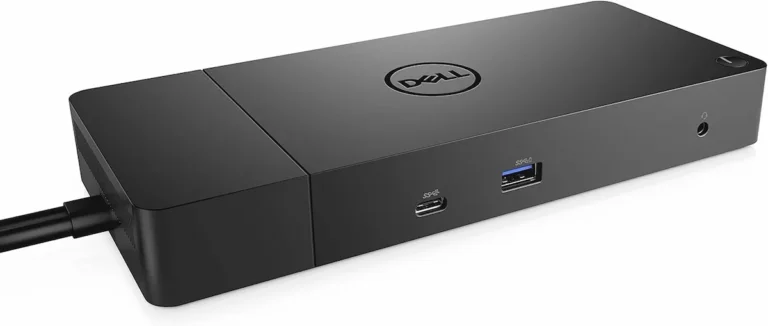
If you are troubleshooting a managed enterprise dock and none of the standard detection steps resolve the issue, you are likely dealing with this class of failure rather than a conventional Thunderbolt communication problem. For Dell WD19 users: the WD19 is not a Thunderbolt dock — it uses USB-C, and most fixes in this guide won’t apply. See our Dell WD19 Not Working guide instead.
Consumer docks like the Plugable TBT4-UDZ rarely suffer from these firmware deadlocks, but they have their own unique failure patterns—particularly around USB controller saturation and quad-display bandwidth allocation—documented in our dedicated guide.
🔴 Last Resort — When to Stop Troubleshooting
If you’ve worked through all 10 steps and your Thunderbolt dock is still not detected, stop. The evidence is clear.
Replace the dock if:
- ✅ Dock fails on two different computers with a certified cable
- ✅ Power cycle and full driver reinstall change nothing
- ✅ Firmware update tool can’t detect the dock either
- ✅ Dock LED is on but host sees absolutely nothing — no USB, no charging, no display
Rule of thumb: If it fails the alternative computer test (Step 9) on two machines — it’s hardware. Start the warranty claim.
Not sure which dock fits your setup? Compare all 81 docking stations side by side — filter by connection type, displays, power delivery, and OS in our Docking Station Comparison Tool.
9. The Alternative Computer Test (Isolate the Problem)
When to use this: You’ve tried all software/driver fixes. You need to answer: “Is my dock or laptop broken?”
Why it works: This is pure hardware isolation. It tells you definitively where the fault lies.
How to test:
- Take your dock and its original power adapter and cable.
- Connect it to a different, known-working computer (a friend’s, a family member’s, a work computer).
Observe: Does it work on the other computer?
YES → The problem is YOUR LAPTOP (faulty port, fried internal controller).
NO → The problem is YOUR DOCK or its accessories (faulty dock, bad power brick).
10. Nuclear Option: Firmware & Operating System Updates
When to use this: As a last resort before giving up. Especially for brand-new laptops or docks.
Why it works: Manufacturers release firmware updates that fix compatibility bugs not addressed by drivers.
How to do it:
- For the Dock: Visit the dock manufacturer’s website (CalDigit, Kensington, UGREEN, etc.). Look for a “Support” or “Downloads” section for your specific model. They often have a firmware update tool.
- For the Laptop: Run Windows Update or macOS Software Update to ensure your OS is current. Major updates often include critical Thunderbolt/USB4 patches.
If your Thunderbolt dock is detected by the system but the screen remains black or shows “No Signal,” the problem has moved beyond device enumeration into the display signal path — covered in detail in our Docking Station Not Detecting Monitor diagnostic guide.
Conclusion & The “When to Give Up” Section
If you’ve worked through all 10 steps and your Thunderbolt dock is still not detected, the evidence points to a hardware failure. The diagnostic from Step 9 is your guide:
- If it fails on another computer: The dock itself is likely dead. Contact the manufacturer’s warranty support.
- If it works on another computer: Your laptop’s Thunderbolt controller or specific port has failed. Contact your laptop manufacturer.
Some modern Thunderbolt 5 docks push bandwidth, PCIe tunneling, and port density further than previous generations. High-performance designs like the CalDigit TS5 Plus offer maximum flexibility and 120Gbps boost mode, but they operate closer to architectural limits and depend heavily on clean firmware alignment.
Gaming-focused designs like the Razer Thunderbolt 5 Dock Chroma add another layer of complexity — all three downstream ports double as display outputs, meaning a non-TB5 monitor requires an active adapter, and if that handshake fails, the dock may appear undetected entirely. If your workload demands maximum headroom, choose carefully — stability tolerance varies by design philosophy.
One critical distinction to make before replacing hardware: detection and charging are separate failure classes. A Thunderbolt dock can be fully detected by the system—enumerating USB devices and displays correctly—while still failing to deliver sufficient power to charge the laptop due to Power Delivery negotiation limits or firmware bugs. If your dock is recognized but your battery continues to drain, follow our dedicated docking station not charging laptop guide for a full power-focused diagnostic.
When Replacing the Dock Is the Correct Fix
If you’ve worked through the checklist above and detection still fails, this is no longer a troubleshooting problem — it’s a hardware reliability problem. At this point, replacing the dock is often the fastest and cheapest resolution.
Our pick for detection reliability: The CalDigit TS4 has the most actively maintained firmware and widest cross-platform compatibility of any Thunderbolt 4 dock we’ve tested. If you want a dock that stays detected, start there.
Thunderbolt & USB4 Docks That Are Usually Detected Without Drama
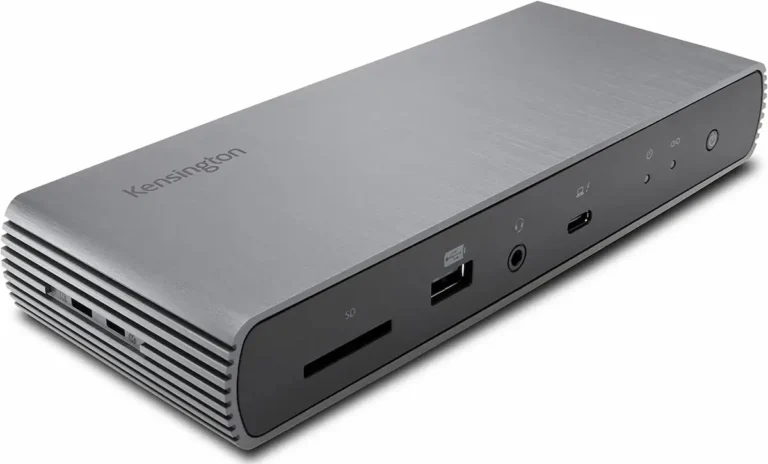
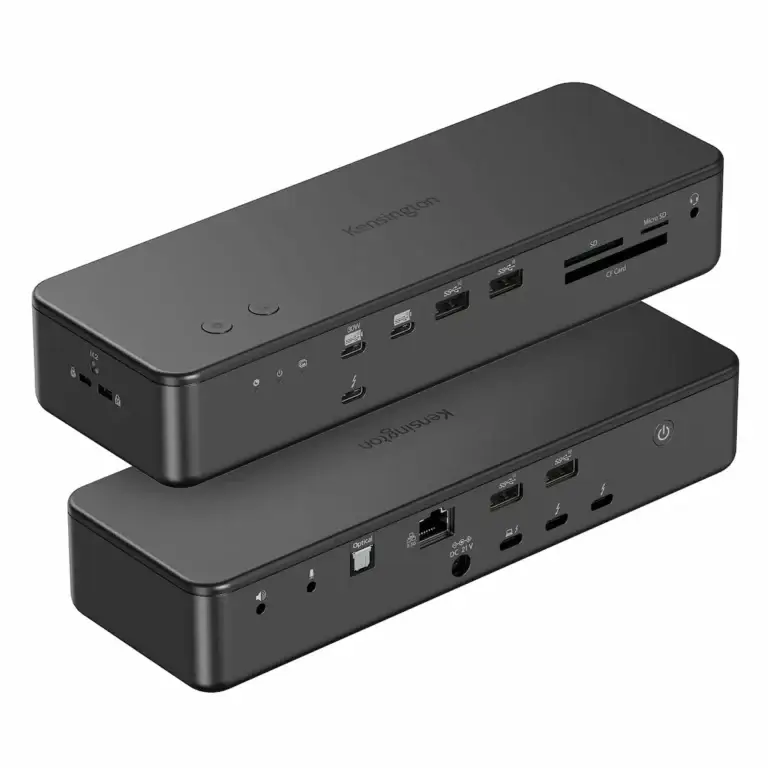
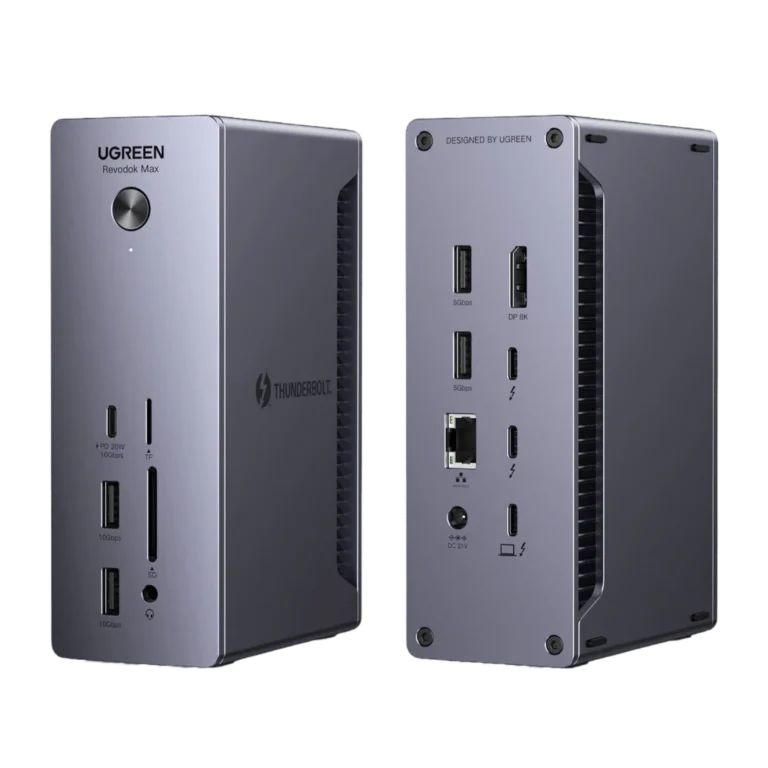
| Feature | CalDigit TS4 | Kensington SD5780T | Plugable TBT4-UDZ | UGREEN Revodok Max 213 | Dell WD22TB4 | Dell SD25TB4 |
|---|---|---|---|---|---|---|
| Protocol | TB4 | TB4 | TB4 | TB4 | TB4 | TB4 |
| Max Displays | Dual 6K (Mac) / Dual 4K (Win) | Dual 4K@60Hz | 4x 4K (Win MST) | Dual 4K@60Hz | Up to 4 displays (GPU dependent) | 4x 4K / 2x 6K / 1x 8K |
| Downstream TB4 | 2x | 2x | 0x | 2x | 2x | 2x |
| USB Ports | 2x TB4, 3x USB-C, 5x USB-A | 4x USB-A, 3x TB4 | 6x USB-A, 1x USB-C | 4x USB-A, 1x USB-C | 3x USB-A, 2x USB-C, 2x TB4 | 4x USB-A, 2x USB-C, 2x TB4 |
| Power Delivery | 98W | 96W | 100W | 90W | 130W (Dell) / 90W | 130W (Dell) / 96W |
| Ethernet | 2.5GbE | 2.5GbE | 2.5GbE | 2.5GbE | 1GbE | 2.5GbE |
| Mac Compatibility | ✅ Native | ✅ Native | Dual: M1 Pro/Max Single: base M1/M2 | ⚠️ M1 Pro/Max only | ⚠️ Partial | ⚠️ Supported (limitations) |
| Detection Reliability | ⭐ Excellent | Excellent | Good | Good | Conditional | Conditional |
| Check Price → | Check Price → | Check Price → | Check Price → | Check Price → | Check Price → |
⚡ Considering an upgrade? Thunderbolt 5 docks offer 120 Gbps bandwidth and improved sleep/wake stability.
See TB5 Comparison →Your takeaway: An undetected docking station is almost always a solvable problem. Work the checklist methodically. You’ll either fix it or get a clear, defensible answer for warranty support. Now go reclaim your one-cable desk.
Remember: Sometimes, the solution isn’t a deeper fix, but a better foundation. For a case study in tackling a powerful but finicky dock, see our exhaustive guide: UGREEN Revodok Max 213: The Definitive Problem-Solving Guide.
11. FAQ
📚 Sources & References
- Thunderbolt 4 vs USB4 vs USB-C protocol differences — BenQ Knowledge Center
- Thunderbolt 5 bandwidth and architecture overview — Digital Trends
- USB Power Delivery specification and charging negotiation — Plugable Technologies
- Multi-Stream Transport (MST) and display detection explained — Plugable Knowledge Base
- DisplayPort over USB-C and alternate mode signaling — DisplayPort Association
12. Author & Trust Section

Alex
Senior Technical Writer & Infrastructure Consultant, ByrdPilot.com
My focus is the architecture of stability. With a background in corporate IT infrastructure, I dissect docking stations and peripheral ecosystems not for their specs, but for their predictable failure modes and recovery paths. This guide is built from diagnosing these exact detection failures in fleets of laptops, where a non-functional dock means a person cannot work.
Related Posts
Docking Station Not Working? The Complete Troubleshooting Guide (All Brands, 2026)
The Brutal Truth: Why Your Docking Station Really Stopped Working ⚡ Quick Answer A docking station stops working when the negotiation between your laptop, dock firmware, cables, and monitors breaks down. Over 70% of failures trace back to cables, drivers, or power delivery mismatches — not defective hardware. This guide identifies the exact failure class…
Kensington SD5780T Not Working? Thunderbolt 4 Dual 4K Dock Troubleshooting Guide (2025)
The Kensington SD5780T Paradox: Professional Promises, Practical Hiccups You purchased the Kensington SD5780T Thunderbolt 4 Docking Station for professional-grade reliability. Its specifications promise dual 4K display support, a comprehensive port array, and a network card designed for consistent performance, all backed by a three-year warranty. Yet, the frustration hits when you dock your laptop, and…
Kensington SD7100T5 Problems: Thunderbolt 5 Stability & Thermal Limits (2026)
The Ruthless Truth About the Kensington SD7100T5 The Kensington SD7100T5 is one of the most enterprise-balanced Thunderbolt 5 docking stations currently available—combining managed firmware, mixed-OS compatibility, and the only integrated M.2 storage option in its class. This model is also known as Kensington EQ Pro. But it is not a plug-and-forget consumer hub. It operates…
UGREEN Revodok Max 213 (TB4) Problems: Real Failures & Tested Fixes (2026)
The UGREEN Revodok Max 213 isn’t failing randomly. It’s hitting limits most docks never reach. The five most common failures — power spike disconnects, thermal saturation, sleep/wake collapse, bandwidth allocation conflicts, and cable sensitivity — are all negotiation breakdowns between the dock’s Thunderbolt 4 controller and your laptop’s firmware. Most resolve by using the included…
UGREEN Revodok Max 213 vs Pro 314 — Which Docking Station Actually Works? (2026)
⚡ Quick Answer — Max 213 vs Pro 314 Choose UGREEN Revodok Max 213 → dual 4K, Mac compatibility, or stable multi‑display performance. Thunderbolt 4 guarantees behavior across all certified hosts. Choose UGREEN Revodok Pro 314 → single monitor or basic dual displays on Windows with a tight budget. Works only if your laptop fully…
Dell WD19 Not Working — Fix It or Replace It? The Honest 2026 Answer
The Dell WD19 doesn’t fail dramatically. It fails quietly. No error codes. No warning lights. Just a monitor that stops coming back after sleep, a charging indicator that lies, or a connector that works perfectly until the day it doesn’t. That’s what makes the WD19 frustrating to troubleshoot. It has a reputation for reliability —…