Daisy Chain Monitors Explained: How It Works & Why It Fails

⚡ Quick Answer — Daisy Chain Monitors
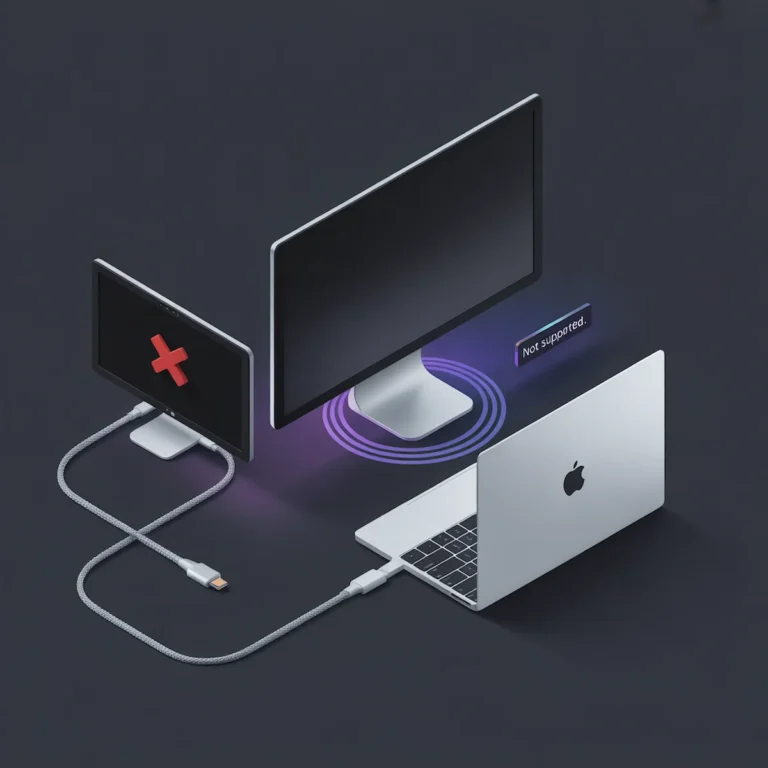
Daisy chain monitors use DisplayPort MST (Multi-Stream Transport) to route multiple displays through a single cable. It fails in four predictable ways: MST negotiation breakdown, sleep/wake desynchronization, mixed resolution collapse, and OS-level constraints — especially on macOS, which does not support DisplayPort MST for extending displays. For dual 4K, mixed monitors, or Apple Silicon, a Thunderbolt 4 docking station is the more reliable topology.
Last updated: April 2026 — covers macOS Sequoia, Windows 11 24H2, and Thunderbolt 5 behavior
Daisy chain monitors fail in four predictable ways. Most users hit at least two of them before realizing the problem isn’t the cable, the monitor, or the driver — it’s the topology itself.
This is not a setup tutorial.
This is not a product roundup.
This is a failure-analysis and decision guide for people trying to extend displays using daisy chain connections or docking stations — and running into problems that specs and marketing never mention.
If you’re here, one of these is probably true:
- Your daisy chain works sometimes, but breaks after sleep
- A second monitor refuses to wake or randomly goes black
- You’re stuck between conflicting advice about Thunderbolt, USB-C, MST, or docks
- You just want the problem gone, not another theory
Your decision is not about features.
It’s about which failure modes you can tolerate — and which ones you should avoid entirely.
This guide explains:
- what daisy chaining actually is (electrically and logically),
- why it fails in real deployments,
- when daisy chaining is the wrong tool,
- and when a docking station is the correct replacement — and which kind.
If you don’t want the deep dive, use the Table of Contents to jump directly to “Skip the Deep Dive — Just Make It Work.”
🟢 Early Bird — Planning a Daisy Chain Setup? Read This Before You Buy
Daisy chaining looks like the elegant solution — one cable, clean desk, no hub. It works until it doesn’t. Most failures aren’t random. They’re built into the setup from day one.
Before you buy anything, ask yourself:
- Are both monitors from the same brand and generation? (Mixed monitors = MST conflicts)
- Are you on Apple Silicon? (macOS does not support DisplayPort MST — daisy chaining won’t extend displays)
- Do you need dual 4K@60Hz? (Single DisplayPort 1.4 stream can’t reliably carry it through a chain)
If any of the above apply, a docking station is the correct starting point — not a fallback. It absorbs the complexity your monitors can’t handle.
1. What “Daisy Chain” Really Means (Educational Foundation)
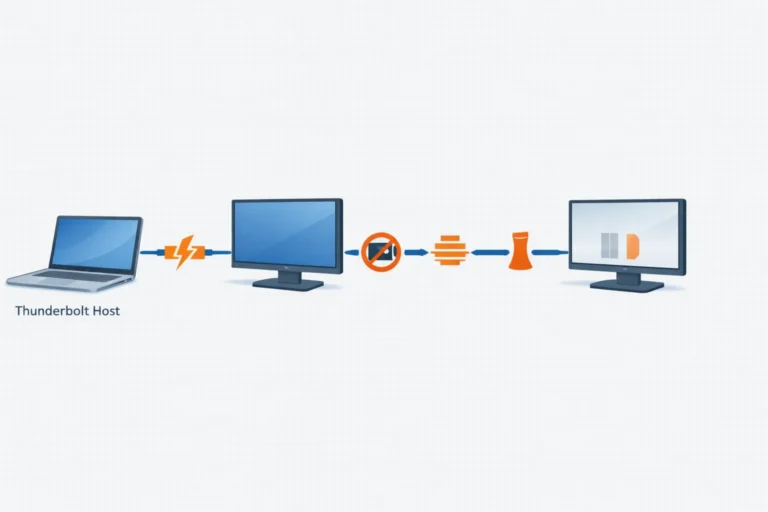
A daisy chain is a display topology where monitors are connected in a series, from your computer to Monitor A, then from Monitor A to Monitor B, using a single cable path. This is not magic; it relies on a specific protocol called DisplayPort Multi-Stream Transport (MST). The first monitor in the chain contains an MST hub that splits the single DisplayPort signal from your computer into multiple independent streams.
Thunderbolt docks can also enable a form of daisy chaining by tunneling multiple DisplayPort signals over a single cable, but the core concept remains: you are making one monitor or dock responsible for routing video to the next. In this guide, the term daisy chain refers specifically to DisplayPort or Thunderbolt-based monitor chaining using MST or tunneled display streams.
- Monitor-as-Hub: In a pure monitor daisy chain, the first monitor’s internal electronics become a critical point of failure. Its firmware, power delivery, and thermal performance now dictate stability for all downstream displays.
- It’s About Timing & Topology: The chain creates a single, dependent signal path. Every monitor’s EDID (Extended Display Identification Data) must be read correctly in sequence, and the entire chain must negotiate a single link rate (bandwidth) that satisfies the most demanding monitor. If one link in this chain is slow to respond or incompatible, the entire topology can fail.
In every enterprise rollout I’ve consulted on, daisy chaining looks elegant on paper and becomes fragile after month three. For a look at the ideal, simplified setup, see our guide on How to Daisy Chain Monitors for a One-Cable Desk.
2. The Real-World Daisy Chain Failure Pattern (Storytelling)
Consider a common scenario: a trading desk upgrades to Dell UltraSharp U2722D monitors — 4K panels with a dedicated DisplayPort out port. The IT team sets up a clean daisy chain (Laptop -> Monitor 1 -> Monitor 2). For weeks, it’s flawless. Then, a silent firmware update is pushed to the monitor models. Shortly after, traders begin reporting that their second monitor is black every Monday morning. A hard reboot fixes it. The blame shifts: “faulty cables,” “Windows updates,” “graphics drivers.”
The root cause was a sleep/wake desynchronization. The MST hub in the first monitor, after its firmware update, adopted a more aggressive power-saving state. Upon wake, the laptop’s GPU would send the video signal before the MST hub was fully ready, causing the hub to drop the downstream connection to the second monitor. The “fix” of a reboot forced a full re-initialization of the entire chain.
This pattern—initial stability followed by intermittent, topology-dependent failure—is the hallmark of daisy chaining. It works until an assumption is violated: a firmware update, a new monitor model introduced to the desk, or a change in the OS’s power management. The failures are rarely immediate; they emerge over time as system states change.
3. The Four Daisy Chain Failure Classes (Problem-Solving Core)
3.1 MST Negotiation Failures
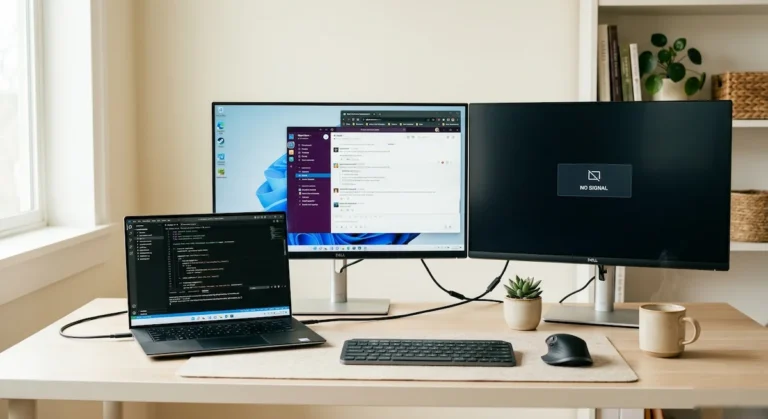
Symptom: The second (or third) monitor in the chain is never detected. It remains in standby, showing “No Signal.”
- The MST hub in the first monitor failed to properly enumerate the downstream display during the initial handshake.
- The host GPU or driver does not support MST (common with basic integrated graphics or some macOS configurations).
- The cable between monitors is not a full-featured DisplayPort or Thunderbolt cable capable of carrying the MST data. Monitors with a dedicated DisplayPort Out port — Dell UltraSharp U2722D, Samsung ViewFinity S6 — can act as the MST hub. Monitors without one — most gaming panels including the LG UltraGear 27GN950 — physically cannot be the first link in a chain, regardless of cable quality.
- How to Confirm: Swap in a known, high-quality, short DisplayPort cable between the monitors. If the second display appears, the original cable was the culprit. If it does not, connect the problematic monitor directly to the computer. If it works, the issue is the first monitor’s MST hub or its configuration.
3.2 Sleep / Wake Desynchronization
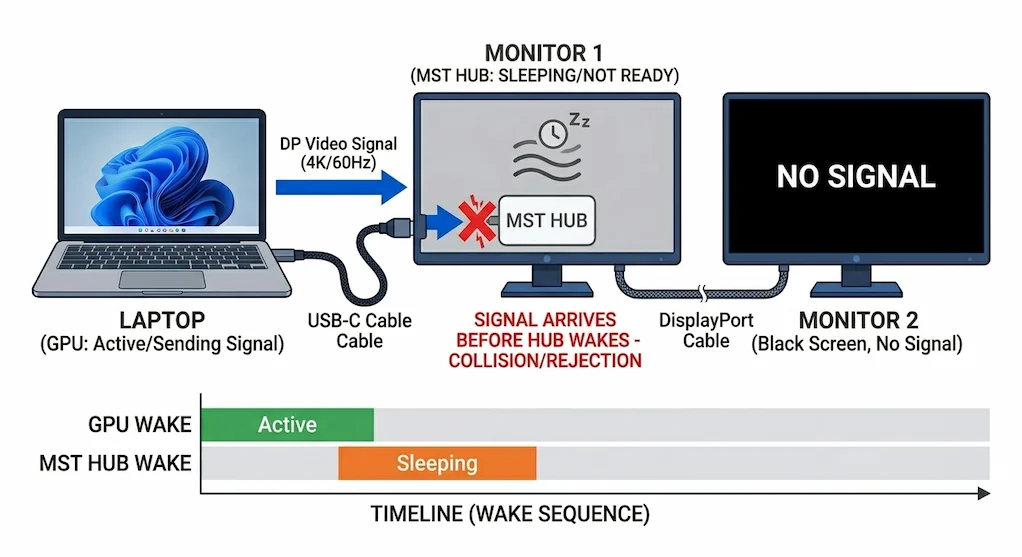
Symptom: All monitors work after a reboot, but the daisy chain breaks consistently after the computer sleeps or the monitors power down.
- The power state recovery timing differs between the computer’s GPU, the first monitor’s MST hub, and downstream monitors. The hub may be ready before the GPU sends a signal, or vice versa.
- The OS puts the GPU into a deep power state that severs the link, and the MST hub cannot re-establish it.
- How to Confirm: Reproduce the failure by putting the system to sleep for 2+ minutes, then waking. If the chain is broken, but a direct connection from the laptop to each monitor works after sleep, the failure is in the daisy chain topology’s wake sequence.
🔵 2026 Update — Windows 11 24H2 Modern Standby Regression
Windows 11 24H2 introduced a kernel-level change to Modern Standby (S0 Low Power Idle) that worsened sleep/wake recovery for MST daisy chains. Thunderbolt controllers now power down more aggressively during sleep, and the MST hub in the first monitor frequently fails to re-enumerate on wake. Fix: disable USB Selective Suspend and set PCIe Link State Power Management to “Off” in Windows Power Options. If the chain still breaks after sleep, update your Intel Thunderbolt driver to version 1.41.1920.0 or later.
3.3 Mixed Resolution & Refresh Rate Collapse
Symptom: The daisy chain works with identical monitors but fails when mixing ex: a Dell UltraSharp U2722D (4K@60Hz) with an LG UltraGear 27GN950 (4K@144Hz) One monitor may flicker or drop out.
- The MST topology must establish a single link rate that supports the combined bandwidth of all monitors. Mixed timings can create an unstable or unsupported configuration.
- The GPU or MST hub may silently downgrade the higher-refresh-rate monitor to match the slower one, causing instability.
- How to Confirm: Set all monitors in the chain to identical resolution and refresh rates (e.g., 1080p 60Hz). If stability returns, the chain cannot reliably handle your mixed desired states.
3.4 OS-Level Constraints (macOS vs Windows)
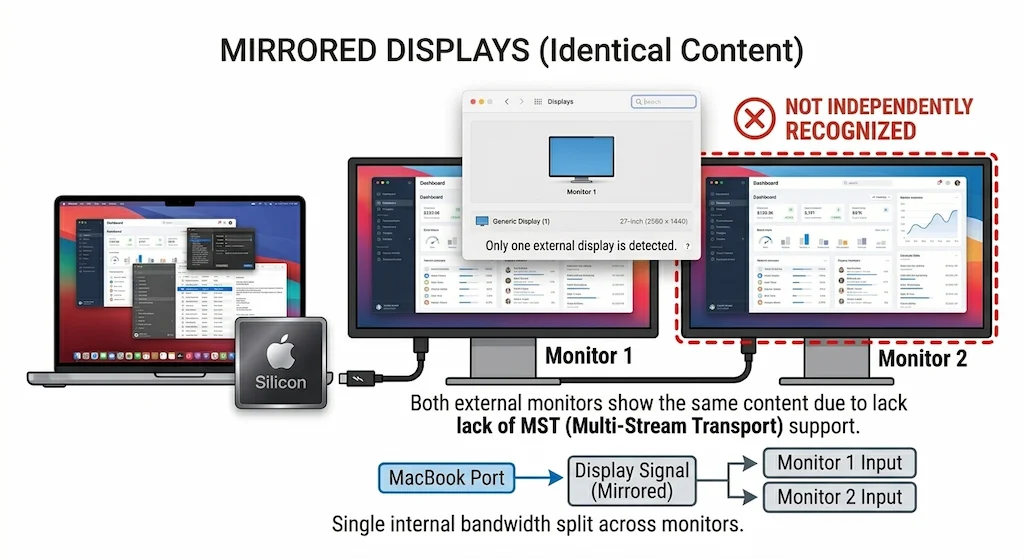
Symptom: A daisy chain that works perfectly on a Windows laptop fails entirely on a MacBook, or only mirrors the display instead of extending.
- macOS has notoriously poor, often deliberately limited, support for DisplayPort MST. It prefers a direct, separate video stream for each monitor. A daisy chain presents as one MST device, which macOS may only recognize as a single display endpoint.
- Windows has native MST support but can be hobbled by generic “Microsoft Basic Display Driver” instead of the OEM GPU driver.
- How to Confirm: This is often a definitive rule. Test the same physical chain on a Windows PC and a modern Mac. If it fails on the Mac, the issue is macOS’s MST handling, detailed in our guide Daisy Chain Mac Not Working?.
🔵 2026 Update — macOS Sequoia 15.x HDCP Enforcement
macOS Sequoia (15.0–15.3) introduced stricter HDCP 2.3 enforcement across all display outputs. Daisy chains passing through monitors with older HDMI conversion chips now trigger black screens on wake — macOS detects the monitor but refuses to output signal through the chain. This affects third-party monitors using MediaTek-based HDMI controllers. Fix: switch to DisplayPort connections throughout the chain where possible. HDMI daisy chaining on macOS Sequoia is increasingly unreliable regardless of dock or cable quality.
4. When Daisy Chain Is the Wrong Tool (Critical Pivot)
Daisy chaining is not scalable. It is fragile by design, trading simplicity for a long chain of single points of failure. It is the wrong tool in these common scenarios:
- Dual 4K @ 60Hz or higher: This pushes the bandwidth limits of a single DisplayPort 1.4 stream. The MST hub must split this high-bandwidth signal, leaving zero headroom for error. Any cable or handshake imperfection causes flicker or dropouts.
- Mixed Monitor Vendors or Generations: Combining a Dell UltraSharp, an LG UltraFine, and a Samsung ViewFinity in one chain is asking for EDID and firmware conflicts — each manufacturer implements the MST standard with slight variations that compound over time.
- macOS with Apple Silicon: As stated, this is a platform limitation. Daisy chaining is a non-starter for multi-monitor setups on M-series Macs.
- Enterprise Environments with Managed Sleep Policies: Corporate power policies that aggressively put displays to sleep will constantly trigger wake desynchronization failures across hundreds of desks.
- Users Who Dock and Undock Daily: The repeated connection and disconnection of the primary cable stresses the single point of connection, and the daisy chain must re-negotiate the entire topology each time, increasing the chance of failure.
If your use case matches any of the above, you have outgrown the daisy chain paradigm. The complexity needs to be absorbed by a more robust component: a docking station.
If a docking station is the right move, the docking station for dual monitors guide covers which dock protocols actually hold dual 4K without MST dependencies.
🟡 Pattern Check — Is Your Daisy Chain Fixable or Fundamentally Wrong?
You’ve tried the cables. You’ve updated firmware. Still breaking after sleep. Before spending more time, determine whether this is a fixable configuration issue or a topology problem no amount of troubleshooting will solve.
| You’re fixing configuration if… | You’re hitting a topology limit if… |
|---|---|
| Both monitors are same brand and generation | Mixing monitor brands, generations, or resolutions |
| Fails only after sleep — works on fresh boot | Second monitor never detects regardless of cable or sequence |
| Windows laptop — GPU driver needs updating | Apple Silicon Mac — MST not supported at OS level |
| Cable swap between monitors resolved the issue | Two certified cables tested — chain still breaks |
A Thunderbolt 4 docking station eliminates MST entirely — each monitor gets a direct, independent display stream. No chain, no timing conflicts, no topology limits. See recommended docks →
5. Daisy Chain vs Docking Station (Topology Comparison)
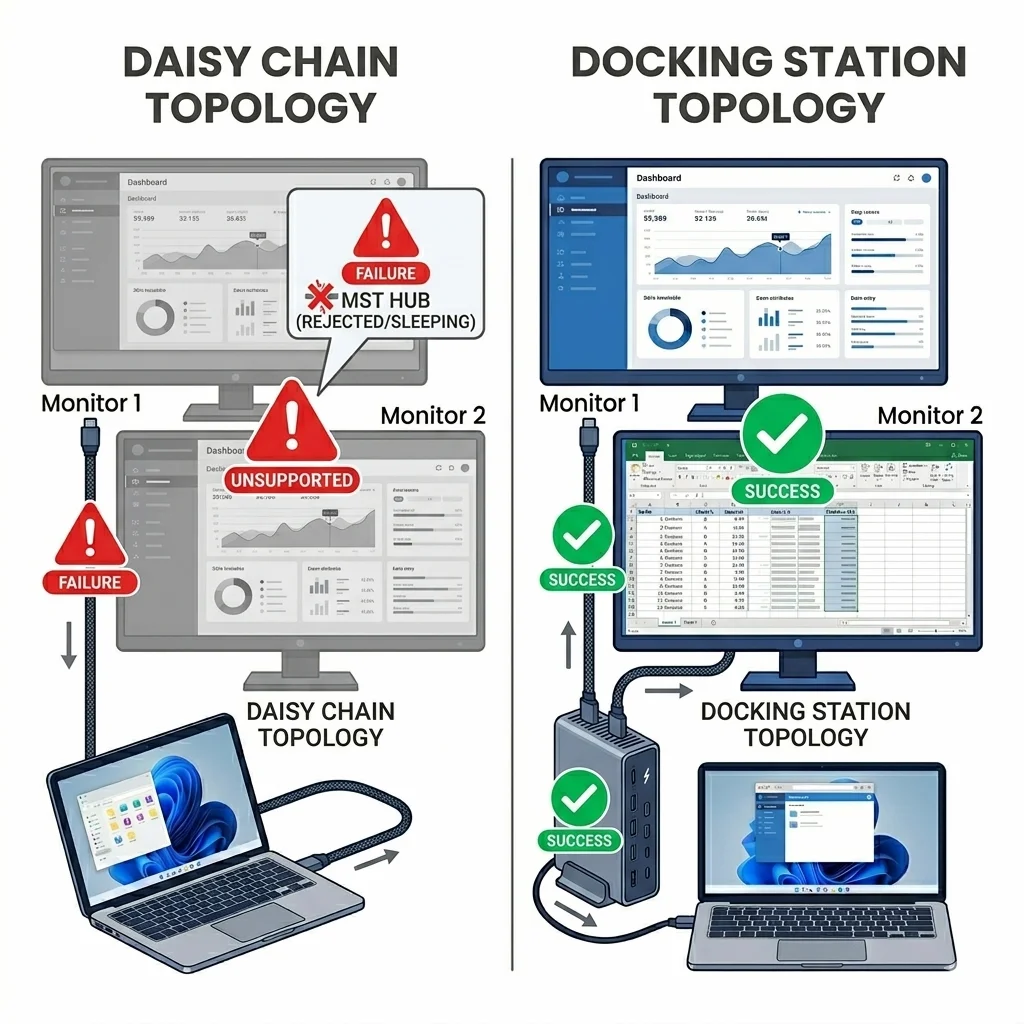
The fundamental difference is where the complexity of managing multiple displays resides.
- Daisy Chain (Monitor-Centric Routing): Complexity is distributed across your monitors. Your first monitor’s MST hub is the router. Its health, firmware, and compatibility dictate the stability of your entire multi-display setup.
- Docking Station (Dock-Centric Routing): Complexity is absorbed into the dock. A high-quality dock contains dedicated display controllers (often one per output) that handle the multiplexing and driving of displays independently. The dock presents itself to your laptop as multiple direct connections, not a single MST chain.
This is why a good dock fails differently: it might have a firmware bug or thermal throttle, but it won’t suffer from the cascading wake timing failures or mixed-monitor incompatibilities that plague daisy chains. The dock centralizes the point of failure, making it more predictable and often easier to reset. For a primer on the underlying technology choices, see USB-C vs Thunderbolt 4 for Docking Stations.
🔵 2026 Update — Thunderbolt 5 Introduces New Topology Trade-Offs
First-generation Thunderbolt 5 docks (2024–2025) introduced a new daisy chain failure class: Boost Mode bandwidth reallocation. When a TB5 dock switches between 80Gbps baseline and 120Gbps Boost Mode, the display tunnel briefly drops — causing a 1–3 second black screen across all connected monitors. This is a protocol transition, not a hardware fault. Additionally, several TB5 docks share a single video tunnel between HDMI and DisplayPort outputs, meaning HDMI and DP cannot operate simultaneously. If you are migrating from a TB4 daisy chain to a TB5 dock, verify your dock’s routing architecture before assuming dual-output stability.
6. Docking Station Decision Matrix (BUY / DON’T BUY LOGIC)
If you’re still deciding whether a daisy chain is viable at all for your setup, read Sections 3–5 first. Docking stations solve different problems, but they introduce their own trade-offs. This matrix isn’t about the “best dock.” It’s about choosing the dock whose inherent compromises and failure modes match the constraints of your specific setup.
6.1 Use This Type of Dock If You Want ONE External Monitor
Scenario: You need to drive a single 4K monitor, perhaps with some USB peripherals, from a modern laptop. Budget and simplicity are key.
- Why Daisy Chain Fails Here: It’s overkill. You’re not chaining, so you don’t need MST.
- The Right Compromise: A USB-C or USB4 dock with DisplayPort Alt Mode is sufficient. You trade peak bandwidth for cost and compatibility.
- Dock Example: UGREEN Revodok Max 213. It provides stable single 4K output, PD charging, and USB ports without the cost of full Thunderbolt 4. Be aware of its specific power and thermal behaviors, which we detail in the UGREEN Revodok Max 213 Problem-Solving Guide.
If a USB-C dock is the right fit, our USB-C Docking Station guide covers the failure patterns specific to USB-C deployments — Alt Mode limitations, bandwidth ceilings, and which models handle single 4K reliably without the cost of a full Thunderbolt dock.
6.2 Use This Type of Dock If You Want DUAL 4K MONITORS
Scenario: You need two stable 4K displays, reliable wake-from-sleep, and your monitors may be from different brands.
- Why Daisy Chain Fails Here: Bandwidth limits and mixed-monitor handshake issues make daisy chaining unstable for dual 4K.
- The Right Compromise: A Thunderbolt 4 dock. It guarantees the necessary bandwidth (using multiple DisplayPort tunnels) and provides robust, independent controller chips for each display output.
- Dock Examples:
- CalDigit TS4: The benchmark for universal Thunderbolt 4 stability, especially for macOS. Its failure modes are well-documented and rarely catastrophic.
- Kensington SD5780T: Built for 24/7 Windows operation with active cooling, making it ideal for environments where thermal throttling is unacceptable.
For a tested breakdown of every dock that reliably holds dual 4K, see the best docking station for multiple monitors guide.
6.3 Use This Type of Dock If You Want TRIPLE / HIGH-BANDWIDTH SETUPS
Scenario: You need three or more displays, or you are simultaneously driving high-resolution monitors, a 10Gbps SSD, and 2.5GbE Ethernet.
- Why Daisy Chain Fails Here: Bandwidth is utterly exhausted, and the single-cable topology cannot physically support the data requirements.
- The Right Compromise: A high-end, actively cooled Thunderbolt 4 dock designed for sustained load, or a combination of docks using multiple host ports. You are paying for superior power and thermal design.
- Why Cheap Hubs Collapse: They use controllers that share bandwidth poorly and overheat, causing system-wide disconnects under load.
⚠️ TB5 Note: If your laptop has a Thunderbolt 5 port, a TB5 dock removes the bandwidth ceiling entirely — 80Gbps baseline, 120Gbps Boost Mode. Triple 4K@144Hz becomes viable without any MST dependency. Requires a TB5 host port to unlock full specs; on a TB4 laptop it operates at TB4 speeds.
For model-specific diagnostics, see our Thunderbolt 5 cluster: CalDigit TS5 Plus • Anker Prime TB5 • Kensington SD7100T5 • iVANKY FusionDock Max 2 • Razer Thunderbolt 5 Chroma
6.4 Use This Dock Strategy If You’re in a Dell Environment
Scenario: You are deploying to a fleet of Dell Latitudes/Precisions, possibly with Dell monitors.
- Why Daisy Chain Might Work Here: Dell controls firmware, BIOS, and display timing across its ecosystem. A Dell laptop daisy chaining to two identical Dell monitors can be stable due to this vertical integration.
- The More Reliable Compromise: A Dell WD22TB4 or SD25TB4 docking station. It guarantees high-wattage Dell charging and deep firmware/BIOS integration. However, you accept the compromise of Dell-specific failure modes, such as management lane lockups and strict update dependencies, as analyzed in our Dell WD22TB4 Problems and Dell SD25TB4 Problems guides.
6.5 Do NOT Use Daisy Chain If You’re on Apple Silicon
This is non-negotiable. For multi-monitor setups on M1, M2, or M3 Macs, a daisy chain is a path to frustration.
- The macOS Limitation: Apple Silicon’s display controller — across M1, M2, and M3 base chips — and macOS do not support DisplayPort MST in a useful way. Only M1 Pro, M1 Max, M2 Pro, M2 Max, M3 Pro, and M3 Max have the additional display controllers needed for multi-monitor output. You will be limited to one external display via a daisy chain.
- The Only Solution: Use a docking station that provides multiple native DisplayPort streams over Thunderbolt. The dock handles the multiplexing in a way macOS accepts. This is why the CalDigit TS4 is often the default recommendation for Mac users.
🔴 Last Resort — Stop Fixing the Chain. Replace the Topology.
If you’ve worked through every failure class and the chain still breaks, stop troubleshooting. The problem isn’t the cable, the driver, or the monitor. It’s the topology.
Replace your daisy chain setup if:
- ✅ You’re on Apple Silicon — daisy chaining will never extend displays on macOS
- ✅ You’re running dual 4K@60Hz — bandwidth ceiling makes stability impossible
- ✅ Chain breaks every time after sleep regardless of cable or driver updates
- ✅ You’re mixing monitors from different brands or generations
Rule of thumb: Every hour spent fixing a daisy chain is an hour a docking station would have already solved. The dock doesn’t chain — it routes each monitor independently.
- Use a Thunderbolt 4 dock if you want two stable 4K monitors, reliable wake-from-sleep, and compatibility across Windows and macOS.
- Use a USB-C / USB4 dock only if you’re running a single external monitor and want the simplest, lowest-cost setup.
7. Unique Insights From Field Testing
- State-Dependent Failures: The most insidious daisy chain bugs are stateful. A chain might fail only after a specific sequence: sleep, wake, unplug a USB device, then put to sleep again. This makes issues nearly impossible for IT to reproduce on their bench, leading to “works for me” dismissals.
- The “Works on My Desk” Fallacy: A technician tests a user’s daisy chain with their own laptop and two identical monitors from the IT closet. It works perfectly. They conclude the user’s laptop is faulty. The real culprit was the difference between the user’s mixed monitors and the technician’s identical ones. The failure was topological, not component-level.
- Firmware Updates as Destabilizers: Monitor firmware updates are often applied to fix one issue (e.g., HDR color balance) but can inadvertently alter MST hub timing or power state behavior, breaking a previously stable daisy chain. There is rarely a changelog for these low-level changes.
Docking Stations That Replace Your Daisy Chain — TB4 Comparison
CalDigit TS4
TB4 · Passive · 2.5GbE
- Each monitor gets a direct, independent display stream — no MST chain
- 98W host charging
- 18 ports — most complete TB4 dock available
- Most actively maintained firmware — fastest fix turnaround on OS updates
The default replacement for any failing daisy chain. Works on Windows and macOS without compromise.
Check Price →Kensington SD5780T
TB4 · Active Fan · 2.5GbE
- Active cooling — no thermal throttling under sustained load
- 96W host charging
- Dual 4K@60Hz — independent outputs, no MST dependency
- Built for marathon all-day sessions
Best for Windows users who need zero thermal ceiling and all-day stability. Mac compatibility reported inconsistent.
Check Price →Plugable TBT4-UDZ
TB4 · Passive · 2.5GbE
- 4-display MST on Windows — most outputs in class
- 100W host charging
- Reliable cross-platform compatibility
- Mac: dual display on M1 Pro/Max only
Best for Windows power users who need the most display outputs. Solid set-it-and-forget-it reliability.
Check Price →UGREEN Revodok Max 213
TB4 · Passive · 2.5GbE
- Dual 4K@60Hz — independent outputs, no MST
- 90W host charging
- Budget TB4 — best value in class
- Mac: M1 Pro/Max only — thermal ceiling under sustained load
Best for budget-conscious users replacing a failing daisy chain. Manage thermals and you get near-TS4 performance.
Check Price →Dell WD22TB4
TB4 · Passive · 1GbE
- 130W PD on Dell laptops — highest charging in TB4 class
- Dual 4K@60Hz — independent outputs
- Deep Dell BIOS/firmware integration
- Non-Dell hosts: PD drops to 90W, reliability degrades
Best for Dell Latitude/Precision fleets replacing a daisy chain setup. Wrong choice for mixed-brand or Mac environments.
Check Price →Dell SD25TB4
TB4 · Passive · 2.5GbE
- 4x 4K@60Hz display output
- Wi-Fi OOB remote management
- 130W PD on Dell — 96W on non-Dell
- Dell-only reliable — avoid for mixed fleets
Enterprise IT replacing daisy chains across Dell fleets. Overkill for individual users — built for managed deployments.
Check Price →8. FAQ
9. Author & Trust Section

Hans Pedersen
Display Systems Specialist, ByrdPilot.com
With over a decade focused on professional AV integration and multi-monitor workflows, I specialize in the practical realities of display connectivity. My work centers on diagnosing the precise failure points in daisy chain, MST, and Thunderbolt video topologies for clients in finance, design, and engineering. This guide is built from that frontline experience, separating protocol theory from the intermittent black screens that disrupt real work.
This analysis is part of ByrdPilot’s system-level approach. While I focus on display path diagnostics, my colleague Alex provides complementary, in-depth analysis on docking station hardware and firmware failure modes. Our infrastructure specialist Yamato ensures storage and network considerations are integrated. This cross-disciplinary validation is what allows us to move beyond simple setup instructions to definitive failure analysis.
10. Closing: Make the Trade-Off Explicit
Daisy chaining is not a bad technology. It is a narrow one.
It works when every variable stays fixed: same monitors, same firmware, same OS build, same power policy. The moment one shifts — a silent firmware push, a Windows update, a new monitor added to the chain — it fails. And it fails in ways that look like hardware problems, cable problems, or driver problems. They aren’t. They’re topology problems.
A docking station doesn’t eliminate failure. It centralizes it. When a dock fails, you update one device or replace one device. When a daisy chain fails, you’re debugging a distributed system with no logs, no diagnostics, and no clear owner.
The correct setup is not the one with fewer cables. It’s the one with fewer failure tickets — and fewer hours explaining to your IT department why the second monitor is black again on Monday morning.
If your chain is still working: confirm both monitors are the same brand and generation, disable USB Selective Suspend, and keep your GPU driver current.
If it breaks one more time: stop fixing the cable. Replace the topology.
📚 Sources & References
- Thunderbolt 4 vs USB4 vs USB-C — BenQ Knowledge Center
- Thunderbolt 5 specification — Digital Trends
- Multi-Stream Transport (MST) explained — Plugable Knowledge Base
- MST on Windows vs macOS — Plugable Knowledge Base
- How to daisy chain monitors — Dell Support