Docking Station Keeps Disconnecting: Real Failure Causes, Protocol Breakdowns & Tested Fixes (2026)

The Intermittent Collapse
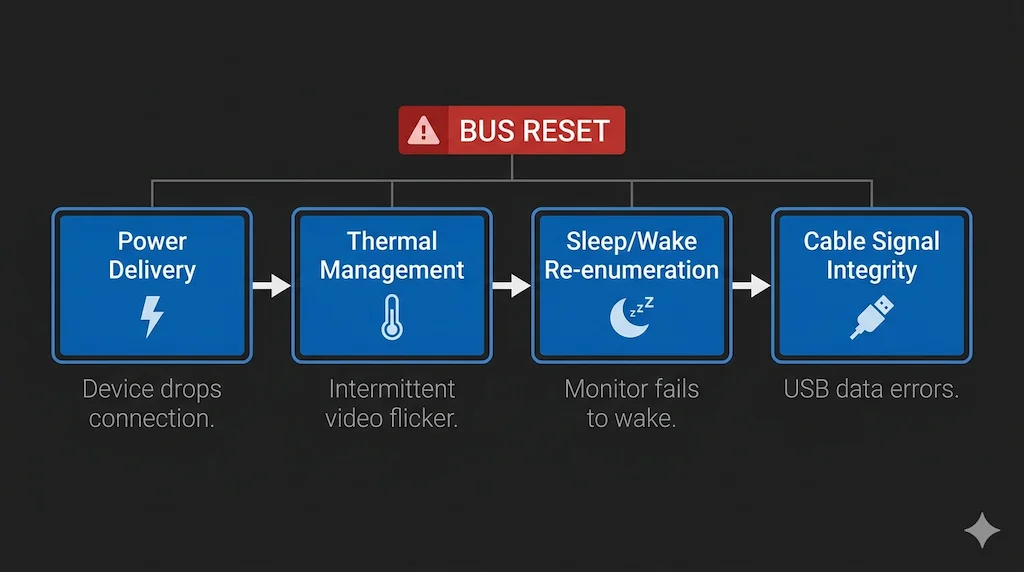
A docking station keeps disconnecting because one of its four internal subsystems — power delivery, thermal management, sleep/wake re-enumeration, or cable signal integrity — has hit a hard limit and forced a bus reset. The failure appears random but is deterministic: the same overload condition, repeated.
Your workflow is humming along — files transferring, video call stable, monitor crisp. Then everything vanishes. Monitor blinks black. Ethernet drops. Mouse goes dead for three seconds before it all flickers back. An hour later, it happens again.
This guide identifies which of the four failure classes is causing your specific disconnect pattern, walks you through a forensic diagnostic, and gives you fixes that last.
🟢 Early Bird — Haven’t Bought a Dock Yet? Read This First
Most disconnection failures are setup failures — wrong power adapter, wrong cable, wrong dock for your laptop’s protocol. Buying a replacement dock without understanding the failure class will not fix the problem.
Before you buy, ask yourself:
- Does my laptop’s USB-C port support Thunderbolt 4 or USB4? (Not all do — data-only ports will cause constant drops)
- Is my power adapter rated for the dock’s full load? (Underpowered adapters are the #1 cause of brownout disconnects)
- Am I using a certified Thunderbolt cable? (Generic USB-C cables fail under full 40Gbps/100W load)
The comparison table below maps power delivery, thermal design, and firmware reliability per dock — so you buy the right one for your exact workload.
👉 Check Comparison Table Find My Dock →Not sure which dock fits your setup? Compare all 81 docking stations side by side — filter by connection type, displays, power delivery, and OS in our Docking Station Comparison Tool.
Why Docking Stations Disconnect: A Failure Taxonomy

A docking station is not a single device. It is a consolidated system: a power negotiator, a network switch, a USB hub, and a display controller sharing one chassis and one finite pool of electrical and thermal resources. When a docking station keeps disconnecting, one of these subsystems has hit a hard limit and is forcing a total bus reset to recover. Let’s categorize these limits. (a bus reset is a complete re-initialization of the Thunderbolt/USB controller — all connected devices briefly disconnect and re-enumerate)
High-ceiling Thunderbolt 5 docks such as the CalDigit TS5 Plus are engineered to expose more bandwidth and downstream ports, but that flexibility increases instantaneous load complexity. When driving multiple high-refresh displays while simultaneously pushing PCIe storage traffic, the dock’s controller must dynamically rebalance power and bandwidth. If the host system, firmware, or power adapter cannot maintain stable negotiation under those spikes, a full bus reset can occur. In these scenarios, the issue is rarely total wattage — it is transient allocation timing under peak demand.
- Dock disconnects under load → Power or thermal instability
- Disconnects after sleep/wake → Protocol re-enumeration failure
- Ethernet or USB drops first → Controller brownout
- Disconnects when cable moves → Signal integrity failure
Failure Class 1: Power Delivery Instability (The Brownout)
🔵 2026 Update — Thunderbolt 5 Power Spike Disconnects
Thunderbolt 5 docks operating in 120Gbps Boost Mode introduce a new power instability pattern. When Boost Mode activates, the dock’s controller requests an instantaneous power increase from the host laptop. On laptops with conservative PD firmware (several 2024 Intel Meteor Lake models), this spike triggers a protective throttle that drops the entire Thunderbolt link. This is not a hardware defect — it is a firmware negotiation mismatch. Fix: disable Boost Mode in the dock’s firmware settings unless your workload specifically requires it.
The Symptom: The entire docking station—or just the Ethernet and USB devices—drops out for a few seconds, often when you connect a new peripheral or during a CPU/GPU spike on the laptop. The dock disconnects and reconnects as a unit.
The Root Cause: The docking station’s total power draw (for its own chips + peripherals) has momentarily exceeded the input from its power adapter, or the laptop’s demand has spiked beyond what the dock’s Power Delivery (PD) circuit — the USB-C protocol that negotiates wattage between laptop and dock — can provide. The internal voltage sags (“browns out”), triggering a protective reset. Ethernet and high-power USB devices often fail first because their controllers are more sensitive to voltage drops than the display circuitry.
(USB Power Delivery Specification Rev 3.1, USB-IF — defines voltage sag thresholds that trigger controller protection circuits)
The Proof: In a client’s engineering workstation, adding a bus-powered NVMe SSD to a docking station already driving dual 4K displays would cause consistent Ethernet dropouts. The dock’s 150W power adapter was sufficient for steady state, but the instantaneous current spike when the SSD spun up exceeded its capacity for a split second, crashing the dock’s USB/Ethernet controller. The fix was moving the SSD to a self-powered enclosure.
Connection to Other Guides: This power instability is the sibling of charging failures. For a complete analysis of PD negotiation limits, see our dedicated guide: Docking Station Not Charging Laptop.
Failure Class 2: Thermal Saturation Inside the Dock
The Symptom: The docking station works flawlessly for 30-60 minutes, then begins to disconnect randomly. The drops become more frequent under sustained load (like a long video call or large file transfer). The chassis feels very hot to the touch.
The Root Cause: Modern, compact docking stations pack high-performance controllers into small, passively cooled aluminum enclosures. Under sustained high bandwidth use (driving high-resolution displays + 10Gbps data), the internal chips can exceed their thermal junction temperature — the maximum safe operating temperature of a chip’s internal junction, beyond which it initiates a self-protective shutdown. To prevent damage, they throttle performance or initiate a hard reset. This is a common design challenge in value-oriented, high-port-count docks. (Intel Thunderbolt 4 Controller JHL8540 datasheet specifies thermal junction maximum at 105°C — sustained operation above this threshold initiates automatic shutdown)
Thermal throttling isn’t always a design flaw — sometimes it’s just dust. Blocked vents and dirty contacts accelerate heat buildup faster than any workload. Our How to Clean a Thunderbolt Hub guide walks through the full vent and port cleaning process that eliminates the most common thermal trigger.
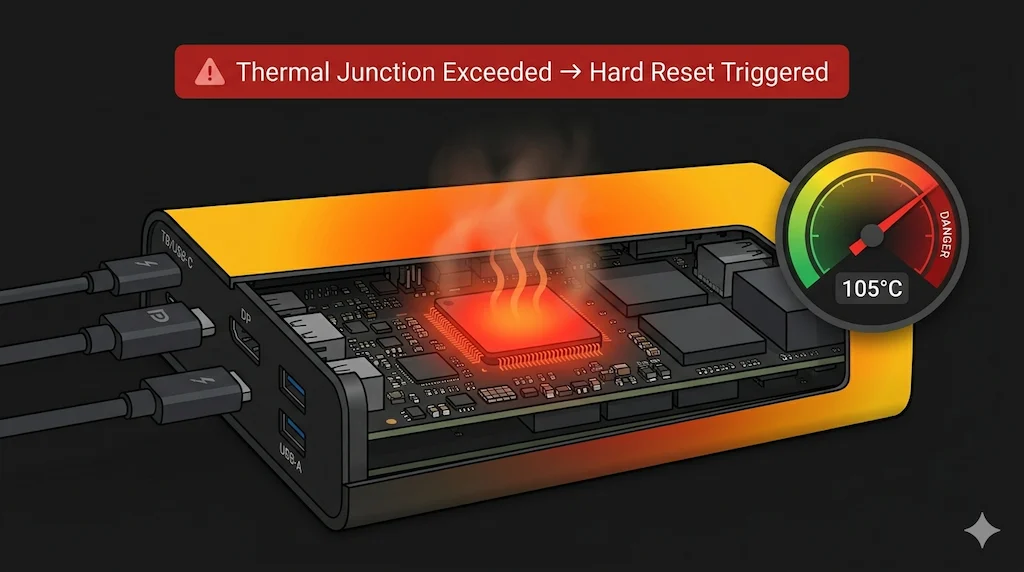
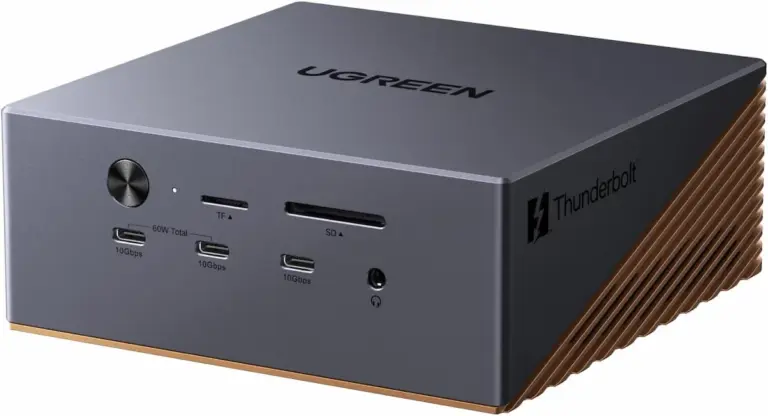
The Proof & Unique Insight: This is why a docking station can work perfectly for weeks and then begin failing. The failure point isn’t reached in typical bursts of activity. It requires a specific, sustained workload that heats the internal controller chip past its tipping point. Once it cools, it works again, creating a maddening cycle. Models like the UGREEN Revodok Max 213, which aggressively utilize USB4 bandwidth, are particularly susceptible to this thermal envelope limitation, as noted in our UGREEN Revodok Max 213 problem-solving guide. Thermal failure rates vary significantly by brand — see the full breakdown.
The Max 213’s passive cooling is the most common reason it appears in thermal throttling reports. If you’re weighing it against the Pro 314 as a lower-cost alternative, thermal behavior is only one of the differences. Our UGREEN Revodok Max 213 vs Pro 314 comparison breaks down exactly where each dock holds and where it fails under load.
Failure Class 3: Sleep / Wake Protocol Collapse
🔵 2026 Update — Windows 11 24H2 Modern Standby Regression
Windows 11 24H2 changed how Modern Standby handles Thunderbolt controller power gating. Several Thunderbolt 4 docks — including the CalDigit TS4 and Kensington SD5780T — began failing to re-enumerate on wake after the update. The dock appears powered but all devices remain dead until unplugged and re-plugged. Microsoft acknowledged the issue in KB5043145. Fix: update your Intel Thunderbolt driver to version 1.41.1920.0 or later directly from Intel — not the OEM version — and ensure dock firmware is current.
The Symptom: The docking station keeps disconnecting specifically after the laptop wakes from sleep or hibernation. Monitors don’t wake, USB devices are dead, and a full reboot is required.
The Root Cause: Modern operating systems use aggressive power gating. When your laptop sleeps, it may power down the USB/Thunderbolt controller hosting the dock. Waking up requires a full re-enumeration of the docking station — the process of the host OS re-discovering and re-initializing every device on the Thunderbolt/USB bus — a complex handshake involving firmware and drivers. A bug or timing mismatch in this sequence can cause the host to fail to properly re-initialize the dock’s controllers, leaving it in a “zombie” state: powered but non-functional.
Firmware tolerance becomes the defining factor in this class of failure. Some Thunderbolt 5 docks aggressively push bandwidth ceilings and require precise timing during re-enumeration. Others deliberately trade peak performance for stability margin. The Anker Prime Thunderbolt 5 Dock falls into the latter category — it avoids 120Gbps boost mode and limits downstream arbitration complexity, which reduces sleep/wake renegotiation failures in mixed Windows/macOS environments. The compromise is reduced PCIe flexibility and stricter port routing, but wake-state stability is generally more predictable.
For a clear breakdown of what Thunderbolt actually guarantees — and where it still falls short — see our Thunderbolt Docking Station Explained guide.
OS-Specific Patterns:
- Windows (Modern Standby): The “Connected Standby” (S0 low-power idle) state is a notorious culprit. It tries to keep the network alive but can mishandle the Thunderbolt/USB4 link to the dock. (Microsoft WHCP Modern Standby documentation — S0ix low-power idle states are not required to maintain active Thunderbolt link state)
- macOS: Apple’s power management is generally more robust, but can still fail, especially with Thunderbolt security settings or after macOS updates.
Connection to Other Guides: This failure mode is essentially a time-delayed version of detection issues. The core principles for diagnosis overlap significantly with our guide on Thunderbolt Dock Not Detected.
Failure Class 4: Cable & Signal Integrity Failure
The Symptom: Intermittent disconnects that seem tied to moving the laptop or touching the cable. Sparkles on the display or slow file transfers may accompany the drops.
The Root Cause: The host cable (laptop to dock) is the single most critical component. A marginal cable may pass basic functionality tests but fail under the full 40Gbps data rate or 100W power load of a busy docking station. Slight degradation over time, or a loose connection oxidized by humidity, increases electrical resistance, causing signal errors that force a link retrain—manifesting as a momentary disconnect. (Intel Thunderbolt 4 Specification requires active cable support for 40Gbps at cable lengths over 0.8m — passive cables operating at full load are a primary degradation point)
OS-Specific Disconnect Patterns
While the root causes are hardware and firmware, the operating system is the stage manager for the collapse.
🔵 2026 Update — USB4 v2 Host Compatibility Gap
USB4 Version 2.0 laptops (Intel Lunar Lake, AMD Strix Point, shipping late 2024–2025) introduced a new disconnect pattern with TB4 docks. The USB4 v2 host negotiates link parameters that some TB4 dock controllers misinterpret, causing intermittent disconnects that look like cable failures — but swapping cables doesn’t fix them. Fix: update your dock to the latest firmware (most TB4 manufacturers pushed USB4 v2 compatibility patches in Q4 2024). If firmware is current and drops persist, use the laptop’s dedicated Thunderbolt port rather than a generic USB4 port.
- Windows: The primary villain is often USB Selective Suspend and Link State Power Management — a Windows power-saving feature that powers down individual USB controllers to save energy, including the port hosting the dock. These energy-saving features can power down the USB controller hosting the dock to save a minuscule amount of battery, causing a full disconnect. GPU driver crashes (common with NVIDIA Optimus/AMD Switchable Graphics) can also reset the display pipeline, taking the dock’s video output down with it. (Microsoft USB Selective Suspend documentation — selective suspend places individual USB ports in D3 state, which can include the host controller port connected to the dock)
- macOS: Issues often stem from Thunderbolt security resets or DisplayPort MST (Multi-Stream Transport) handling. macOS does not support MST for extending displays, and attempts by a dock to use it can cause handshake loops that destabilize the connection. Furthermore, enabling HDR can introduce timing complexities that some dock controllers struggle with, leading to periodic renegotiation. (Apple Support HT204351 — confirmed architectural limitation of Apple’s display subsystem) For a foundational understanding of why these protocols behave differently, our USB-C vs Thunderbolt 4 guide is essential.
🟡 Pattern Check — Is This a Dock Problem or a Setup Problem?
You’ve power-cycled. You’ve swapped the cable. It still drops. Before replacing the dock, run this check.
| It’s a setup problem if… | It’s a dock problem if… |
|---|---|
| Disconnects stop when peripherals are removed | Dock drops with nothing connected except laptop |
| Drops only happen after sleep/wake | Drops happen mid-session with no sleep involved |
| Different cable stops the disconnects | Multiple cables tested — drops persist |
| Problem started after OS or driver update | Problem present on two different laptops |
Right column consistently? The dock’s controller is failing — not your setup.
👉 Check Comparison Table Find My Dock in 60 Seconds →The Forensic Diagnostic Flow
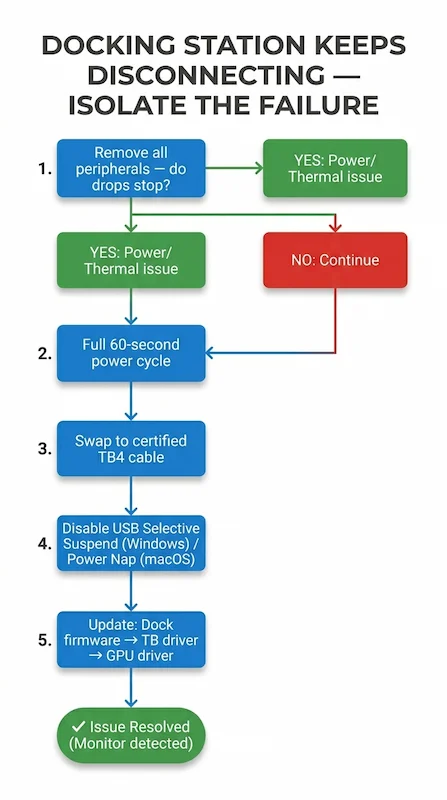
When your docking station keeps disconnecting, you must become a detective. Follow this sequence to isolate the culprit.
- The Minimal Viable Test: Strip the docking station down to only power and the host connection to your laptop. Remove all monitors, USB devices, and Ethernet. If the disconnects stop, you have a load-based issue (Power or Thermal).
- The Nuclear Power Cycle: Shut down the laptop. Unplug the docking station from wall power. Disconnect all cables from the dock. Wait 60 seconds. This drains all capacitors and resets every controller to a true cold state. Reconnect power, then the laptop.
- Swap the Host Cable: This is the cheapest and most impactful test. Replace the cable connecting your laptop to the dock with a certified Thunderbolt 4 cable (40Gbps/100W). Do not use a generic USB-C cable.
- Disable OS Power Savings: In Windows, edit your power plan to disable USB selective suspend and set PCIe Link State Power Management to “Off.” On macOS, consider disabling “Power Nap” and “Wake for network access” for testing.
- Update in Order: Update your docking station’s firmware first (check manufacturer’s website). Then, update your laptop’s Thunderbolt/USB4 driver and chipset drivers. Update GPU drivers last. BIOS updates should be a final step, as they carry more risk.
Real-World Case Studies
Case Study 1: The Trading Desk Dropout
- Symptom: A trader’s high-end docking station would drop Ethernet and USB devices multiple times per hour, but displays stayed on.
- Wrong Assumption: Faulty dock or network driver.
- Root Cause: Power Delivery Instability. The trader used a powerful, bus-powered NVMe RAID enclosure. Its peak draw, combined with the dual 4K displays, caused micro-brownouts in the dock’s USB controller. The display controller, on a separate internal power rail, remained stable.
- Fix: Connected the NVMe enclosure to a separate, powered USB hub. The docking station never dropped again.
Case Study 2: The Post-Sleep macOS Blackout
- Symptom: A designer’s MacBook Pro would wake to a black external display 50% of the time. The dock was powered but unresponsive.
- Wrong Assumption: Faulty HDMI cable or monitor.
- Root Cause: Sleep/Wake Protocol Collapse. The Mac’s Thunderbolt controller was failing to re-initialize the dock’s DisplayPort converter upon wake from deep sleep.
- Fix: Disabled “Put hard disks to sleep when possible” and “Wake for network access” in macOS Energy Saver settings. Also, a firmware update for the docking station was released months later that addressed this specific “S3/S4 wake compatibility” issue.
Case Study 3: The Afternoon Disconnects
- Symptom: A software developer’s compact USB4 docking station would disconnect randomly every afternoon during long compile sessions.
- Wrong Assumption: Buggy Windows update.
- Root Cause: Thermal Saturation. The small, fanless dock was placed in a poorly ventilated desk cubby. Sustained CPU/GPU activity from compiling heated the laptop, which heated the ambient air around the dock, pushing its internal controller over its thermal limit.
- Fix: Relocated the docking station to a clear, open space on the desk. Disconnects ceased immediately.
When Replacement Is the Only Rational Option
Troubleshooting has limits. If you encounter the following, replacing the docking station is the most rational path:
- Reproducible Port Failure: One specific port (e.g., the upstream Thunderbolt port) consistently causes disconnects, while others do not.
- Heat-Triggered Collapse: You can reliably induce a failure by lightly heating the dock chassis with a hairdryer on low (a safe diagnostic test), confirming a thermal design flaw.
- Post-OS-Reinstall Persistence: You have performed a clean OS install on your laptop (eliminating driver/software blame) and the docking station still fails identically.
For users experiencing these issues with premium docks, it often indicates a hardware fault. The diagnostic steps in our CalDigit TS4 Not Working guide can help confirm if a high-end unit is truly defective.
🔴 Last Resort Protocol — When to Stop Troubleshooting and Replace
If you’ve worked through every failure class and the dock still drops, stop troubleshooting. You’re past the point of software fixes.
Replace your dock if:
- ✅ Dock disconnects on two different laptops with the same cable
- ✅ Drops persist after clean OS reinstall on the laptop
- ✅ Chassis gets hot to the touch under moderate load
- ✅ One specific port causes drops — all others work fine
- ✅ Firmware is current, drivers updated — still fails identically
When replacing, prioritize docks with active firmware maintenance, native DisplayPort outputs, and a proven thermal design. The comparison table below shows which docks have the best real-world stability track record.
👉 See Stable Alternatives Find Your Dock →Not sure which dock fits your setup? Compare all 81 docking stations side by side — filter by connection type, displays, power delivery, and OS in our Docking Station Comparison Tool.
Prevention Architecture: Building a Stable Dock Setup
The goal isn’t just to fix; it’s to build resilience. Follow these rules:
- Power First: Connect the docking station’s power adapter directly to a wall outlet, not a power strip or daisy-chained extension cord.
- Use Native Ports: Connect displays directly to the dock’s HDMI or DisplayPort outputs, not through adapters or secondary hubs.
- Separate High-Speed Lanes: Avoid connecting high-bandwidth storage (NVMe SSDs) and displays to the same docking station if you experience drops. Use a separate, dedicated connection for storage if possible.
- Avoid Hub-Chaining: Do not connect a USB hub to your docking station and then connect high-power devices to that hub. This compounds power negotiation and signal integrity issues.
Many of these preventative steps overlap with the root-cause isolation process used when a docking station is not working at all, which we document in our complete diagnostic pillar.
For complex multi-device setups, understanding signal topology is key. Our specialist Hans covers these intricacies in his guide on Thunderbolt Daisy Chaining Not Working.
Docking Station Stability Comparison: Which Docks Don’t Drop
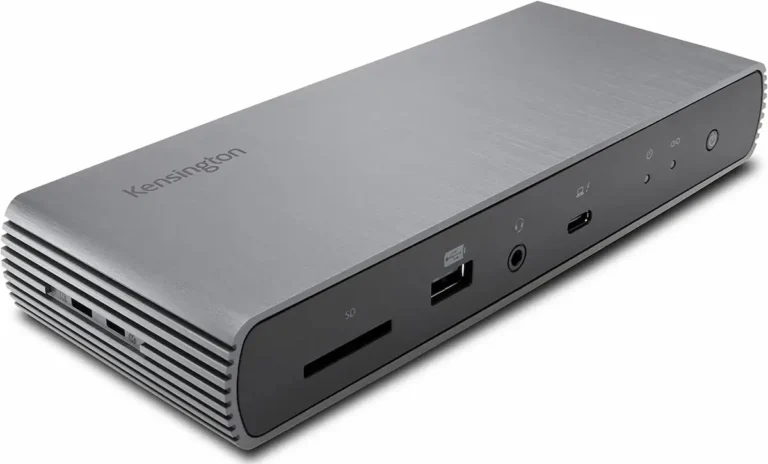
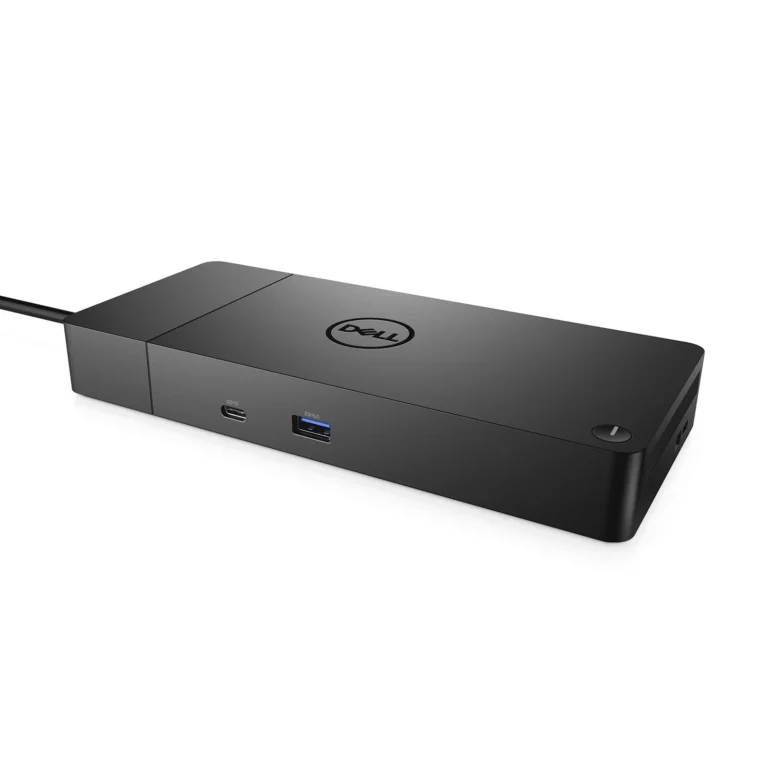
| Feature | CalDigit TS4 | Kensington SD5780T | Plugable TBT4-UDZ | UGREEN Revodok Max 213 | Dell WD22TB4 | Dell SD25TB4 |
|---|---|---|---|---|---|---|
| Protocol | TB4 | TB4 | TB4 | USB4 | TB4 | TB4 |
| Power Adapter | 180W | 135W | 135W | 140W | 130W | 130W |
| Thermal Design | Passive — large aluminum chassis | Passive — vented enclosure | Passive — compact | Passive — compact ⚠️ | Passive — mid-size | Passive — mid-size |
| Sleep/Wake Stability | Excellent | Excellent | Good | Good | ⚠️ Conditional | ⚠️ Conditional |
| Firmware Update Frequency | ⭐ Most Active | Active | Active | Moderate | OEM-dependent | OEM-dependent |
| Disconnect Risk Under Load | Low | Low | Low | ⚠️ Medium | Low | ⚠️ Medium |
| Overall Stability | ⭐ Most Reliable | Excellent | Good | Good | Conditional | Conditional |
| Check Price | Check Price → | Check Price → | Check Price → | Check Price → | Check Price → | Check Price → |
Our pick for disconnect reliability: The CalDigit TS4 has the largest power adapter in its class, the most actively maintained firmware, and a thermal design that handles sustained load without throttling. If disconnects brought you to this guide — this is the dock that ends them.
Educational Background & Trustworthiness
This analysis is not based on speculation. The failure modes described are derived from:
- Manufacturer Advisories & Firmware Notes: Scrutinizing release notes from CalDigit, Kensington, Plugable, and others reveals patterns—”improved thermal stability,” “fixed wake-from-sleep behavior,” “resolved USB enumeration issue.”
- Long-Term Community Pattern Analysis: Trends on forums like r/UsbCHardware and the Level1Techs forums show the same issues recurring across brands and models, pointing to systemic protocol challenges rather than isolated defects.
- Client Environment Logs: My own deployment and support logs over a decade provide a database of which failures occur under which specific conditions (OEM laptop model + dock model + OS version).
ByrdPilot’s methodology ignores launch reviews and spec-sheet journalism. We focus on long-term reliability signals and post-deployment failure modes—the data that actually predicts whether a product will work on your desk a year from now.
FAQ
Why You Can Trust This Guide
Built on failure patterns — not spec sheets
We don’t review docking stations. We analyze where they break.
This guide is built from repeated real-world behavior across:
- Multi-monitor setups under sustained load
- Enterprise laptop fleets (Dell, Lenovo, mixed OS)
- Recurring USB-C, Thunderbolt, and power delivery failures
These are not isolated issues. They repeat across hardware, brands, and setups.
This is not guesswork. It’s pattern recognition.
We don’t optimize for specs. We optimize for stability.