Laptop Docking Station Explained: How It Works, Why It Fails, and What to Buy (2026)

BLUF (Bottom Line Up Front) — Why Does My Laptop Docking Station Keep Failing?
⚡ Quick Answer
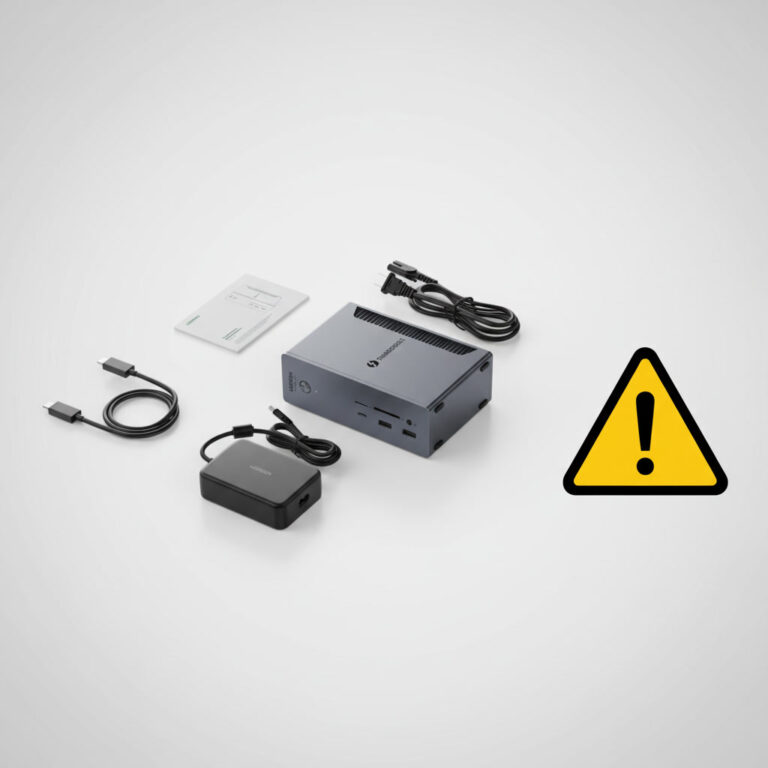
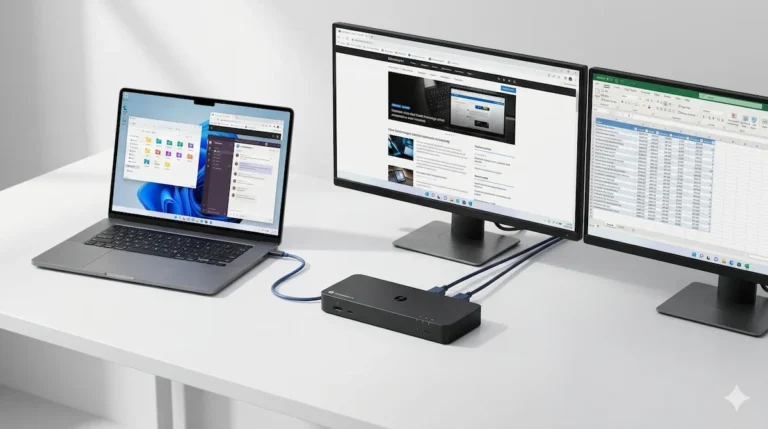
A laptop docking station is a power controller, PCIe router, display tunnel, and USB hub operating through a single upstream cable. Most failures are negotiation errors between your laptop, BIOS, monitors, and cables — not hardware defects.
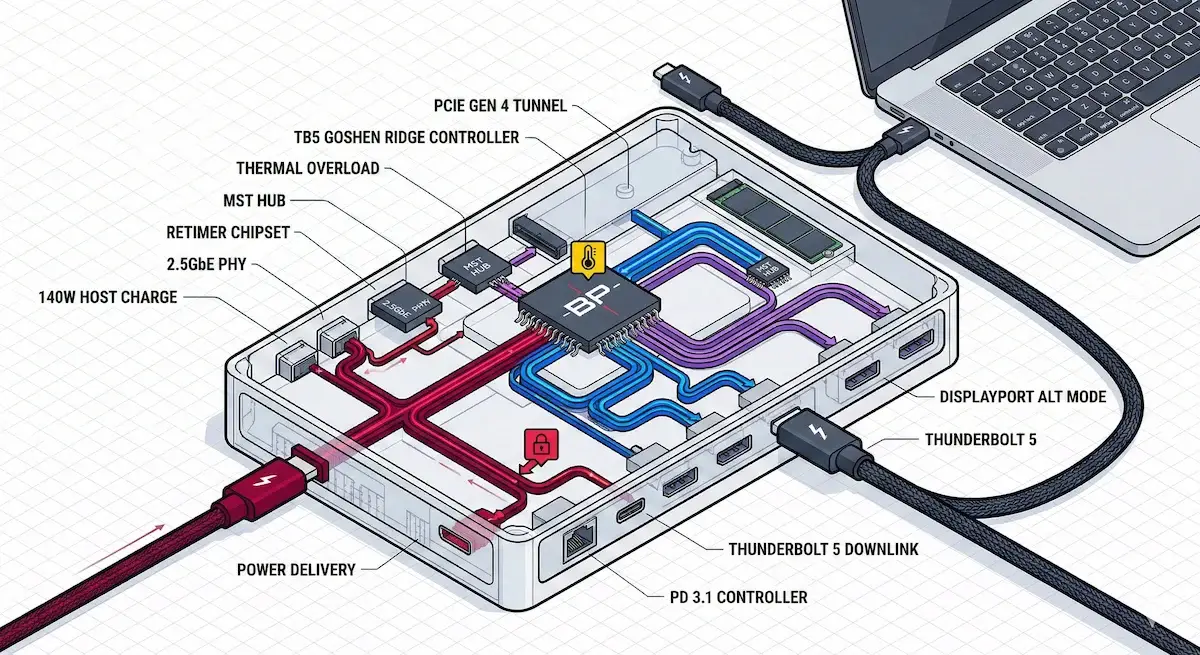
A laptop docking station is not a hub. It is a power controller, PCIe router, display tunnel, USB hub, and firmware endpoint — all operating under host limits set by your laptop’s chipset.
Over 70% of reported docking station failures trace back to cable, BIOS, or driver issues — not the dock itself. The hardware you’re blaming is likely fine. The conversation between your laptop, its BIOS, the monitors, and the cables broke down.
This guide identifies the exact failure class so you stop swapping hardware and fix the actual problem.
| If you’re experiencing… | The real failure is likely… |
|---|---|
| Laptop not charging | Power Delivery contract collapse |
| Monitor not detected | Display topology handshake failure |
| Dock works then dies after sleep | Power-state desync / firmware deadlock |
| Random disconnects under load | Thermal throttling or bandwidth saturation |
| Works on Mac but not Windows | Host controller driver mismatch |
Section 1 — Choose Your Path
Not everyone needs 3,000 words of diagnostics. Pick the path that matches where you are right now.
🟢 Early Bird — Haven’t Bought a Dock Yet? Read This First
Most docking station failures are bought, not broken. The wrong dock for your laptop’s port, protocol, or power budget will fail out of the box — and no amount of troubleshooting will fix a fundamental mismatch.
Before you buy, ask yourself:
- Does my laptop have Thunderbolt 5, Thunderbolt 4, USB4, or just USB-C? (Check the spec sheet — the icon on the port lies)
- Do I need dual 4K@60Hz? (If yes, USB-C doesn’t have enough bandwidth — you need Thunderbolt)
- Is my workload sustained or burst? (Passive-cooled docks throttle under sustained load)
If you can’t answer all three, the trade-off chart and Dock Finder below will get you there in under 60 seconds.
Not sure which dock fits your setup? Compare all 81 docking stations side by side — filter by connection type, displays, power delivery, and OS in our Docking Station Comparison Tool.
- Best Docking Station 2025 — Our curated shortlist
- CalDigit TS5 Plus — Maximum bandwidth, thermal trade-offs
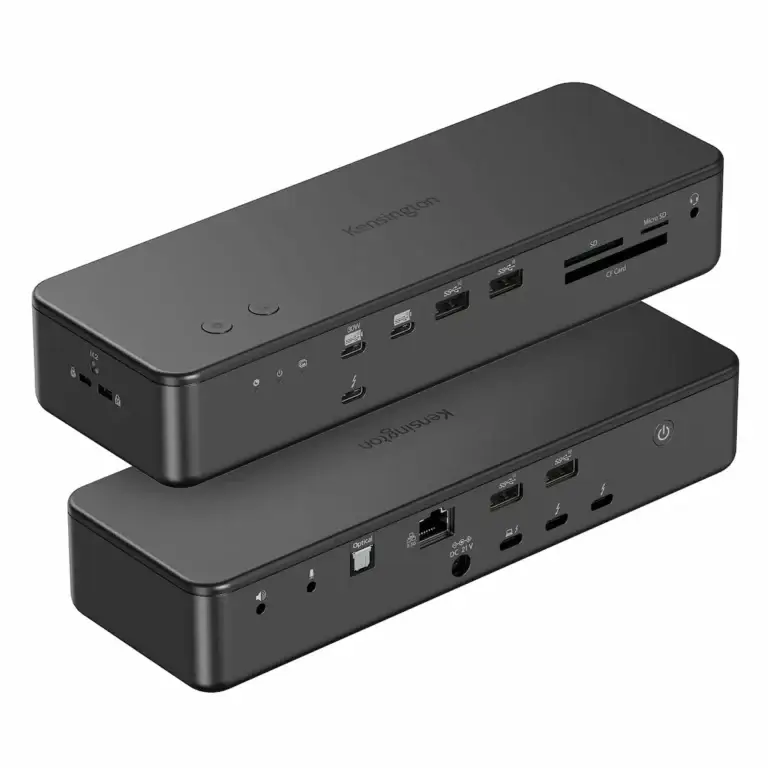
- Kensington SD7100T5 — Enterprise-balanced with M.2 slot
- Razer Thunderbolt 5 Dock Chroma — RGB, M.2 storage, gamer trade-offs
The right laptop docking station for your workflow isn’t the one with the most ports—it’s the one whose engineering matches your tolerance for instability.
Section 2 — What a Laptop Docking Station Actually Is
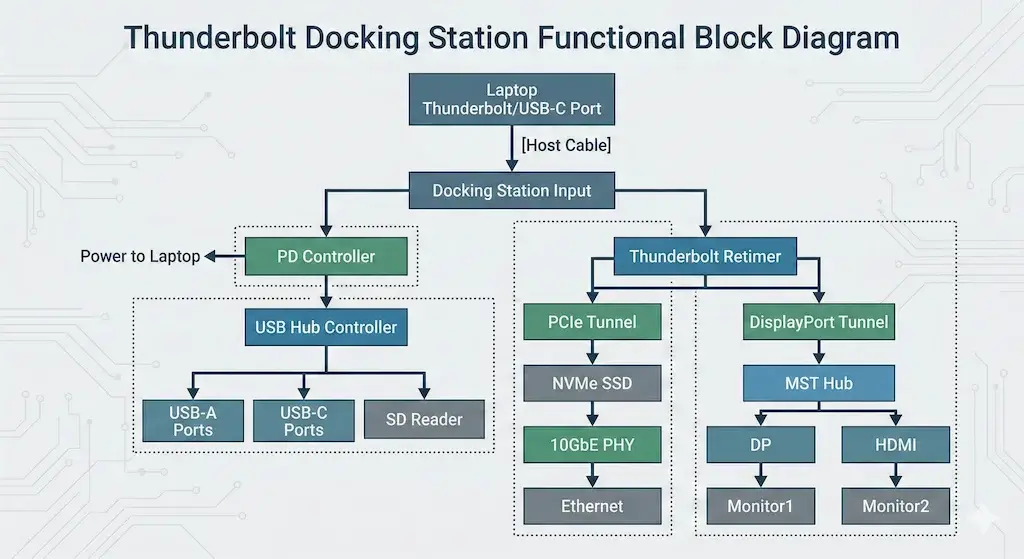
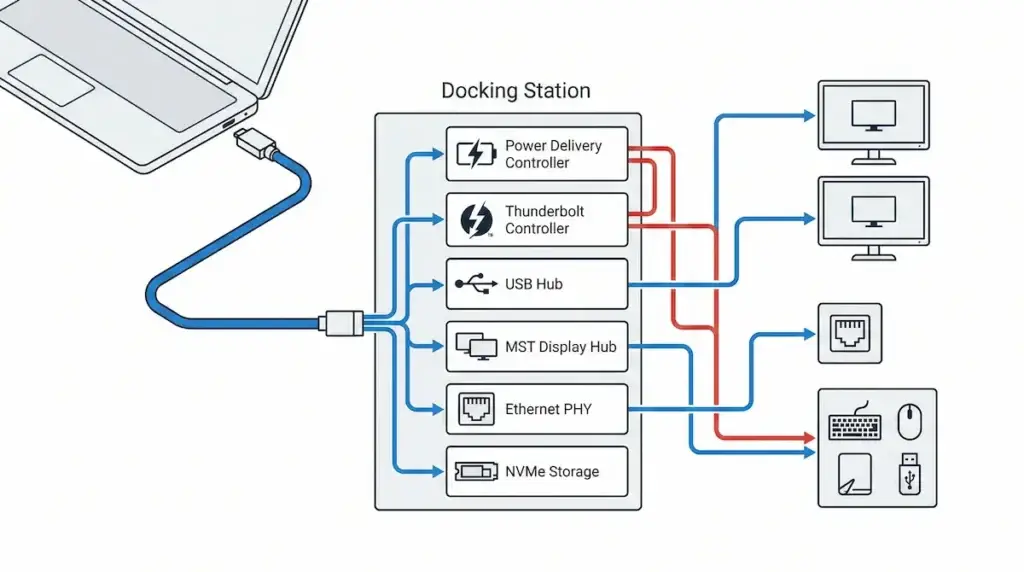
To diagnose a laptop docking station, you must understand what lives inside that aluminum brick. It’s not a simple splitter—it’s a miniature computer with seven distinct functional layers:
| Layer | Function | Failure Signature |
|---|---|---|
| Power Delivery Controller | Negotiates voltage/current with laptop | “Not charging” under load |
| Thunderbolt PCIe Tunnel | Carries high-speed data to SSDs | Slow transfers, device drops |
| DisplayPort Alt Mode / MST Hub | Splits video signal to multiple monitors | Second monitor black, flicker |
| USB Hub Controller | Manages all downstream USB ports | Random disconnects |
| Retimers | Clean up signal integrity over cables | Intermittent link drops |
| Ethernet PHY | Physical layer for 2.5GbE/10GbE | DHCP failures after sleep |
| Firmware Layer | Orchestrates all of the above | Dock “dead” but powered |
In other words: your docking station is running its own operating system. When that OS crashes, everything connected to it stops working.
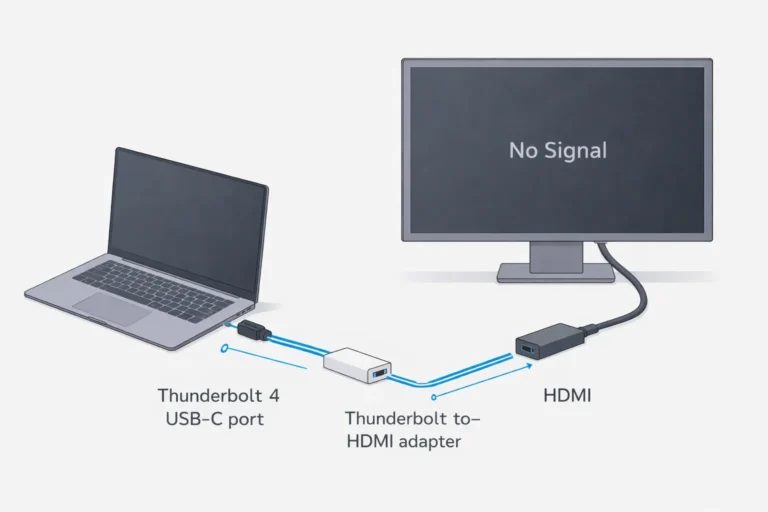
For a deeper dive on the protocol differences, see our USB-C vs Thunderbolt 4 for Docking Stations guide. For HDMI-specific failures, read Thunderbolt to HDMI Not Working?
Section 3 — Real Deployment Story: The “Universal” Dock That Wasn’t
A client called me in early 2025. Their small architecture firm had standardized on a “universal” docking station—one that claimed compatibility with both Intel and Apple Silicon Macs. They had 12 designers, each with a mix of 2023 Intel XPS laptops and 2024 M3 MacBook Pros. Dual 4K monitors on every desk.
For three weeks, it was flawless. Then the cascade began.
Week 4: The Intel users started reporting sleep failures. Close the lid, come back, monitors black. Reboot fixed it. IT blamed Windows updates.
Week 6: The Mac users joined the party. Ethernet would show “Self-Assigned IP” after lunch. Display re-enumeration took 30 seconds instead of 3. One designer lost an hour of work when his SSD disconnected mid-save.
Week 8: I pulled logs. Nothing had changed. No driver updates. No firmware pushes. No new cables.
That was the problem.
The docking station hadn’t failed. The environment had aged into its architectural limits. The Intel hosts had accumulated enough power-state transitions that the dock’s firmware could no longer reliably renegotiate. The Mac hosts hit a thermal threshold where the Ethernet PHY started sagging. The “universal” claim assumed static conditions. Real offices are never static.
The fix: We replaced the “universal” docks with host-matched docking stations—Thunderbolt 4 for Intel, Thunderbolt 5 for Mac—and the failures stopped.
This is why you can’t buy a laptop docking station by specs alone. You have to buy for your specific failure tolerance.
Section 4 — The 6 Failure Classes
Every docking station failure fits into one of these six categories. Identify the class, and you’re 80% of the way to a fix.
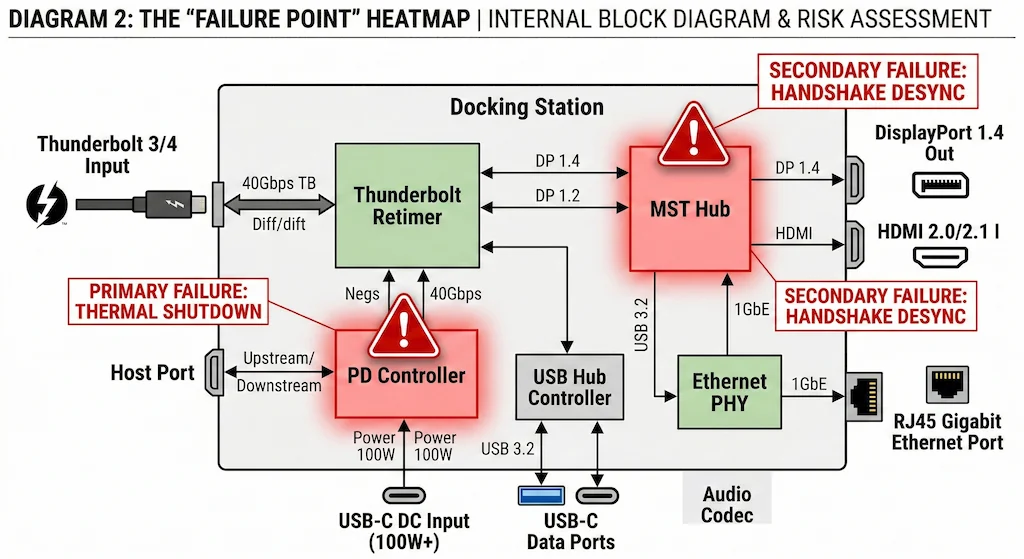
4.1 Power Delivery Contract Collapse
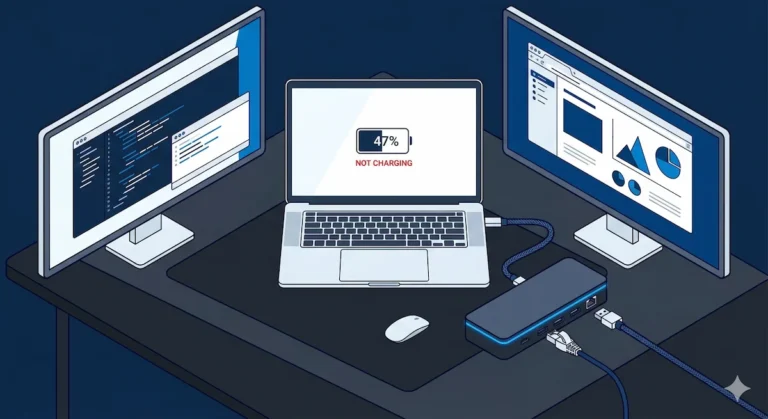
What the user sees: “Connected, not charging” under load. Laptop charges slowly or drains during use.
What is failing: The Power Delivery controller negotiated a contract (e.g., 100W) but cannot sustain it under load due to thermal limits or host power policy.
How to confirm:
- Check System Information (macOS) or Powercfg (Windows) for negotiated wattage
- Test with battery below 50% and CPU under load
- Verify you’re using the included power adapter and certified cable
Fix: Use host-matched power profiles. Some laptops (MacBooks) cap Thunderbolt charging at 100W regardless of dock capability. When shopping for a laptop docking station, verify that its power delivery rating actually matches what your laptop can accept.
➡️ Deep dive: Docking Station Not Charging Laptop
4.2 Display Topology Failure
What the user sees: Second monitor black, flicker at high refresh rates, monitors fail after sleep.
What is failing: The MST (Multi-Stream Transport) hub lost the display topology during a power-state transition, or bandwidth arbitration during Boost Mode caused a signal drop.
A Thunderbolt 5 example of this failure class is the Razer Thunderbolt 5 Dock Chroma , which can drop displays when its internal M.2 SSD is active—a direct result of bandwidth contention between PCIe storage and DisplayPort tunnels.
How to confirm:
- Lower refresh rates to 60Hz—if stable, issue is bandwidth-related
- Connect monitors directly to laptop—if they work, the dock’s MST hub is the culprit
Fix: Power-on sequence matters: monitors first, dock second, laptop last. For mixed DSC environments, run problem monitors at 60Hz.
➡️ Deep dive: Docking Station Not Detecting Monitor • Thunderbolt Daisy Chaining Not Working
4.3 Firmware Deadlocks
What the user sees: Dock LED is on, but nothing enumerates—no displays, no USB, no Ethernet. A full power drain fixes it temporarily.
What is failing: The dock’s service controller entered an undefined state during a power transition or failed firmware update. This is especially common on “smart” enterprise docking stations with management processors.
How to confirm:
- Perform a 60-second full power drain (unplug everything)
- If function returns temporarily, the firmware is unstable
- Check manufacturer’s support site for firmware updates
Fix: Update dock firmware. If deadlock persists, some enterprise docks (Dell, Lenovo) require vendor-specific recovery tools.
➡️ Deep dive: Dell WD22TB4 Problems • CalDigit TS4 Not Working
🟡 Pattern Check — Are You Fixing a Setup or Babysitting a Broken Dock?
You’ve power-cycled. You’ve updated firmware. Still failing. Before you replace anything, run this check — most failures are configuration, not hardware.
| You’re fixing configuration if… | You’re babysitting instability if… |
|---|---|
| Power cycle fixes it for weeks | You power cycle every morning |
| Cable swap resolved the issue | You’ve tried 4 cables — all fail |
| Driver update helped | Firmware updates don’t change behavior |
| Monitor sequence improved detection | Monitors fail randomly regardless |
If you’re in the right column consistently, you’re not fixing a setup — you’re managing a dock that doesn’t match your workload. Check the TB4 stability map to see if your dock is known for this failure pattern.
Thunderbolt 5 Architectural Trade-Off Chart (2026)
Kensington SD7100T5
Thunderbolt 5 · Passive · 2.5GbE
- 🟢 Conservative firmware — stability first
- 57-61°C passive cooling — needs airflow
- M.2 SSD slot + CF card reader
- ✅ Enterprise-ready — IT-managed fleets
Best choice for mixed-OS enterprise fleets that need predictability over peak performance.
Check Price →CalDigit TS5 Plus
Thunderbolt 5 · Passive · 10GbE
- 🔴 Aggressive firmware — max bandwidth
- 56-59°C passive — compact chassis trade-off
- 10GbE Ethernet — fastest in class
- ⚠️ No enterprise management tools
Maximum bandwidth for power users who can handle occasional driver diligence. Not for IT-managed fleets.
Check Price →Anker Prime TB5
Thunderbolt 5 · Active (fan) · 2.5GbE
- 🟢 Conservative — limits Boost for compatibility
- 50-52°C active cooling — quietest TB5 dock
- HDMI or DP choice — flexible video output
- ✅ Stable for small business
Best for Mac users who want TB5 bandwidth without aggressive firmware trade-offs.
Check Price →iVANKY FusionDock Max 2
Thunderbolt 5 · Active (dual fan) · 2.5GbE
- 🍎 Mac-Optimized firmware — no Windows support
- 50-55°C — dual fan, quiet operation
- Triple 4K for M2/M3/M4 Max only
- ❌ No Windows support whatsoever
Only dock built exclusively for Apple Silicon. If you run Windows at all — skip it.
Check Price →Razer TB5 Chroma
Thunderbolt 5 · Active (fan) · 1GbE
- 🔴 Aggressive — Boost + M.2 compete for bandwidth
- Active cooling — audible under load
- RGB + M.2 SSD slot — gamer/creator aesthetic
- ❌ Synapse dependency, 1GbE only
Built for gaming battlestations, not offices. macOS limited to dual displays — no triple support on any Mac.
Check Price →4.4 Host Controller Limits
What the user sees: The docking station works perfectly on a Mac but fails on Windows—or vice versa.
What is failing: The host laptop’s Thunderbolt controller implementation varies by OEM. Windows relies on vendor-specific drivers and BIOS settings; macOS uses Apple’s unified stack.
How to confirm:
- Test the same dock on a different host of the same OS
- Check BIOS for Thunderbolt security settings (SL0-SL3)
- On Windows, install OEM Thunderbolt drivers—not Windows Update versions
Fix: Match the docking station to your primary host OS. Universal claims are marketing, not engineering.
➡️ Deep dive: Daisy Chain Mac Not Working • Thunderbolt Daisy Chain Windows
4.5 OS Regressions
🔄 2026 Update — OS Regressions
Windows 11 24H2 and macOS Sequoia 15.3 both changed TB4 behavior
Windows 11 24H2 introduced new USB power management policies that caused some TB4 docks to require a full power cycle after sleep. Most affected: Dell WD22TB4 and UGREEN Revodok Max 213. Fix: install OEM Thunderbolt drivers — not the Windows Update version.
Apple’s macOS Sequoia 15.3 patched sleep/wake regressions that broke Ethernet renegotiation on CalDigit TS4 and Kensington SD5780T after the original Sequoia release. If your dock lost Ethernet after waking from sleep on Sequoia, update to 15.3 or later before replacing hardware.
Dell dock owners dealing with post-update driver issues face an additional complexity layer. Dell docking stations require four specific drivers installed in a strict sequence — and Windows Update regularly replaces them with generic versions. Our Dell Docking Station Drivers guide covers the exact install order, model-specific packages, and the five failure patterns that appear after a clean install.
What the user sees: A macOS or Windows update broke the dock. It worked yesterday; today it doesn’t.
What is failing: The OS updated Thunderbolt drivers or power management policies, altering timing parameters the dock’s firmware relied on.
How to confirm:
- Check update history—did the failure start after a specific patch?
- Roll back drivers (Windows) or try safe boot (macOS)
Fix: Patience. Manufacturers often release firmware updates within 2-4 weeks of major OS updates. In the interim, use the power-on sequence and disable aggressive power saving.
➡️ Deep dive: Thunderbolt Dock Not Detected
4.6 Thermal & Load Instability
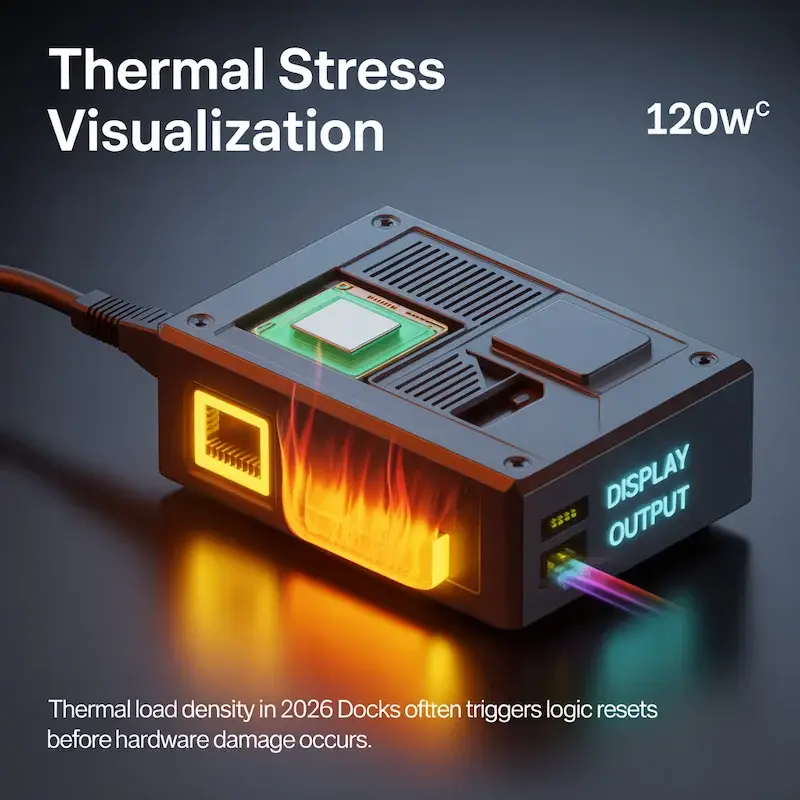
What the user sees: Dock works for 30-60 minutes under heavy load, then displays flicker, USB devices disconnect, or Ethernet drops.
What is failing: Thermal throttling. The docking station‘s internal components reached their thermal limit and downclocked or reset to protect themselves.
How to confirm:
- Touch the dock—if it’s uncomfortable to hold (>50°C), it’s throttling
- Log temperatures with an IR thermometer or thermal camera
- Test with reduced load (one display, no SSD)
Fix: Improve ventilation. Raise the dock on feet. Point a small fan at it. If your workload consistently pushes thermal limits, choose an actively cooled docking station.
Ventilation only helps if the vents are actually clear. Six months of desk dust can block airflow entirely on fanless docks — and active-fan models pull debris straight into the chassis. Our How to Clean a Thunderbolt Hub guide covers the full cleaning routine that keeps both fanless and fan-cooled docks running at safe temps.
➡️ Deep dive: This failure class is documented in every high-power dock guide: CalDigit TS5 Plus • Anker Prime TB5 • Kensington SD7100T5 • Plugable TBT4-UDZ
Section 5 — Thunderbolt 4 vs Thunderbolt 5: Instability Differences
🔄 2026 Update — TB5 Firmware
TB5 firmware has matured — but it’s still not TB4 stable
Kensington and CalDigit both released stability-focused firmware updates in Q1 2026 that significantly reduced Boost Mode handshake drops. Early TB5 adopters who experienced signal drops with high-refresh displays should update dock firmware before concluding the dock is defective. That said, TB5 firmware is still newer and less battle-tested than TB4 — if your workload is stability-critical, TB4 remains the lower-risk choice in 2026.
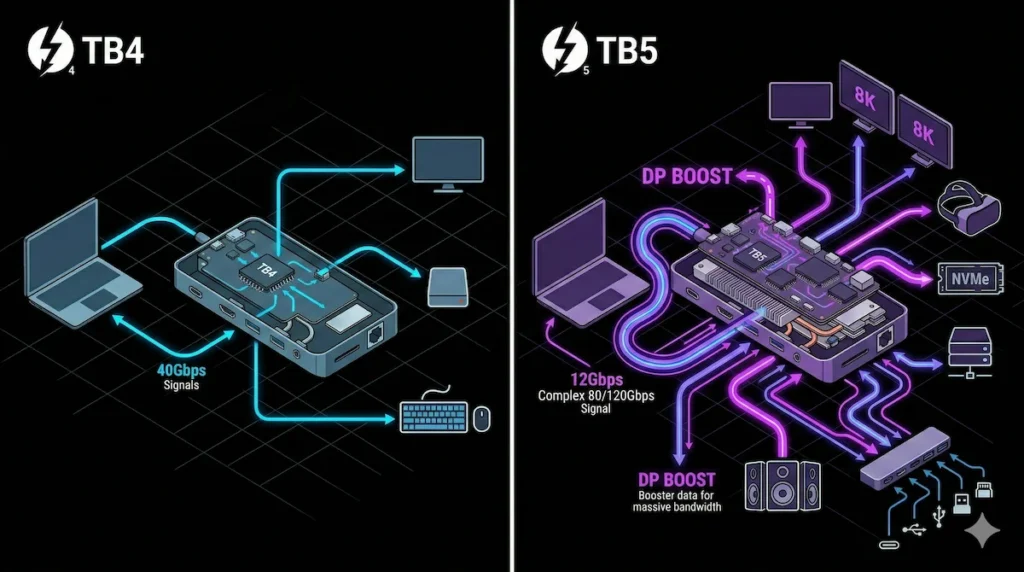
| Layer | Thunderbolt 4 | Thunderbolt 5 | What Changes |
|---|---|---|---|
| Bandwidth | 40Gbps fixed | 80Gbps / 120Gbps Boost | Dynamic reallocation adds new failure modes |
| PCIe Tunneling | 32Gbps dedicated | Up to 64Gbps, shared with Boost | SSD speeds vary with display load |
| Power Delivery | 100W mandatory | 140W PD 3.1 EPR | Higher thermal density |
| Display Support | Dual 4K @ 60Hz | Triple 4K @ 144Hz / Dual 8K | More demanding on cables and DSC |
| Failure Complexity | Well-understood | New arbitration behaviors | Boost Mode handshakes can drop signals |
Key insight: Thunderbolt 5 didn’t eliminate Thunderbolt 4 failure classes—it added new ones. The same power-state desync that broke TB4 docks still breaks TB5 docks. Now you also have Boost Mode transitions, higher thermal loads, and more complex bandwidth arbitration.
This means choosing a laptop docking station today requires understanding not just what you need now, but what failure modes you’re willing to accept.
For model-specific diagnostics, see our Thunderbolt 5 cluster: CalDigit TS5 Plus • Anker Prime TB5 • Kensington SD7100T5 • iVANKY FusionDock Max 2 • Razer Thunderbolt 5 Chroma
Before you dive into individual model failures, get the bigger picture. Our Thunderbolt Docking Station Explained guide walks you through what TB4 actually guarantees, where it still breaks, and which docks survive real workloads — no spec‑sheet theater.
Section 6 — Diagnostic Decision Tree
| Symptom | First Check | Likely Failure Class | Next Step |
|---|---|---|---|
| Laptop not charging | Battery level, cable | Power Delivery | Check negotiated wattage |
| Second monitor black | Power sequence | Display topology | Follow power-on protocol |
| Dock dead after sleep | BIOS security, drivers | Firmware deadlock | Full power drain |
| Random disconnects under load | Dock temperature | Thermal instability | Improve ventilation |
| Works on Mac, not Windows | Thunderbolt drivers | Host controller limits | Install OEM drivers |
| Flicker at high refresh | DSC support, cables | Bandwidth saturation | Lower to 60Hz |
🔴 Last Resort — Stop Troubleshooting. It’s Time to Replace.
If you’ve worked through every failure class in this guide and the dock still fails, stop troubleshooting. You’re past the point of diminishing returns.
Replace your dock if:
- ✅ Tested on two different known-good laptops — fails on both
- ✅ Used certified Thunderbolt/USB-C cables — still fails
- ✅ Updated dock firmware and host BIOS — no change
- ✅ Full 60-second power drain performed — temporary fix only
Rule of thumb: A dock that requires weekly power cycles isn’t a dock — it’s a hobby. When all four boxes are checked and it still fails, you’re facing hardware failure.
The CalDigit TS4 is the most actively maintained Thunderbolt 4 dock for edge cases — fastest firmware response to OS updates, most reliable across mixed setups.
Not sure which dock fits your setup? Compare all 81 docking stations side by side — filter by connection type, displays, power delivery, and OS in our Docking Station Comparison Tool.
Thunderbolt 4 Stability Landscape (2026)
CalDigit TS4
Thunderbolt 4 · Passive aluminum · 2.5GbE
- 🟢 No failure pattern under normal load
- Thermal saturation only under extreme sustained use
- Max port density — 18 ports total
- ✅ Most reliable TB4 dock across mixed setups
The most reliable TB4 dock money can buy. If you’re unsure which dock to get — start here.
Check Price →Dell WD22TB4
Thunderbolt 4 · Passive vented plastic · 1GbE
- ⚠️ Triple-monitor handshake sensitivity
- Firmware deadlocks on non-Dell hosts
- 130W PD — highest in class for Dell laptops
- ✅ Centralized IT management tools
Solid on Dell hardware. Unreliable on anything else — buy accordingly.
Check Price →Dell SD25TB4
Thunderbolt 4 · Passive vented plastic · 2.5GbE
- ⚠️ Reliable on Dell hosts only
- 4x 4K display output — widest in TB4 lineup
- Wi-Fi OOB management — remote IT control
- ✅ Full enterprise management suite
Enterprise-grade with Wi-Fi out-of-band management. Overkill for home use — built for IT fleets.
Check Price →Kensington SD5780T
Thunderbolt 4 · Passive brushed aluminum · 1GbE
- ⚠️ Mac connection instability reported
- Single display port — needs adapter for dual monitors
- Physical security lock slot built-in
- ✅ Cool and quiet under sustained load
Windows-centric workhorse with physical security built in. Mac users should look elsewhere.
Check Price →Plugable TBT4-UDZ
Thunderbolt 4 · Passive aluminum · 2.5GbE
- ⚠️ Mac limited to single display on base M1/M2
- 4-display MST output on Windows
- 6x USB-A ports — highest USB-A count in TB4
- ✅ Best for Windows multi-display setups
Best for Windows users needing 4-display MST output. Mac Pro/Max only — base M1/M2 gets one display.
Check Price →UGREEN Revodok Max 213
Thunderbolt 4 · Passive vented aluminum · 2.5GbE
- 🔴 Thermal throttling under sustained dual-4K load
- DSC negotiation failures with mixed monitors
- Mac: M1 Pro/Max only — base M1/M2 = single display
- ✅ Best value TB4 dock for Windows users
Budget pick with a thermal ceiling. Know its limits before you buy — it will hit them under sustained load.
Check Price →Section 7 — How to Choose a Laptop Docking Station (Without Guessing)
Most people choose a laptop docking station by counting ports.
That is the wrong method.
You choose based on:
- Host architecture
- Display topology
- Power budget
- Thermal tolerance
- Failure tolerance
Here is the clear framework.
Step 1 — Identify Your Host Type
🔄 2026 Update — New Host Types
Intel Arrow Lake and AMD Ryzen AI 300 change the host compatibility picture
Intel Arrow Lake (Core Ultra 200 series) is the first mainstream Intel CPU with native TB5 support. If your laptop shipped in late 2025 or 2026 with a Core Ultra 200 chip, you have a TB5 port — a TB4 dock will still work but bandwidth is capped at 40Gbps.
AMD Ryzen AI 300 ships with USB4 v2 (80Gbps) — not Thunderbolt. USB4 v2 docks are compatible, but Thunderbolt certification does not apply. Verify USB4 v2 compatibility explicitly before buying a TB5 dock for an AMD host.
| Host Type | What Matters |
|---|---|
| Intel Windows Laptop | OEM Thunderbolt drivers + BIOS security settings |
| AMD Windows Laptop | USB4 implementation quality varies |
| Apple Silicon (M1–M4) | Display engine limitations matter more than dock |
| High-watt workstation | Power Delivery headroom required |
Critical insight: If your laptop caps Thunderbolt charging at 100W, buying a 140W docking station does not increase charging speed. The host, not the dock, sets the limit.
If you’re deciding specifically between UGREEN’s two tiers, the price difference alone doesn’t tell the full story. Our UGREEN Revodok Max 213 vs Pro 314 comparison covers dual display limits, Mac compatibility, and the real cost of buying the wrong one first.
Step 2 — Define Your Display Topology
Ask yourself:
- Single 4K @ 60Hz?
- Dual 4K @ 60Hz?
- Dual 4K @ 144Hz?
- Triple monitors?
The bandwidth rule:
| If you need… | Minimum requirement |
|---|---|
| Single 4K @ 60Hz | USB-C with DisplayPort Alt Mode |
| Dual 4K @ 60Hz | Thunderbolt 4 |
| Dual 4K @ 144Hz | Thunderbolt 5 with DSC |
| Triple high-refresh | Thunderbolt 5 (Windows) or dual-cable (Mac) |
Warning: Mixed DSC monitors (one with DSC, one without) will cause negotiation sensitivity. If your monitors aren’t DSC-matched, expect to run the non-DSC display at 60Hz.
Display demand determines bandwidth class. Not marketing claims. If you do not know whether your monitors support DSC, assume they do not and plan bandwidth conservatively.
If your display topology falls into the “Single 4K @ 60Hz” category, a USB-C docking station is enough — no Thunderbolt premium needed. Our USB-C Docking Station guide breaks down exactly which ports, cables, and setups actually work without replacing hardware three times.
Step 3 — Calculate Power Budget
Add up:
- Laptop wattage requirement (check your charger)
- External SSD draw (up to 7.5W per bus-powered drive)
- Ethernet usage (negligible, <3W)
- USB bus-powered devices (webcams, audio interfaces)
The math: A 100W docking station with a 90W laptop and two bus-powered SSDs is running at 105W sustained. The dock will thermally throttle.
If your docking station runs near thermal limits under sustained load, instability is predictable.
A laptop docking station is a power distributor.
Power density equals heat.
Heat equals negotiation instability.
Step 4 — Decide Your Firmware Tolerance
There are three types of users:
| Type | What They Value | Example Docks |
|---|---|---|
| Stability-first | Conservative firmware, fewer features | Anker Prime TB5 |
| Bandwidth-first | Maximum throughput, higher thermal density | CalDigit TS5 Plus |
| Balanced enterprise | Managed firmware, mixed-OS support | Kensington SD7100T5 |
Choose based on workload—not brand loyalty.
If you need 10GbE and integrated M.2 storage, you’re making a different trade-off than someone who just wants dual monitors to work.
Step 5 — Decide Your Risk Tolerance
| If you… | Then… |
|---|---|
| Hate troubleshooting | Choose host-matched, certified Thunderbolt dock |
| Are comfortable debugging | USB4 may suffice at lower cost |
| Run production-critical workflows | Avoid “universal” claims entirely |
The hard truth: A docking station that requires weekly power cycles isn’t a dock—it’s a hobby.
The UGREEN Revodok Pro 314 sits between a basic hub and a Thunderbolt dock — USB-C with 100W PD and dual HDMI for under $100. Before buying, read our UGREEN Revodok Pro 314 problems guide to understand its Windows-only MST behavior and Mac limitations.
Simple Summary
Choose a laptop docking station based on:
✅ Host compatibility
✅ Display bandwidth requirement
✅ Power headroom
✅ Thermal design
✅ Firmware philosophy
Not number of ports.
Not marketing language.
Not price alone.
Section 8 — When You Should NOT Buy a Laptop Docking Station
This is the most honest section in this guide. Sometimes, a docking station is the wrong tool.
| Scenario | Why You Should Skip |
|---|---|
| Single monitor, basic peripherals | A simple USB-C hub costs 1/4 the price and introduces fewer failure points |
| Low-watt ultrabook (13-inch, 15W CPU) | You’re paying for 100W+ power delivery you’ll never use |
| Legacy HDMI 1.4 monitor | Modern docks optimize for DP 1.4/2.0; HDMI adapters add complexity |
| Minimal peripherals (mouse + keyboard only) | A $30 USB-A hub plugged directly into the laptop is more reliable |
| You hate troubleshooting | Docks add layers. If you want simplicity, connect peripherals directly. |
The hard truth: A docking station solves cable clutter by concentrating complexity. If you don’t need that concentration, you’re just adding potential failure points for no gain.
Section 9 — When a Thunderbolt Dock Is Mandatory
There are four scenarios where a Thunderbolt docking station isn’t optional—it’s required for stability.
| Requirement | Why Thunderbolt Is Mandatory |
|---|---|
| Multi 4K @ 60Hz+ | USB-C/DisplayPort Alt Mode lacks bandwidth for dual high-refresh |
| 10GbE networking | Thunderbolt’s PCIe tunneling enables full 10GbE throughput |
| Integrated storage (M.2) | Only Thunderbolt 5 docks like the Kensington SD7100T5 offer internal SSD slots |
| Stable enterprise PD | Thunderbolt’s mandatory certification ensures power delivery behaves predictably |
If any of these describe your workflow, a Thunderbolt docking station is the correct tool. For a complete overview, see our Best Docking Station 2025 guide.
Section 10 — Technical Diagrams
Laptop Docking Station Signal Path Architecture
Section 11 — Unique Insights (What 10 Years of Diagnostics Taught Me)
Removing Ethernet “Fixes” Display Issues
In three separate client cases, disabling the dock’s Ethernet adapter in Device Manager resolved display flicker. The Ethernet PHY was sharing a power rail with the MST hub; under load, voltage sag affected both. The displays weren’t the problem—the power rail was.
Cheaper Docks Sometimes Recover Faster
I’ve seen $50 USB-C hubs renegotiate after power events faster than $400 Thunderbolt docks. Why? Less firmware complexity. The cheap hub has no service controller, no management processor—it’s passive. It can’t deadlock because it was never “alive” in the firmware sense.
Monitor Firmware Matters More Than Dock Firmware
I spent three hours troubleshooting a flickering 4K monitor connected to a CalDigit TS4. The fix? Updating the monitor’s firmware. The monitor’s DSC implementation had a bug that only manifested when the dock attempted Boost Mode transitions.
The Firmware Update Paradox
The same firmware update that fixes one class of failures often introduces another. I’ve documented cases where a dock update resolved sleep/wake issues but broke Ethernet renegotiation. This is why enterprise IT departments freeze firmware versions—stability over features.
Mixed Cable Quality Cascade Effect
Using a marginal cable between the dock and monitor doesn’t just affect that monitor. It can cause the entire MST topology to renegotiate, briefly black-screening all connected displays. One bad cable poisons the whole chain.
These insights — and the failure rates we mapped by brand — are why ByrdPilot doesn’t just test docks in isolation. We test them in systems, with real peripherals, over time.
Section 12 — FAQ
Section 13 — Author Authority Block
Alex Atkinson
Senior Technical Writer & Infrastructure Consultant, ByrdPilot.com
Education: BSc, Computer Systems Engineering.
Professional History: My career has been defined by making expensive hardware behave predictably in environments where failure has direct financial consequence—trading floors, legal offices, post-production houses. I’ve deployed docking stations in fleets of 50+ and diagnosed failures that IT generalists misattributed to “bad units.”
Hans Pedersen
Display Systems Specialist, ByrdPilot.com
Hans informs our MST, DSC, and display topology analysis. His Daisy Chain Monitors Explained is the companion piece to this guide.
Yamato Sato
NAS & Storage Expert, ByrdPilot.com
Yamato contributes high-bandwidth peripheral architecture insights and thermal analysis for sustained-load workflows.
At ByrdPilot, we don’t write in silos. We write as a systems practice. Every guide is cross-validated by specialists who have diagnosed these failures in real deployments.
Experience > spec sheets. Always.
Sources & References
Sources & References
- Thunderbolt 4 vs USB4 vs USB-C Explained — BenQ Knowledge Center
- What Is Thunderbolt 5? — Digital Trends
- DisplayPort over USB-C — DisplayPort Association
- What Is USB Power Delivery? — Plugable Technologies
- Apple Silicon External Display Limit — Apple Support