Razer Thunderbolt 5 Dock Chroma Problems: Architecture, Limits & Real-World Stability (2026)

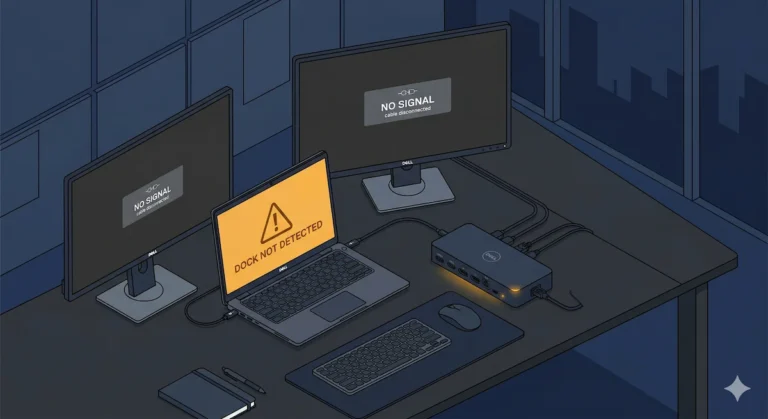
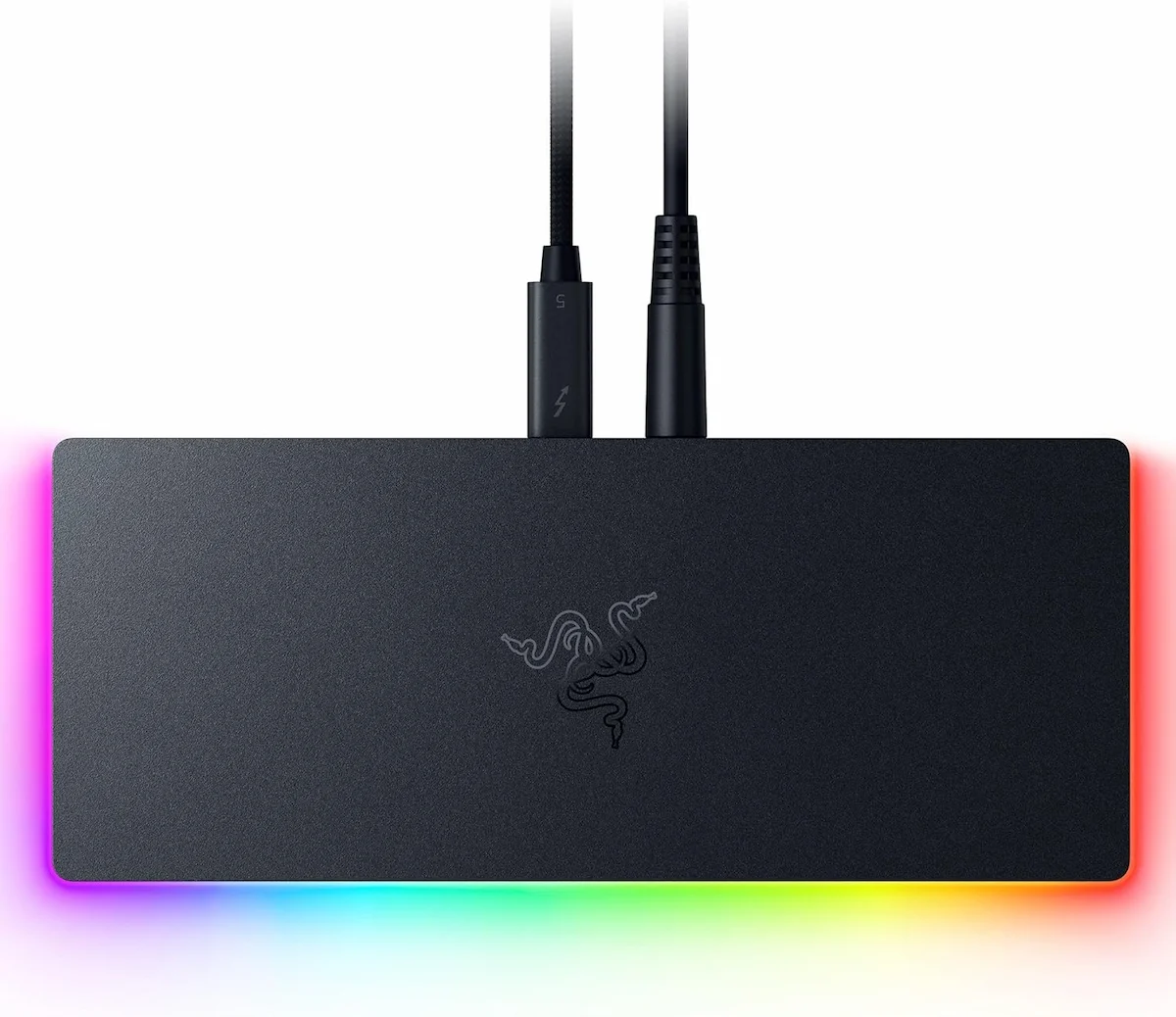
The Razer Thunderbolt 5 Dock Chroma is a next-generation 11-port docking station — and one of the most searched for problems in the TB5 category right now pushing 120Gbps bandwidth, 140W charging, and a built-in M.2 SSD slot. But higher throughput introduces thermal density, firmware complexity, and new failure risks. For most users, Thunderbolt 4 remains the more stable choice today.
🟢 Early Bird — Haven’t Bought Yet? Read This First
You’re comparing a $400 Thunderbolt 5 dock against competitors with more ports, faster Ethernet, and dedicated video outputs. Before you spend, understand what this dock actually prioritizes :
- M.2 SSD slot (PCIe 4.0 x4, up to 5,833MB/s) – rare feature, genuinely useful
- RGB Chroma lighting – if that matters to you
- Compact aluminum design – 8.08 x 3.35 x 1.18 inches
- Three downstream TB5 ports – all video must go through USB-C
If you need 2.5GbE, native HDMI, or front-facing ports, skip deep dive and check the comparison table.
1. What the Razer Thunderbolt 5 Dock Chroma Actually Is
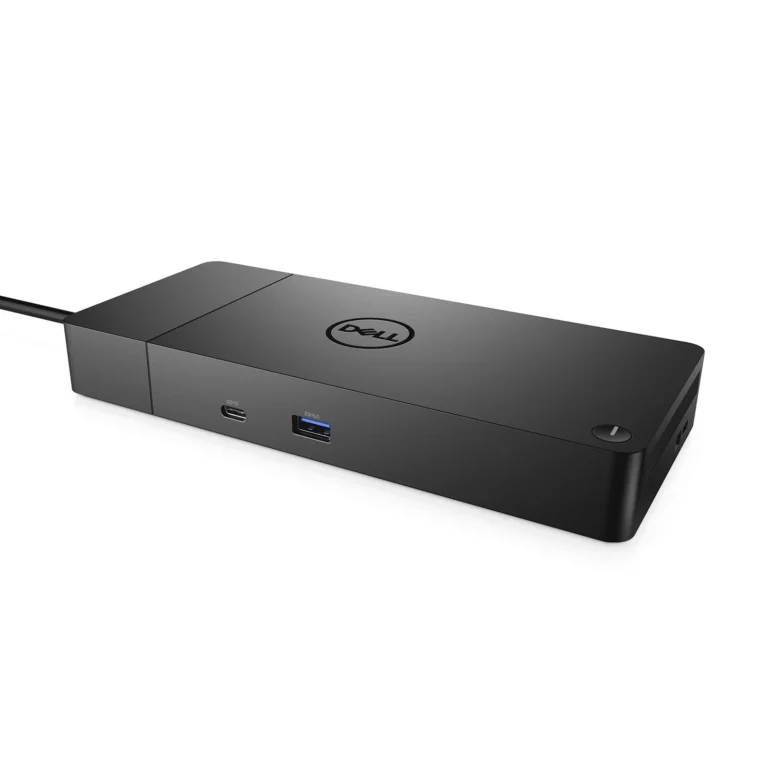
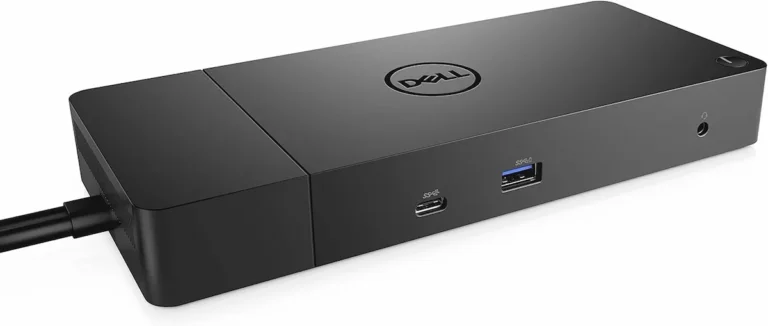
This is not a dock—it’s a high-density I/O controller with an SSD slot attached.
For a foundational understanding of docking station architecture, see our Laptop Docking Stations Explained guide.
2. What Goes Wrong — The 4 Failure Paths at a Glance
Every reported problem with this dock traces back to one of four root causes. Identify your branch first — then jump to the full diagnosis.
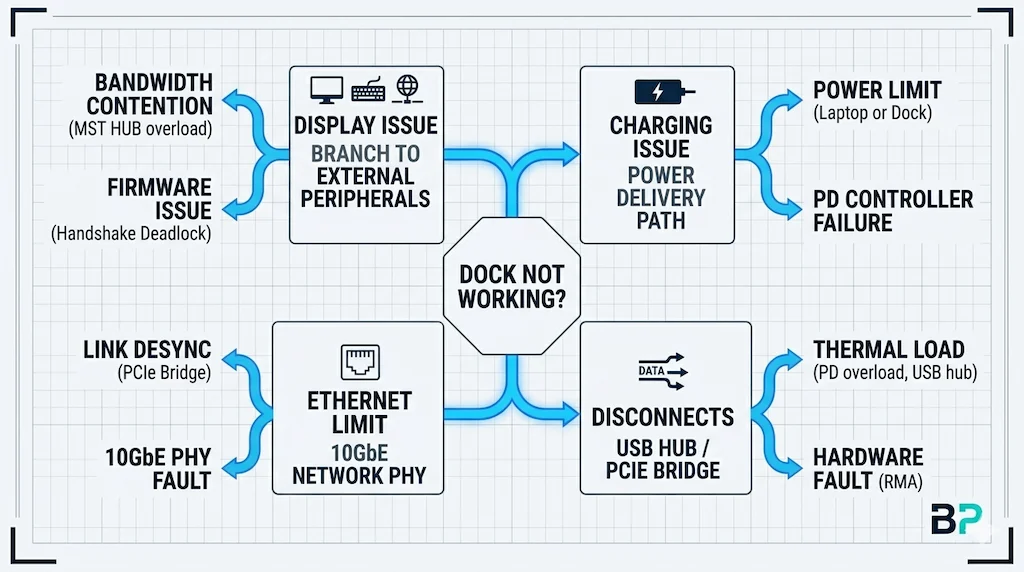
3. The 4 Real Failure Modes
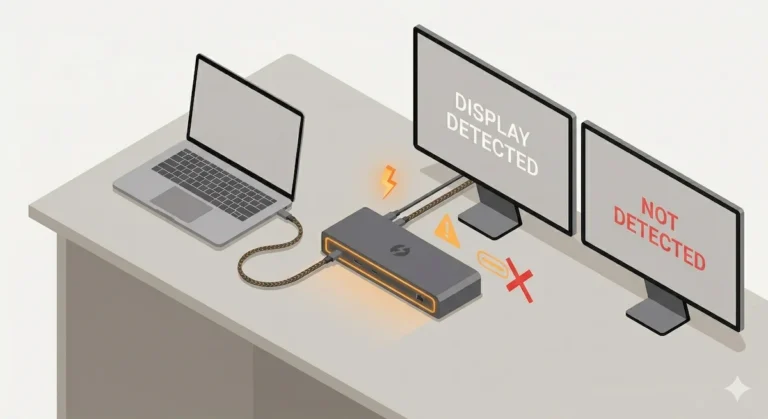
Failure 1 — Spontaneous Display Disconnections
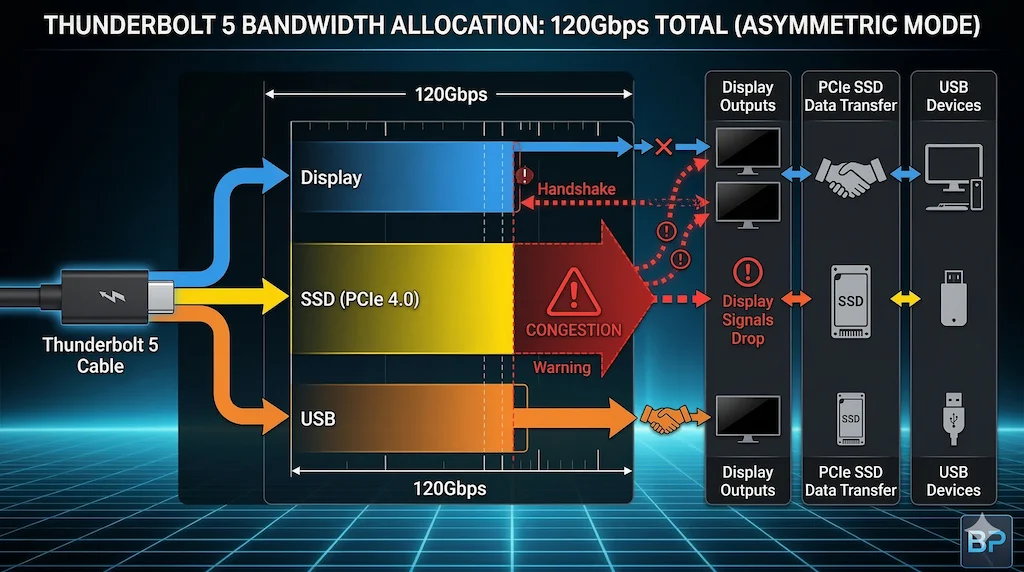
Symptom: Monitors randomly drop signal, especially when the internal M.2 SSD is active. Older monitors may not handshake at all.
Root Cause: Thunderbolt 5 bandwidth contention. The 120Gbps Boost Mode sounds unlimited, but PCIe tunneling for the M.2 SSD (PCIe 4.0 x4) competes with DisplayPort streams. When both are under load, the controller renegotiates—and displays drop.
How to confirm:
- Reproduce the drop while transferring large files to the internal SSD
- Check if monitors stabilize when M.2 slot is empty
- Test with a Thunderbolt 5 host (Razer Blade 18, ASUS ROG Strix SCAR 18)
Fix:
- Disconnect M.2 SSD activity during multi-display work
- Update Razer Synapse and dock firmware
- Ensure host is Thunderbolt 5, not Thunderbolt 4—bandwidth limits differ
- Use certified TB5 cables; older TB4 cables may not sustain 120Gbps
When to RMA: If disconnects persist on a TB5 host with M.2 slot empty and all firmware current, the retimer chip may be faulty.
➡️ Deep dive: Thunderbolt Dock Not Detected
Failure 2 — 1GbE Ethernet — Not a Bug, a Design Choice
Symptom: Ethernet caps at 1Gbps. Your 2.5GbE network runs at 940Mbps. The port works, but it’s the slowest thing on your desk.
Root Cause: Razer made a deliberate trade-off. 10Gb Ethernet requires multiple PCIe lanes—bandwidth that would compete with the M.2 SSD slot and display outputs. Supporting 2.5GbE or 10GbE would mean removing other features.
One user with hardware engineering background explained on Reddit that: “10 Gigabit ethernet takes more than 1 channel of PCIe bandwidth. Supporting more than Gigabit ethernet would come at the cost of removing a significant selection of other ports/display capabilities, or removing the M.2 slot. They have chosen the best balance for the majority of users.”
Fix:
- Use a USB-C to 2.5GbE adapter (costs one TB5 downstream port)
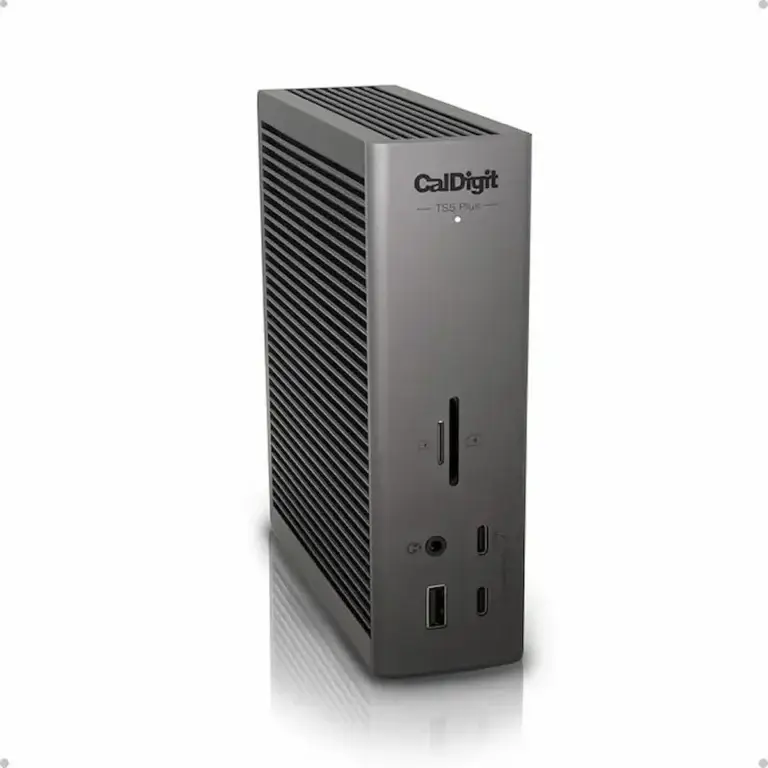
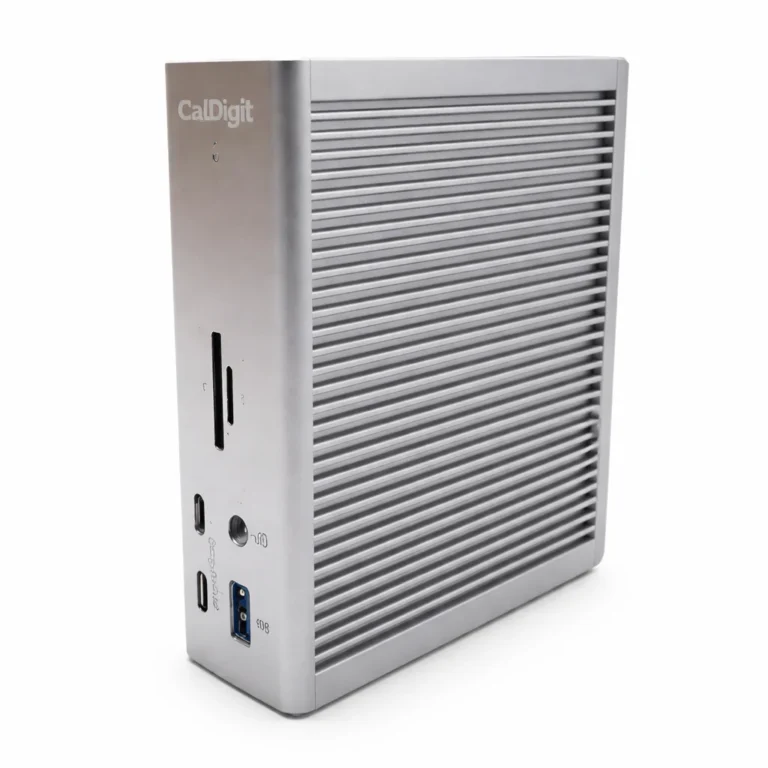
- For 10GbE needs, choose the CalDigit TS5 Plus instead
When to RMA: Never—this is a specification, not a defect. But if you bought expecting 2.5GbE, you should return it.
➡️ Deep dive: Docking Station Not Working
Failure 3 — 140W Charging Not Enough for Gaming Laptops
Symptom: Laptop shows “Connected, not charging” during gaming sessions. Battery drains despite being plugged into the dock.
Root Cause: Thunderbolt 5 supports up to 240W PD 3.1, but Razer caps this dock at 140W. Gaming laptops like the Razer Blade 18 or ASUS ROG Strix can pull 180W-240W under full CPU/GPU load. The dock delivers its maximum 140W, but the laptop needs more—physics wins.
Razer’s own FAQ acknowledges this: use the original AC adapter alongside the dock for gaming sessions.
How to confirm:
- Monitor battery percentage during a gaming session while docked
- If it drops despite being “connected,” you’ve hit the power ceiling
Fix:
- Connect original AC adapter alongside the dock for gaming
- For productivity workloads, 140W is sufficient for most laptops
- Understand that no Thunderbolt dock can override your laptop’s power requirements
When to RMA: Never—this is a physical limit, not a hardware defect.
➡️ Deep dive: Docking Station Not Charging Laptop
🟡 Pattern Check — Are You Fixing a Setup or Babysitting a Dock?
If your Razer TB5 dock:
- Needs power cycles every gaming session
- Drops displays whenever you transfer files to the internal SSD
- Won’t charge during gameplay despite showing “connected”
You are no longer fixing configuration. You are managing architectural limits. The dock’s 140W ceiling and bandwidth contention are engineering trade-offs—not problems you can troubleshoot away.
You can continue the checklist below, but this is the point where many users stop debugging and replace the dock instead.
Failure 4 — No Native Display Outputs
Symptom: You connect monitors via HDMI or DisplayPort—nothing happens. Your expensive monitors don’t have Thunderbolt 5 inputs.
Root Cause: All three downstream Thunderbolt 5 ports double as display outputs. There are no dedicated HDMI or DisplayPort ports on this dock. Every monitor needs a USB-C cable or an active TB5-to-HDMI/DisplayPort adapter.
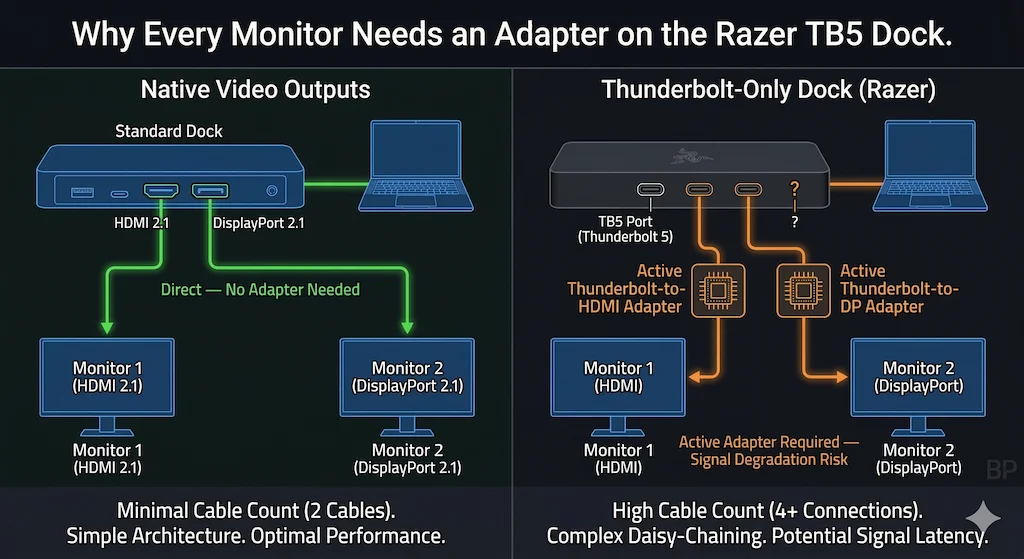
The I/O omission that cramps workflows: “At least one DisplayPort or HDMI hookup would be appreciated.”
Fix:
- Use active Thunderbolt 5 to HDMI/DisplayPort adapters (verified compatible list below)
- Ensure adapters support the resolutions you need—many cheap adapters fail at 4K 144Hz
- The dock supports up to triple 4K@144Hz or single 8K@60Hz with proper adapters
When to RMA: Never—this is a design choice, not a defect. But if you need native video ports, the Kensington SD7100T5 or CalDigit TS5 Plus offer better options.
➡️ Deep dive: Docking Station Not Detecting Monitor
4. What the Razer Thunderbolt 5 Dock Chroma Does Well
Built-in M.2 SSD slot is genuinely excellent. Tested with an SK hynix Platinum P41, speeds hit 5,833MB/s read and 5,414MB/s write on a TB5 host—fast enough to run games directly from the dock. On Thunderbolt 4, speeds drop to ~4,000MB/s read, still admirable.
Active cooling keeps thermals stable. The fan activates under sustained load — audible but not disruptive during normal use and it prevents thermal throttling. Internal temperatures stayed within spec during extended transfers.
Thunderbolt Share license included. Intel’s technology for direct PC-to-PC transfers over Thunderbolt—useful for multi-device workflows.
Build quality is exceptional. CNC-molded aluminum, compact footprint (8.08 x 3.35 x 1.18 inches), and RGB underglow that can be disabled. The Mercury White version has no RGB for professional environments.
All ports rear-mounted. No front I/O means cleaner cable management, but awkward access for temporary connections.
5. Is It Worth $400?
Buy it if:
✅ You have a Thunderbolt 5 laptop (Razer Blade 18, ASUS ROG Strix SCAR 18, Alienware 15 Area-51)
✅ You need the built-in M.2 SSD slot for portable high-speed storage
✅ You use Razer peripherals and want Synapse RGB integration
✅ Thunderbolt Share would improve your multi-PC workflow
✅ You’re willing to use adapters for non-USB-C monitors
Don’t buy it if:
❌ You need 2.5GbE or 10GbE Ethernet—this dock caps at 1GbE
❌ You have a gaming laptop that pulls over 140W under load
❌ You need native HDMI or DisplayPort outputs—every monitor requires an adapter
❌ You’re on Thunderbolt 4 only—you won’t get full bandwidth and may see performance drops
❌ You’re sensitive to fan noise—the active cooler runs constantly
❌ You’re a Mac user expecting triple displays — macOS doesn’t support it regardless of dock, half the features don’t work reliably.
🔴 Last Resort Protocol — When to Replace
If display disconnects persist after firmware updates and Synapse updates, and you’ve confirmed the issue on a TB5 host with M.2 slot empty—RMA it. Razer warranty is 2 years. If the fan fails or the SSD slot stops recognizing drives, replace immediately.
6. Comparison Table
| Feature | CalDigit TS5 Plus | Kensington SD7100T5 | Razer TB5 Chroma | Anker Prime TB5 | iVANKY FusionDock Max 2 |
|---|---|---|---|---|---|
| Protocol | TB5 | TB5 | TB5 | TB5 | TB5 |
| Max Displays | Triple 4K\@144Hz (Win)/ Dual 8K\@60Hz | Triple 4K\@144Hz / Dual 8K\@60Hz | Triple 4K\@144Hz / Dual 8K\@60Hz | Dual 8K\@60Hz / Triple 4K\@144Hz (limited) | Dual 6K + Single 4K (Mac only) |
| MST Hub | ❌ No | ❌ No | ❌ No | ❌ No | ❌ No |
| Downstream TB5 | 2x | 3x | 3x | 2x | 3x |
| Video Ports | 1x DP 2.1, 2x TB5 (video) | 3x TB5 (video only) | 3x TB5 (video only) | 1x HDMI 2.1 or 1x DP 2.1 + 2x TB5 | 3x TB5, 1x HDMI 2.0 |
| USB Ports | 2x TB5, 5x USB-C, 5x USB-A | 3x TB5, 2x USB-C, 4x USB-A | 3x TB5, 1x USB-C, 2x USB-A | 2x TB5, 2x USB-C, 3x USB-A | 3x TB5, 5x USB-C, 7x USB-A |
| Power Delivery | 140W | 140W | 140W | 140W | 140W |
| Ethernet | 10GbE ⭐ | 2.5GbE | 1GbE | 2.5GbE | 2.5GbE |
| Card Reader | UHS-II SD 4.0 + microSD 4.0 | CF + UHS-II SD 4.0 + microSD 4.0 | UHS-II SD only | SD + TF (microSD) | UHS-II SD + microSD |
| M.2 SSD Slot | ❌ No | ✅ Yes ⭐ | ✅ Yes ⭐ | ❌ No | ❌ No |
| Mac Compatibility | ✅ Native | ✅ Native | ✅ Native | ⚠️ macOS 15+ only | ⚠️ Mac only |
| Detection Reliability | Excellent ⭐ Most Reliable | Excellent | Excellent | Good | Excellent |
| Special Features | 10GbE, 20 total ports, dual USB controllers | M.2 SSD slot, CF reader, 19 ports | RGB Chroma, M.2 SSD slot, gamer aesthetic | HDMI or DP choice, LED lighting | Triple display Mac, optical audio |
| Price | ~\$450 | ~\$370 | ~\$400 | ~\$340 | ~\$400 |
| Buy | Check Price → | Check Price → | Check Price → | Check Price → | Check Price → |
Not ready for Thunderbolt 5? For a deeper comparison of Thunderbolt 4 docks, see our TB4 comparison table that covers the most reliable options available today.
7. FAQ
8. Author & Trust Section
Alex — Docking Infrastructure Specialist
Computer Systems Engineering background. Focus on docking station architecture and enterprise troubleshooting. 10+ years deploying Thunderbolt docks in corporate environments. Author of Laptop Docking Stations Explained.
Hans — Display Topology Specialist
Expert in DisplayPort, MST routing, and daisy chain diagnostics. Contributor to Daisy Chain Monitors Explained.
Yamato — Storage Infrastructure Specialist
NAS deployment and high-speed storage systems expert. Provides thermal and bandwidth analysis for sustained-load workflows. The M.2 SSD performance data in this guide is cross-validated by Yamato’s testing methodology.
At ByrdPilot, we don’t write in silos. We write as a systems practice—cross-validated by specialists who have diagnosed these failures in real deployments.
Experience > spec sheets. Always.