⚡ Quick Answer — Docking Station Not Working
A dead-looking dock is often a power, cable, port or driver problem. Check those before you blame the dock.
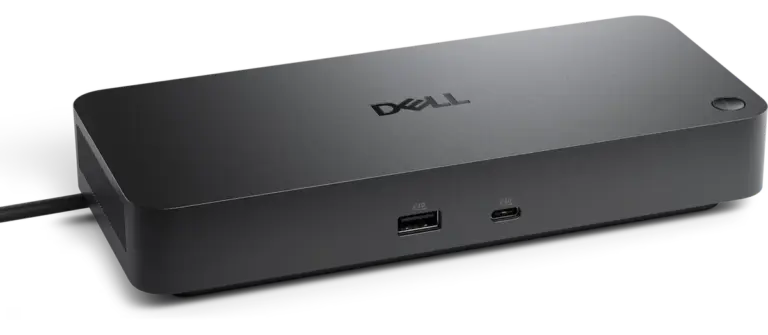
- No light on the dock: try a known-good power adapter. On a Dell dock, hold the power button for at least 30 seconds to reset it.
- Light on, screens black: shut everything down, restart the dock before the laptop, and plug the dock straight into the laptop with the cable from the box.
- Laptop doesn’t see the dock: try a USB-C port that carries video, or a Thunderbolt port, then update the BIOS and the dock firmware.
- USB devices dead: test them on the laptop itself, then look for a yellow warning icon in Device Manager.
- Fails on two computers: the dock is the problem. Replacement picks are near the end of this guide.
Still stuck? The symptom table below points to the guide for your problem.
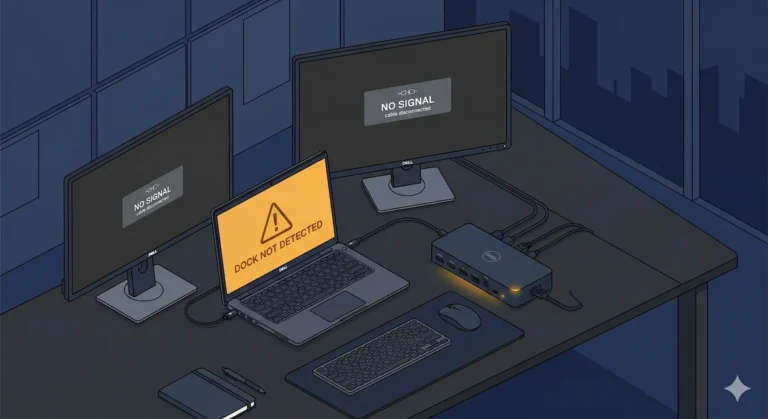
It’s 10:30 AM on a Monday. Video call in 30 minutes. You plug in the dock that worked perfectly on Friday. Status light on. Monitors black. Keyboard dead. That $200+ aluminum brick just became a very expensive paperweight.
A docking station not working can mean a dozen different things. The light is on and nothing happens, or the screens stay black, or the mouse is dead, or the laptop won’t charge. Each one points somewhere different, so match the symptom first and guess second.
Below you’ll find five checks to run first, fixes by symptom for USB-C, Thunderbolt and DisplayLink docks on Windows and Mac, and the signs that a dock has really failed. When your problem has its own page, you’ll get a link to it. The steps come from the support pages of Dell, Microsoft, CalDigit, Plugable and Apple.
🟢 Early Bird — Haven’t Bought Yet?
Haven’t bought yet? Three checks to make first.
- Does your laptop’s USB-C port carry video? Not every one does, so check the port you plan to use.
- Does the dock ship with its own power adapter? Dell’s universal USB docks run on one and don’t draw power from the laptop, so you need an outlet by the desk.
- On a Mac, how many screens does your chip allow? Check that limit before you pick a dock.
Not sure which dock fits your setup? Compare all 80+ docking stations side by side — filter by connection type, displays, power delivery, and OS in our Docking Station Comparison Tool.
Docking Station Not Working? Five Fixes to Try First
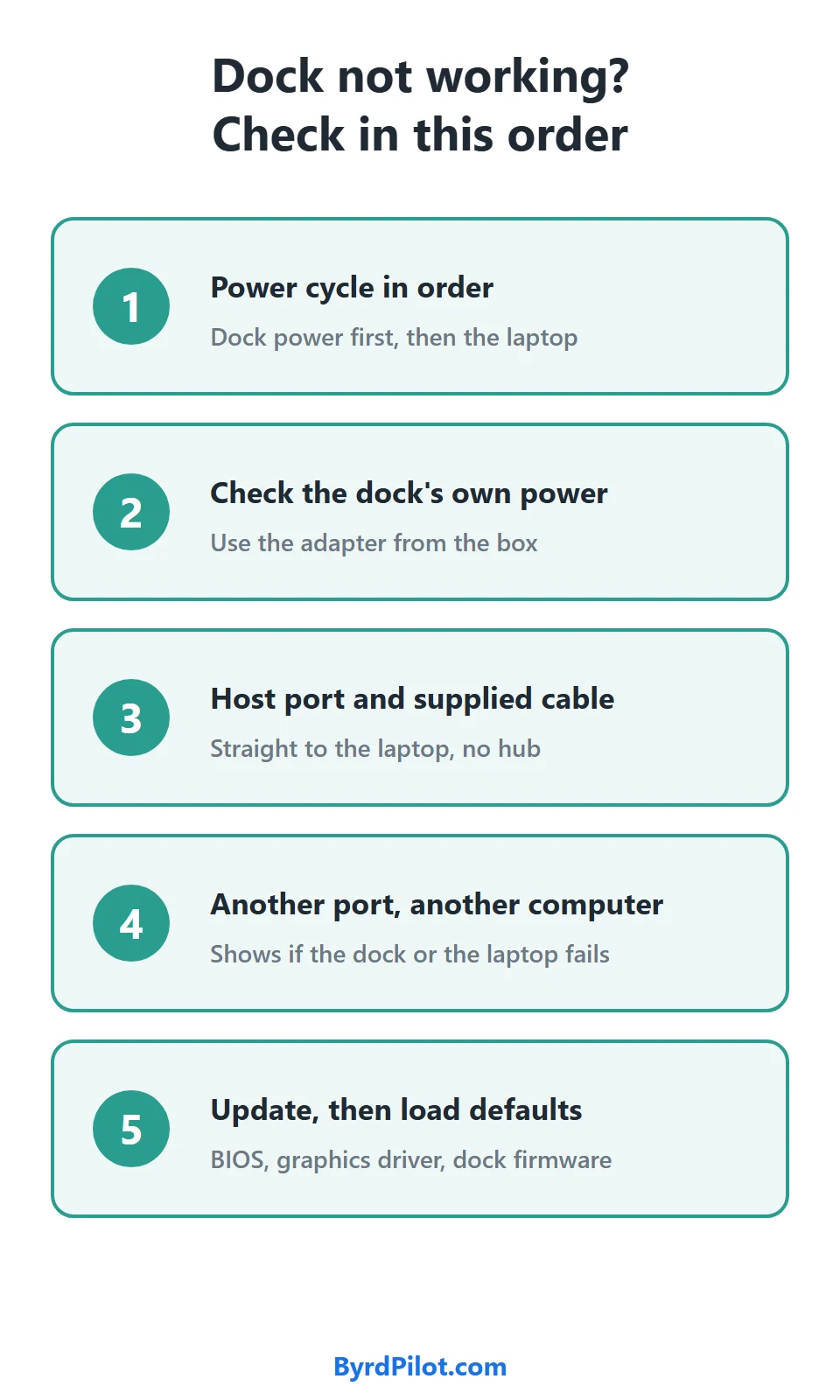
- Power cycle everything. That means shutting down and unplugging, not just restarting. Shut the laptop down, unplug the dock from the laptop and from the wall, and wait a minute. Plug the dock’s power back in before you reconnect the laptop. That’s the order Plugable gives for DisplayLink docks. For a Thunderbolt dock, CalDigit says to start the computer first and connect the dock after.
- Check the dock’s own power. Dell’s universal USB docks run on their AC adapter and can’t draw power from the laptop, and Dell’s first step is a known-good adapter. Use the one from the box.
- Use the right port and the cable from the box. Plug the laptop into the dock’s laptop port (CalDigit labels it Computer). Microsoft’s advice is the cable that came with the PC and, for USB4 docks, the maker’s cable or a USB4-certified one. Connect straight to the laptop, not through a hub or a second dock.
- Try another laptop port, then another computer. Not every USB-C port carries video, so use the one that supports the mode you need, such as Thunderbolt or DisplayPort. A second computer shows whether the dock or the first laptop is at fault.
- Update everything. Install the latest BIOS, graphics driver and dock firmware from the maker’s support page. On a Dell, the support page also has you load the BIOS defaults and run Dell’s Dock test.
How to Reset a Docking Station
There’s no universal reset button, so the right reset depends on the dock.
- Soft reset: the power cycle in the first fix above.
- Dell: hold the dock’s power button for at least 30 seconds, per Dell’s support page for its universal USB docks.
- DisplayLink: uninstall every DisplayLink program, run the DisplayLink Installation Cleaner, restart, then install the recommended driver. Plugable’s guide has the full order.
- Firmware: re-run the maker’s firmware utility if a power cycle doesn’t help.
For other brands, check the manual and the model page on the maker’s support site. HP and Lenovo publish dock troubleshooting pages for their own models, linked in the sources below. Dell owners will find more in our Dell docking station not working guide.
What You See and What It Usually Means
| What you see | Usual cause | Where to go |
|---|---|---|
| No light on the dock | Power adapter or the dock itself | Power problems, below |
| Light on, monitors black | Cable, port, driver or monitor input | Docking station not detecting monitor |
| Laptop doesn’t see the dock | The port, the cable or the BIOS | Laptop not recognizing docking station, below |
| USB devices or Ethernet dead | Device, driver or port | Dock ports not working, below |
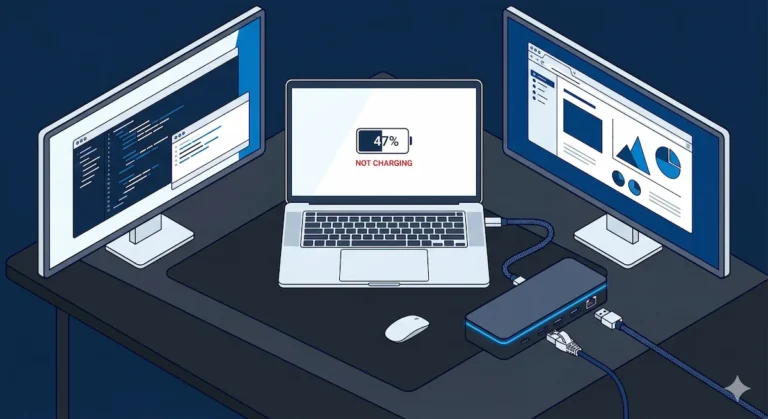
| Laptop doesn’t charge | Adapter wattage or the cable | Docking station not charging laptop |
| Drops out or flickers | Several possible causes | Docking station keeps disconnecting |
| Thunderbolt dock missing | Thunderbolt port, cable or order of connecting | Thunderbolt dock not detected |
| Dell dock | Dell drivers and firmware | Dell docking station not working |
Which Dock Do You Have? USB-C, Thunderbolt or DisplayLink
Check the model name on the dock or its box and look it up on the maker’s page. The spec list says Thunderbolt, DisplayLink or USB-C with DisplayPort.
| Dock type | What it needs | What usually breaks |
|---|---|---|
| USB-C dock | A USB-C port that carries video (DisplayPort Alt Mode) | A port without video support, or a cable that lacks it. |
| Thunderbolt dock | A Thunderbolt port on the laptop | The wrong port, or a cable that doesn’t support Thunderbolt. |
| DisplayLink dock | The DisplayLink driver on the laptop | A missing or broken driver and, on a Mac, a missing Screen Recording permission. |
For USB-C docks, our USB-C docking station guide explains which ports carry video. For the differences between the types, see USB-C vs Thunderbolt 4 for docking stations.
Docking Station Monitors Not Working
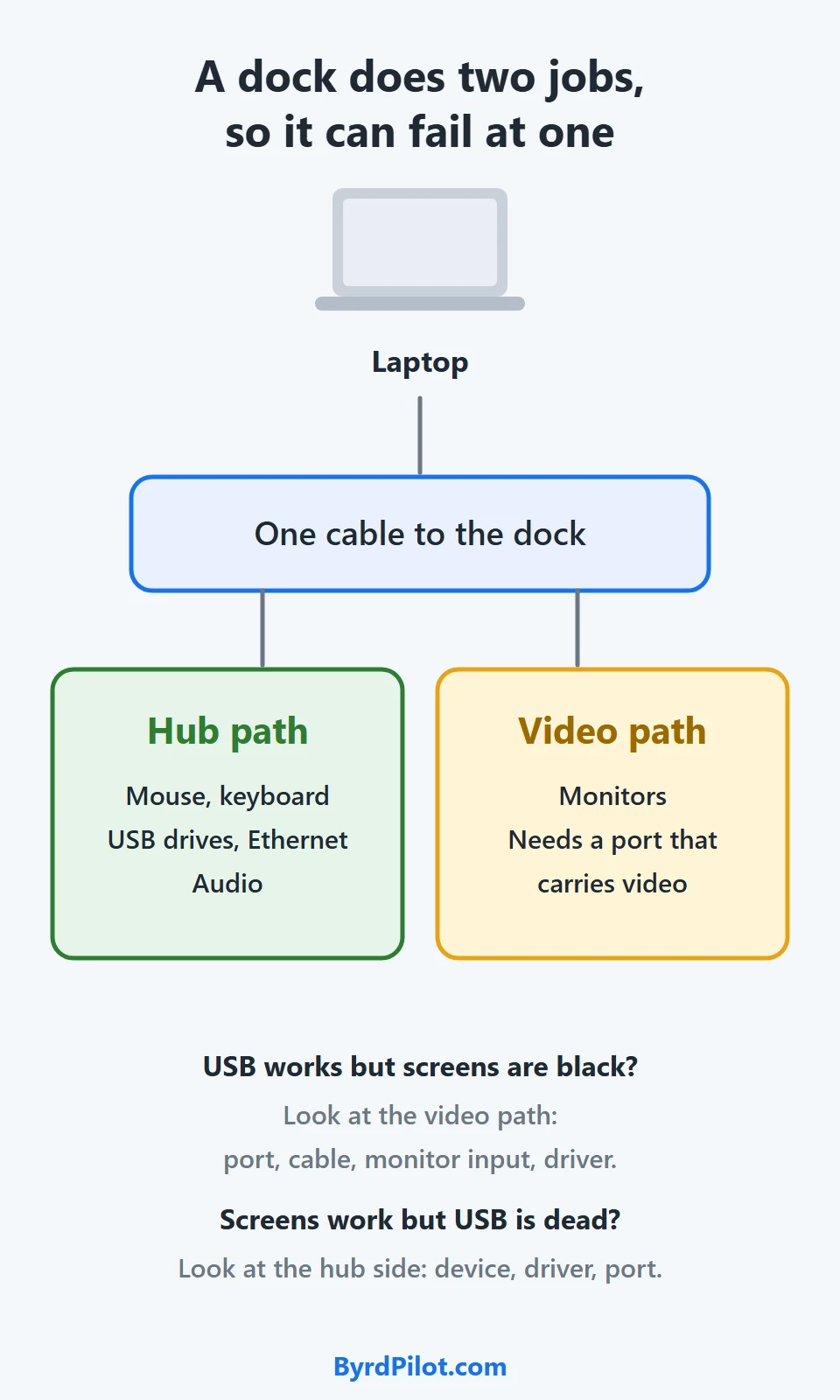
If USB devices work but the screens are black, the video path is the problem. If the screens work and USB is dead, see the ports section below.
- Set the monitor’s input by hand instead of leaving it on Auto.
- Swap in a monitor cable you know works.
- On a DisplayLink dock, check the driver first.
Our docking station not detecting monitor guide covers cables, ports and refresh rates. On a Mac, your chip decides how many screens you can run, and the MacBook docking station guide has the limits.
Laptop Not Recognizing Docking Station
When the laptop shows no sign of the dock, start with what sits between them:
- The port: use the USB-C port that supports the mode you need. A Thunderbolt dock needs a Thunderbolt port.
- The cable: it has to support the same USB-C features as the dock.
- Device Manager on Windows: look for a yellow exclamation point, open its Properties and read the error code under Device status.
- BIOS and firmware: update both. Dell’s checklist includes BIOS and driver updates through SupportAssist, then the dock firmware.
➡️ Deep dive: Thunderbolt Dock Not Detected • Laptop Docking Stations Explained
Dock Ports Not Working: USB, Ethernet, Audio and Mouse
If the screens work but a mouse, keyboard or Ethernet port doesn’t, start with the device. Plug it straight into the laptop, as Dell advises. If it works there, the dock’s port or driver is the problem. Unplug the USB devices you don’t need and retest one at a time, check Device Manager for a yellow warning icon on the dock’s entries, and install the dock’s driver and firmware updates from the maker’s page.
🟡 Pattern Check: Setup Problem or Failing Dock?
You’ve power cycled and updated and it still fails. Which column are you in?
| Fixing a setup | Babysitting a dock |
|---|---|
| A power cycle fixes it for weeks | You power cycle every morning |
| A cable swap solved it | Four cables tried, all fail |
| A driver update helped | Firmware updates change nothing |
| It started after one OS update | It’s been there since day one |
If you sit in the right column week after week, stop tuning the setup. Either the dock doesn’t suit your laptop or it’s failing, and the next section covers the second case.
Power Problems: Dead Dock or Laptop Not Charging
A dark dock needs the adapter check in step 2 and, on a Dell, the 30-second reset. If the dock is on but the laptop isn’t charging, Microsoft says a lower-wattage charger can limit charging speed, so use the adapter that shipped with the dock. Our docking station not charging laptop guide goes through the wattage math.
Windows and Mac Fixes That Aren’t About the Dock
Windows – Press the Windows key and P to open the project settings and pick a display mode. If the screen is blank, Windows key, Ctrl, Shift and B is Microsoft’s shortcut to wake the device. If a DisplayLink dock stopped after a Windows or Intel graphics update, Plugable says Intel Iris Xe driver 27.20.100.9466 is incompatible with DisplayLink 4K adapters. Check your Intel driver version in Device Manager and roll back if it matches. More in our DisplayLink Manager guide.
Mac – Blank DisplayLink screens on a Mac are usually a missing Screen Recording permission, found under System Settings, Privacy and Security, Screen and System Audio Recording. Plugable says to recheck it after a macOS update. For any other dock, Apple says the adapter must comply with DisplayPort Alt Mode (USB-C carrying DisplayPort video), Thunderbolt 3 or Thunderbolt 4. Your chip also limits how many screens you can run, so check that limit before you pick a dock.
Can a Docking Station Go Bad?
Yes. These signs point at the dock rather than the setup:
- No light even with a known-good adapter, which is Dell’s first check.
- The same failure on two different computers.
- The same failure with the cable from the box and a different port.
- A failed Dock test on a Dell dock.
- Bent ports, liquid damage or a burnt smell. Unplug it right away.
How often does it happen? Our field data from about 5,000 deployments puts CalDigit near 6% and Dell, on non-Dell laptops, near 18%. Kensington (about 11%), Plugable (about 12%) and UGREEN (about 15%) sit between them. Those are rounded estimates, not maker return rates, and the docking station failure rates by brand article has the full table.
None of the support pages used here gives a lifespan, so use the warranty as your yardstick. The CalDigit TS4 listing shows two years.
🔴 Last Resort: When to Replace the Dock
Stop troubleshooting when all four of these are true.
- It fails on two different computers.
- It fails with more than one known-good cable.
- The BIOS, the drivers and the dock firmware are all current.
- The problem comes back after a power cycle.
Bent ports or a burnt smell mean stop now and unplug it. Don’t keep swapping cables: four failed swaps is your answer.
Replacement Docks
If the checks point at the dock, pick by your laptop first. Prices change, so check them on Amazon.
| Your situation | Start here | Why |
|---|---|---|
| Thunderbolt laptop, Windows or Mac | CalDigit TS4 and our CalDigit TS4 review | Thunderbolt 4, 98W charging and 2.5GbE Ethernet. Mac display counts depend on the chip, so read the review first. |
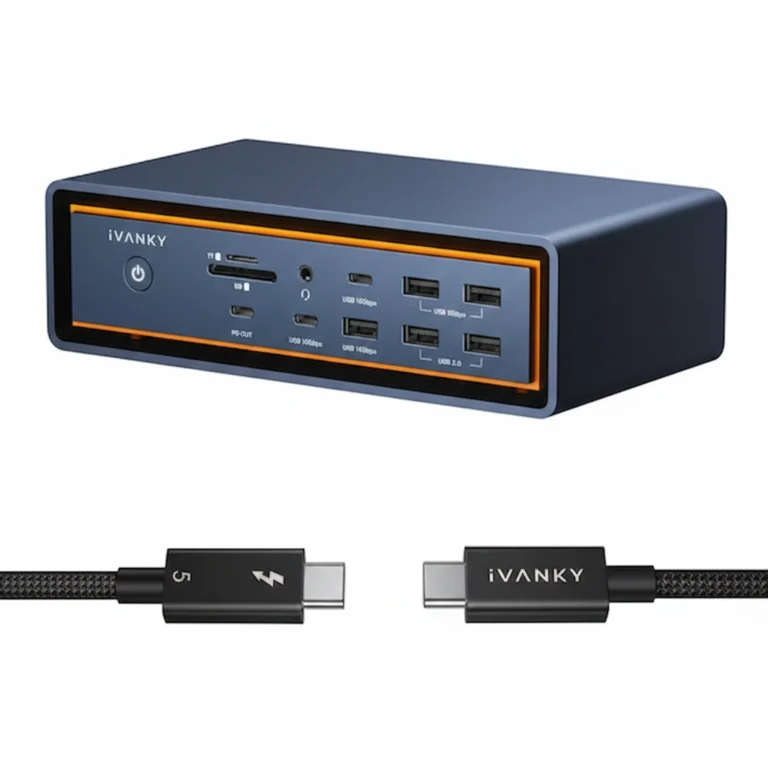
| Thunderbolt 5 laptop | Best Thunderbolt 5 docking stations | Docks matched to the newer port. |
| Dell laptop | Best docking station for a Dell laptop | Dell’s own docks and the third-party ones that suit Dell laptops. |
| Three screens on Windows | Best docking station for multiple monitors | Picks sorted by how many screens each one drives. |
| Not sure yet | Docking Station Comparison Tool | Compare 80+ docks side by side. |
Fix Guides for Specific Docks
If you already know your model, go straight to its guide.
FAQ
Why is my docking station not working all of a sudden?
Something changed: usually the power adapter, the cable, an update or the laptop port. Run the five fixes above in order. After an update, a DisplayLink dock is the likeliest to stop. Plugable ties it to one Intel graphics driver version, and says to recheck the Screen Recording permission after a macOS update.
Why are my monitors black when connected to a docking station?
Either the dock isn’t getting a video signal or the monitor is on the wrong input. Set the input by hand, swap the cable, and use a laptop port that carries video. The monitors section above has the short checklist.
Why does my docking station work on another laptop but not mine?
The difference is often the port, the cable or the BIOS. A port that carries video on one laptop may not on another, so test the dock on both with the same cable and update the BIOS on the one that fails.
Do I need drivers for a docking station?
DisplayLink docks do: the DisplayLink driver has to be installed or the screens stay blank. For other docks, the maker’s support page lists any driver or firmware update.

Alex Atkinson
Hardware Analyst, Docking Station Specialist
Alex compares Thunderbolt and USB-C docking stations for ByrdPilot. Every spec is checked against the manufacturer’s own pages, and the failure-rate data comes from tracking real deployments, not spec sheets.
Sources & References
- Dell Support: Universal USB dock not working — power, reset, firmware and diagnostic steps
- Microsoft Support: fix USB-C problems in Windows — cables, ports, chargers and Device Manager
- Microsoft Support: Windows keyboard shortcuts — Windows key plus P and the blank-screen wake shortcut
- CalDigit Support: Thunderbolt device not detected — Thunderbolt port, cable and connection order
- Plugable Knowledge Base: DisplayLink dock not working on Windows — clean driver reinstall
- Plugable Knowledge Base: DisplayLink after a Windows or Intel driver update — the Intel Iris Xe driver conflict
- Plugable Knowledge Base: DisplayLink and Screen Recording on Mac — the macOS permission
- Apple Support: adapters for the Thunderbolt or USB-C port on your Mac — DisplayPort Alt Mode and Thunderbolt adapter rules
- Lenovo Support: ThinkPad USB-C Dock troubleshooting guide — model-specific dock steps
- HP Support: HP Elite USB-C Docking Station troubleshooting — model-specific dock steps