Thunderbolt 4 vs USB-C: Why Your Dock Fails (2026)

⚡ Quick Answer
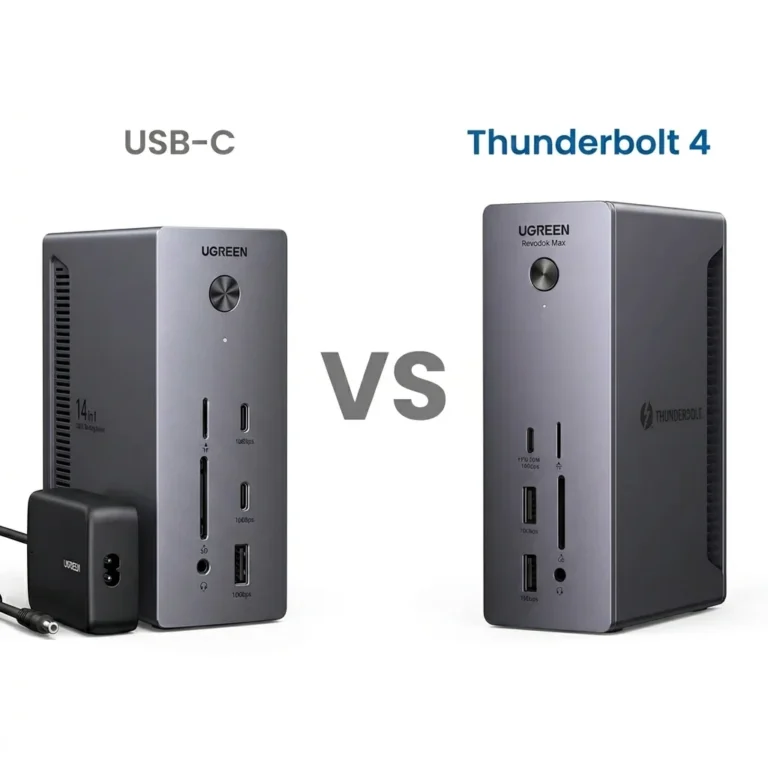
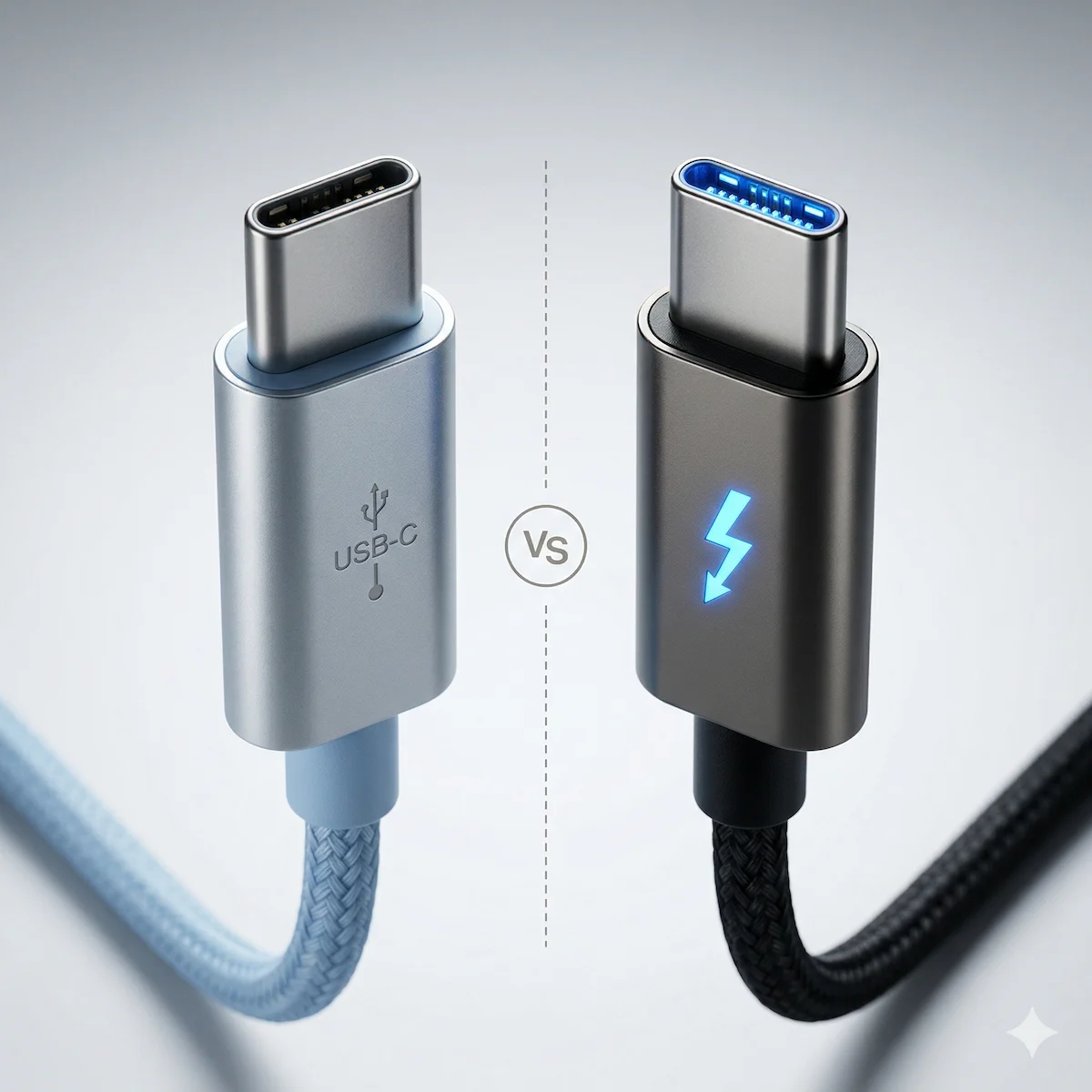
Thunderbolt 4 enforces dock behavior through mandatory certification. USB-C and USB4 allow it — meaning stability depends on your laptop, firmware, and cables. This is a reliability decision, not a speed decision. Over 70% of USB-C dock failures trace back to optional behavior that Thunderbolt 4 makes mandatory.
You’re comparing two docking stations that look identical.
Both use USB-C. Both promise dual 4K, fast charging, and a one-cable setup. One says Thunderbolt 4 and costs more. The other says USB-C / USB4 and looks like the better deal.
This is where most docking station problems start.
Not because one is “bad” and the other is magic — but because they follow different rules.
Thunderbolt 4 enforces how a dock must behave.
USB-C allows variation.
That difference determines whether your setup stays stable — or slowly breaks over time.
Thunderbolt 4 vs USB-C — Quick Answer
If you want a dock that just works every day → choose Thunderbolt 4
If you want a cheaper dock and accept occasional issues → choose USB-C / USB4
• This is not a speed decision.
• It’s a reliability vs variability decision.
Thunderbolt 4 removes entire failure classes through certification.
USB-C / USB4 can match performance — but behavior depends on the laptop, firmware, and cables.
🟢 Early Bird: Skip the Deep Dive
Don’t Want the Deep Dive?
Here’s the direct answer based on who you are:
- You own a Mac (Apple Silicon M1–M4): Buy Thunderbolt 4. Apple’s ecosystem is strict. Thunderbolt 4 certification is your guarantee it works. USB4 is a gamble with your time.
- You own a Windows laptop and hate tinkering: Buy Thunderbolt 4. Pay the premium for plug-and-play reliability. Your time is worth more than the driver debugging session.
- You own a Windows laptop, on a budget, don’t mind configuring: Buy a high-quality USB4 dock. 80% of the performance for 60% of the price — but expect driver maintenance.
Simple rule: If your laptop has a Thunderbolt 4 port and your time has value — buy a Thunderbolt 4 dock.
Section 1 — The Analogy That Actually Makes Sense
Think of it like this:
- USB-C is the shape of the plug. It’s the physical oval port on your laptop. That’s it.
- USB4 and Thunderbolt 4 are the rules of the highway inside that cable.
Imagine two highways. Both can have eight lanes and a 100 mph speed limit.
- Thunderbolt 4 is a strictly managed turnpike. The minimum speed is guaranteed, every on-ramp works, and there are mandatory service stations (like video signal support) at every exit. It’s certified, predictable, and reliable. You pay a toll (the Intel certification fee) to use it.
- USB4 is a state highway with the same potential. It can have eight lanes and 100 mph limits, but the state (the manufacturer) decides exactly how to build it. Maybe one on-ramp is closed. Maybe the fast lane is only open sometimes. It can be fantastic, but the experience isn’t guaranteed.
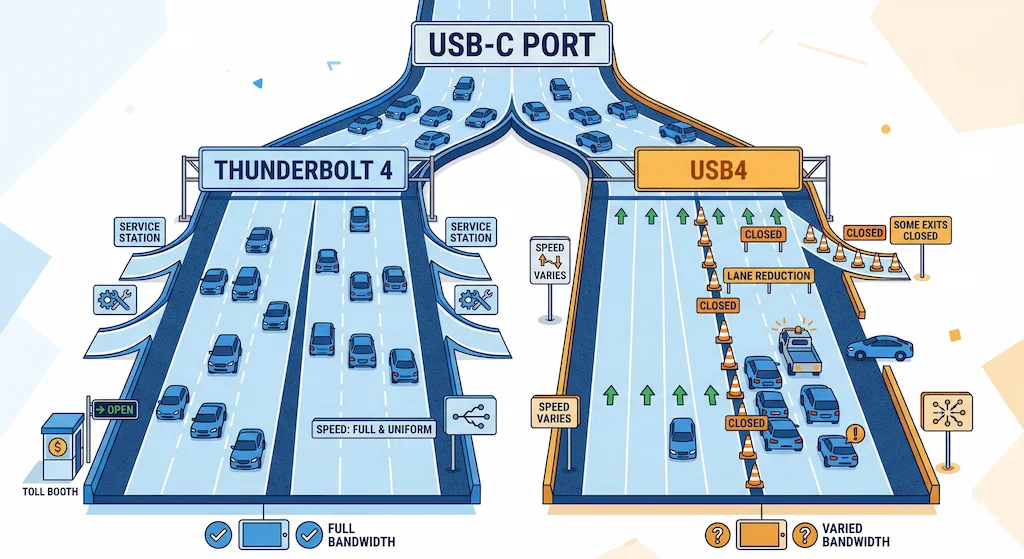
The kicker? Both highways use the same on-ramp: the USB-C port. This is why confusion around Thunderbolt 4 vs USB-C docking stations keeps causing bad buying decisions.
Section 2 — Thunderbolt 4 vs USB-C: Direct Comparison
| Feature | Thunderbolt 4 | USB-C / USB4 |
|---|---|---|
| Behavior | Enforced | Optional |
| Stability | Predictable | Varies by setup |
| Charging | Guaranteed (up to 100W) | Negotiated / inconsistent |
| Displays | Guaranteed dual | Depends on host |
| Sleep Recovery | Reliable | Often problematic |
| Best For | Plug-and-play users | Budget + flexible setups |
Bottom line: Thunderbolt 4 guarantees behavior. USB-C / USB4 offers potential — not certainty.
Section 3 — The Core Difference in Thunderbolt 4 vs USB-C Docking Stations
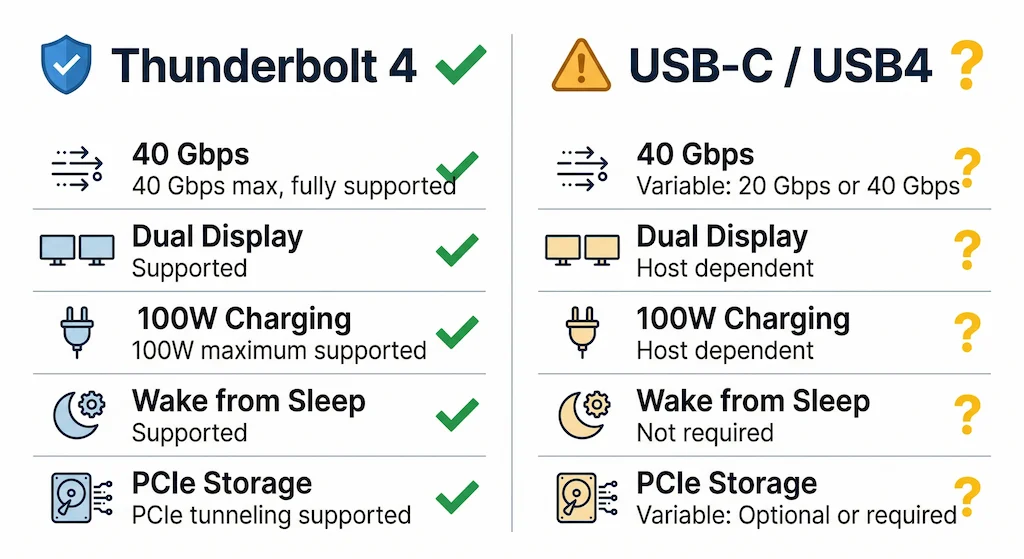
USB-C only defines the physical port.
It does not define how the system behaves once the dock is under daily load.
The real difference between Thunderbolt 4 and USB4 is enforcement.
Thunderbolt 4 enforces behavior.
USB4 allows behavior.
That distinction determines whether failures self-recover or accumulate over time.
3.1 Thunderbolt 4 Docking Stations: Enforced Behavior
Thunderbolt 4 docks operate under mandatory certification rules.
To qualify as Thunderbolt 4, a dock must consistently deliver:
- Full 40 Gbps signaling with no optional data lanes
- Dual-display output regardless of host GPU quirks
- Stable power delivery up to 100 W under sustained load
- Peripheral-initiated wake from sleep
- PCIe tunneling for external storage without fallback modes
These are not optional features.
They are required behaviors across systems and operating systems.
As a result, Thunderbolt 4 docks fail less often.
When they do fail, they usually fail clearly, not partially.
3.2 USB-C / USB4 Docking Stations: Optional Behavior
USB4 is built on similar technology, but enforcement is flexible.
A USB4 dock may provide:
- 20 Gbps or 40 Gbps depending on internal routing
- Multiple displays if DisplayPort tunneling is implemented correctly
- 60 W, 85 W, or 100 W charging depending on firmware negotiation
- Sleep and wake behavior that varies by laptop, OS, and BIOS
None of this is defective.
None of this is misleading.
But none of it is guaranteed.
USB4 docks tend to fail incrementally:
- One display drops after sleep
- Ethernet disconnects until replug
- Charging works idle but collapses under load
These are expected outcomes of optional enforcement.
If you’ve decided USB-C is the right path for your budget, our USB-C Docking Station guide breaks down exactly which ports support video output, which cables kill performance, and which docks at the $50–$150 range actually hold up under daily use — without the Thunderbolt premium.
USB4 is a menu of potential features. Thunderbolt 4 is a pre-set meal with everything included. This flexibility is why powerful USB4 docks exist at lower prices—and also why they commonly exhibit screen flickering, sleep/wake instability, and thermal limits under load. One of the most common failure patterns caused by this difference shows up in charging behavior. A USB4 or USB-C docking station may successfully connect displays and peripherals yet fail to deliver sufficient or stable power to charge the laptop—especially under sustained load.
This is not a defect, but a consequence of flexible Power Delivery implementation and negotiation limits. We break down these exact power-delivery failure modes, wattage ceilings, and firmware negotiation issues in our dedicated docking station not charging laptop guide.
Section 4 — Real-World Behavior of Thunderbolt 4 vs USB-C Docking Stations
The enforcement gap becomes visible immediately after deployment.
4.1 If You Use a Thunderbolt 4 Dock
- Compatibility testing is handled upstream
- Display, power, and sleep recovery usually succeed automatically
- Firmware updates are infrequent but high-impact
- Troubleshooting is rare
Failure tolerance: low
This path assumes downtime is unacceptable.
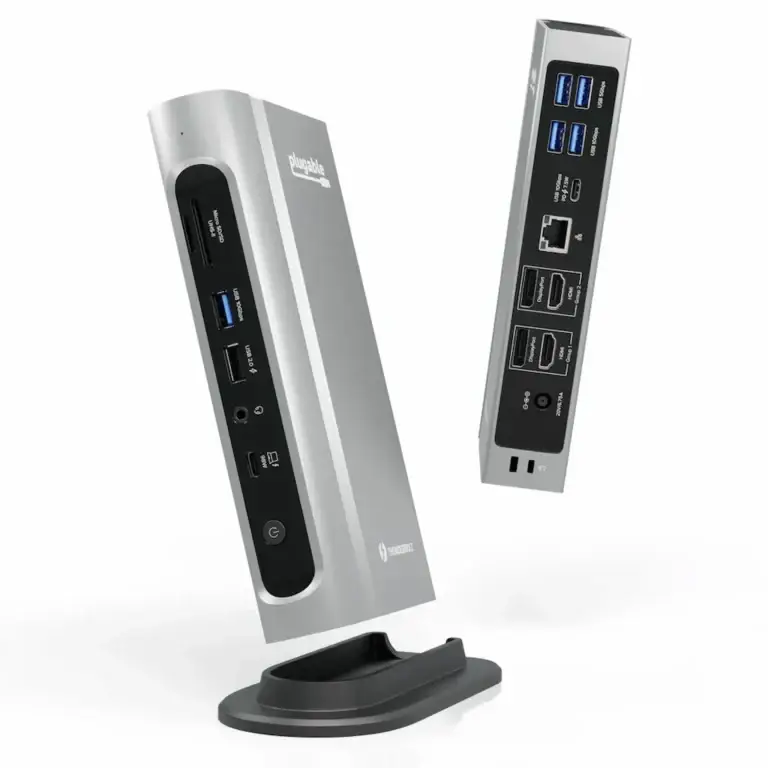
A textbook example of this philosophy in practice is the Plugable TBT4-UDZ. It delivers quad 4K displays on Windows, stable 98W charging, and predictable sleep recovery—exactly what Thunderbolt 4 certification promises. Our dedicated guide documents how it behaves across different hosts and where its USB controller segmentation requires mindful peripheral distribution.
4.2 If You Use a USB4 Dock
- Stability depends on drivers, firmware, BIOS, and thermals
- Behavior may change after OS updates
- Partial failures are common and persistent
- User intervention is expected
Failure tolerance: medium
This path assumes maintenance is part of ownership.
USB4 Docking Station Case Study: UGREEN Revodok Pro 314
This is exactly why our UGREEN Revodok Pro 314 Problem-Solving Guide exists. That dock uses USB4 to deliver near-Thunderbolt 4 specs at half the price. The trade-off? User reports of screen flickering (especially on Macs), intermittent Ethernet, and heat management issues—all classic symptoms of a powerful USB4 docking station pushing against the limits of its less-strict protocol. It’s a powerhouse that sometimes needs manual tuning. When that tuning fails and the dock powers peripherals but leaves the screen black, the issue is almost always a broken display handshake — a failure mode we dissect step by step in ourDocking Station Not Detecting Monitor guide.
For a step-by-step diagnostic approach that applies to any undetected dock—UGREEN or otherwise—our ultimate troubleshooting checklist is here: Thunderbolt Dock Not Detected? (10 Fixes That Actually Work).
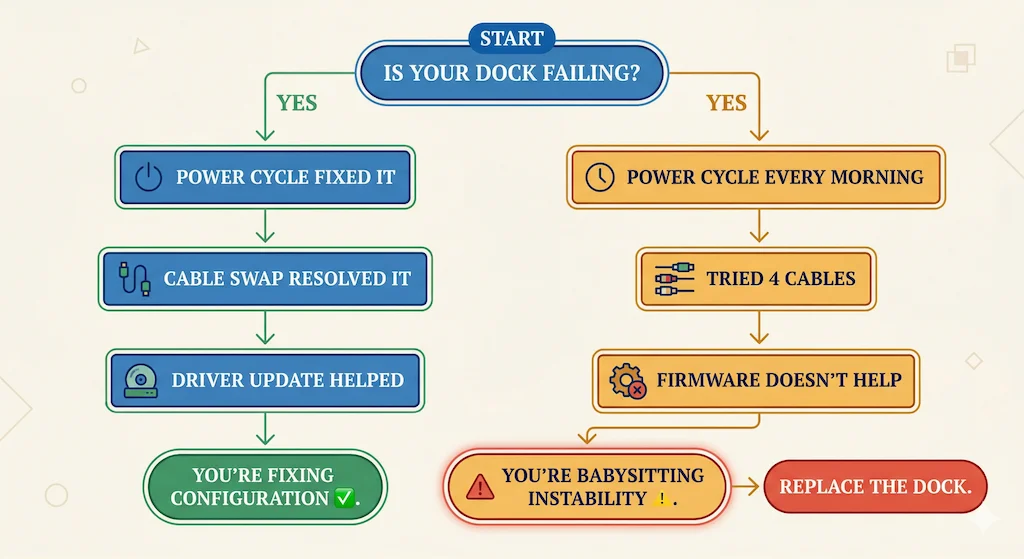
🟡 Pattern Check: Fixing Setup or Babysitting a Dock?
Already own a dock and it keeps failing? Run this check before replacing anything.
| Fixing configuration ✅ | Babysitting instability ⚠️ |
|---|---|
| Power cycle fixes it for weeks | You power cycle every morning |
| Cable swap resolved the issue | Tried 4 cables — all fail |
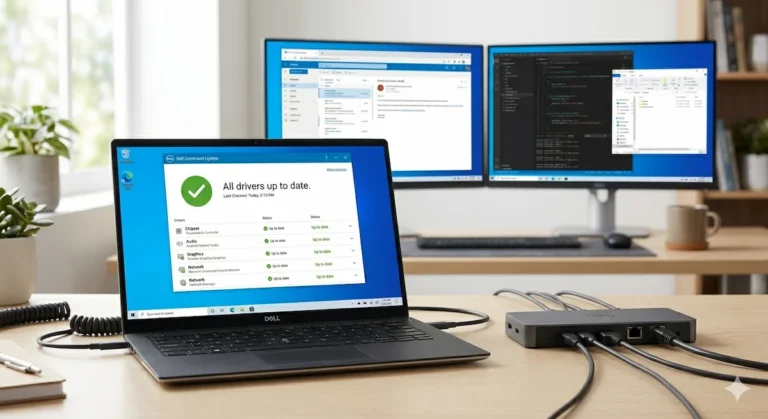
| Driver update helped | Firmware updates don’t change behavior |
| Problem started after OS update | Problem present since day one |
If you’re in the right column — you’re managing a USB4 dock that doesn’t match your failure tolerance. Thunderbolt 5 removes this failure class entirely and will last you through the decade. Note: you need a TB5 laptop port to unlock full bandwidth — TB4 laptops still work but run at reduced speeds.
2026 Update: Failure Taxonomy: Where Each Type Fails
Thunderbolt 4 Docks
Failures are rare and usually recoverable:
• Firmware deadlocks after interrupted update
• Power delivery contract collapse (rare)
• Display handshake failure with non‑standard monitors
How to recover: Full power drain, firmware re‑flash, or BIOS reset.
USB4 Docks
Failures are incremental and persistent:
• Display flicker after sleep
• Ethernet drops until replug
• Charging works idle but fails under load
• USB controller saturation with multiple devices
How to recover: Driver updates, cable swaps, firmware updates, improved ventilation.
Section 5 — Paying for Stability vs Paying to Troubleshoot
The price difference between Thunderbolt 4 and USB4 docks is payment for who absorbs failure.
5.1 Thunderbolt 4 Docks: Paying to Remove Failure Classes
Choose Thunderbolt 4 when recovery matters more than peak specs.
Typical deployment reasons:
- Apple Silicon Macs with external displays
- Mixed macOS / Windows environments
- Daisy-chained displays or PCIe storage
- Desks that must recover cleanly from sleep
Commonly deployed Thunderbolt 4 docks:
- CalDigit TS4 — used where display renegotiation failures are unacceptable
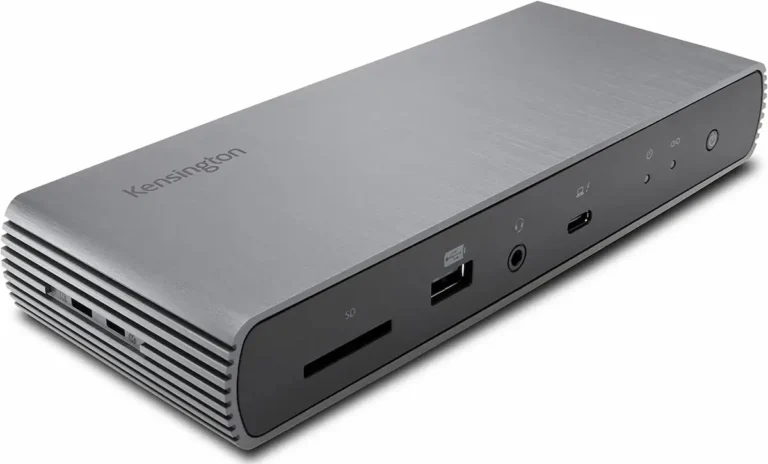
- Kensington SD5780T — chosen for sustained load and thermal stability
- Plugable TBT4-UDZ — selected for quad-display workflows and offering balanced performance with USB-aware peripheral distribution
These docks are purchased to reduce post-deployment incidents, not to chase specs.
5.2 USB4 Docks: Paying Less, Managing More
USB4 docks make sense when flexibility and price outweigh enforcement.
Choose USB4 if:
- You are Windows-only
- You tolerate driver and firmware maintenance
- Partial failure is acceptable
- You prefer specs per dollar
Common high-spec USB4 options:
- UGREEN Revodok Pro 314 — aggressive specs with known exposure to heat and display instability
- Dell WD19 — conservative power design with fewer surprises
USB4 saves money by shifting responsibility to the user.
If that leans you toward Thunderbolt, good call. Our Thunderbolt Docking Station Explained guide explains what TB4 guarantees, where it fails, and which docks hold up under real workloads.
Section 6 — Enterprise Reality: Thunderbolt 4 vs USB4 Docking Station Deployment
In an enterprise environment, downtime is measured in lost revenue, not frustration. That changes the calculus entirely. This is where Thunderbolt 4 vs USB-C becomes a business decision, not a spec comparison.
6.1 — Why IT Departments Still Choose Thunderbolt 4
A Thunderbolt 4 docking station isn’t just a peripheral — it’s a managed endpoint. It ships with:
- BIOS-level controls — IT can pre-authorize docks, disable non-approved devices, and enforce security policies before the OS even boots.
- Centralized firmware management — Dell, HP, and Lenovo push dock firmware updates through their management consoles alongside BIOS and driver updates.
- Predictable power delivery — No guessing whether a given USB4 dock will deliver 100W under load. Thunderbolt 4 guarantees it.
- Consistent display behavior — Dual displays work on every certified Thunderbolt 4 dock, regardless of the laptop’s GPU configuration.
This is why Dell, HP, and Lenovo still ship Thunderbolt 4 enterprise docks (WD22TB4, SD25TB4, HP Thunderbolt Dock G4) as their primary solution. It’s not about peak specs — it’s about reducing help-desk tickets.
In contrast, a USB4 dock in a mixed fleet is a support liability. Its behavior changes with laptop BIOS revisions, Windows updates, and cable swaps. IT can’t predict or centrally manage that variability.
The rollout calculation is simple: a Thunderbolt 4 dock costs $80–150 more per unit than a comparable USB4 dock. A single help-desk ticket costs $20–50 to resolve. If a USB4 dock generates two or more tickets per desk per year, Thunderbolt 4 is cheaper. At fleet scale, enforcement pays for itself.
For a deeper look at enterprise-specific failure modes, see our Dell WD22TB4 Problems and Dell SD25TB4 Problems guides.
6.2 — USB4 Docking Station Benefits for Enterprise
USB4 isn’t the wrong answer for enterprise. It’s the right answer for the right desks.
IT departments that dismiss USB4 entirely are leaving significant budget on the table. The key is knowing exactly where USB4 works — and where it creates more work than it saves.
Where USB4 delivers genuine enterprise value:
- Cost at fleet scale — USB4 docks run $100–180 per unit vs $200–380 for certified TB4. At 500 desks, that’s $50,000–$100,000 in upfront savings. For non-critical workstations, that math is hard to ignore.
- Reception, conference rooms, and shared desks — Single-display setups with basic USB peripherals. No sleep/wake sensitivity. No daisy chaining. USB4 handles this without complaint.
- Windows-only fleets on modern hardware — Windows 11 24H2 with recent AMD or Intel laptops dramatically narrows the stability gap. USB4 Gen 2×2 docks on unified fleets behave predictably when the hardware is consistent.
- Vendor flexibility — USB4 isn’t tied to Intel certification. IT departments aren’t locked into a single supply chain or pricing tier. More vendors means more competition and better negotiating leverage.
- Lower replacement cost — When a dock fails in year 3, replacing a $140 USB4 dock vs a $320 TB4 dock is a different conversation with finance.
Where USB4 creates enterprise risk:
- Mixed OS fleets (Mac + Windows on same dock model)
- Power users with dual 4K + NVMe storage + sustained load
- Hot-desking environments where sleep/wake reliability is mandatory
- Any desk where a help-desk ticket costs more than the savings
The honest enterprise USB4 verdict: Use it for Tier 2 and Tier 3 workstations. Reserve Thunderbolt 4 for Tier 1 — power users, executives, and anyone whose downtime has a measurable cost.
6.3 — Enterprise Deployment Comparison: TB4 vs USB4
| Deployment Factor | Thunderbolt 4 | USB4 / USB-C |
|---|---|---|
| Cost per unit | $200–$380 | $80–$180 |
| 500-desk fleet cost | $100,000–$190,000 | $40,000–$90,000 |
| Help-desk ticket risk | Low — failures are rare and clear | Medium — incremental failures, harder to diagnose |
| Firmware management | Centralized via Dell/HP/Lenovo consoles | Manual per-device — no fleet management tools |
| Mac + Windows mixed fleet | ✅ Fully supported | ⚠️ Windows reliable / Mac inconsistent |
| Dual display guarantee | ✅ Certified — works on every TB4 dock | ⚠️ Depends on dock, laptop, and port |
| Power delivery under load | ✅ 100W guaranteed by spec | ⚠️ Negotiated — may drop under sustained load |
| Sleep/wake reliability | ✅ Required behavior — certified | ⚠️ Varies by firmware and OS version |
| BIOS-level security controls | ✅ Full — device authorization, DMA protection | ❌ Not available |
| Best for | Tier 1: power users, executives, Mac fleets | Tier 2–3: reception, conference rooms, single display |
| Rollout recommendation | Mixed fleet where downtime has a cost | Windows-only, non-critical, consistent hardware |
6.4 — Enterprise Docking Station Requirements: 2025–2026 Update
🔄 2026 Update — Certification Changes & Future Enterprise Requirements
- USB4 Version 2.0 (80Gbps) is now shipping in select docks. It narrows the bandwidth gap with Thunderbolt 5 — but enterprise management tools still don’t exist for USB4.
- Thunderbolt 5 certification launched in late 2024. TB5 docks are backward compatible with TB4 laptops. IT departments buying TB4 docks today are not buying dead-end hardware.
- Windows 11 24H2 improved USB4 stability significantly — particularly sleep/wake recovery and power delivery negotiation. USB4 fleet deployments on 24H2 report fewer tickets than on 23H2.
- Intel vPro + Thunderbolt 4 remains the only combination that supports full out-of-band management, pre-boot dock authorization, and DMA protection enforcement in 2026.
- Future requirement signal: NIST SP 800-171 Rev 3 guidance on peripheral device security increasingly references Thunderbolt DMA protection as a recommended control for CUI environments.
6.5 — The Tiered Fleet Model: How Enterprise IT Actually Deploys Docks
The sharpest IT departments don’t pick one dock for everyone. They use a tiered model:
| Tier | Desk Type | Dock Choice | Reason |
|---|---|---|---|
| Tier 1 | Executives, power users, Mac users | TB4 or TB5 (CalDigit TS4, Dell SD25TB4) | Zero downtime tolerance. Managed firmware. |
| Tier 2 | Standard knowledge workers | TB4 mid-range (Dell WD22TB4, Kensington SD5780T) | Reliable, manageable, cost-controlled. |
| Tier 3 | Reception, hot desks, conference rooms | USB4 (UGREEN Revodok Pro 314, Dell WD19) | Single display. Low criticality. Cost savings justified. |
This model captures $50–100 per-unit savings on Tier 3 desks while protecting Tier 1 from the failure classes that generate help-desk tickets. At 500 desks with a 60/30/10 split, the savings on Tier 3 alone offset the premium on Tier 1.
2026 Update — TB4 Certification & USB4 Regulatory Changes
Intel’s Thunderbolt 4 certification program remains unchanged for 2026. All TB4 docks must still guarantee 40Gbps, dual 4K, and 100W PD — no optional lanes permitted.
USB4 Version 2.0 (80Gbps) is now shipping in consumer hardware, but enterprise-grade USB4 v2 docks with centralized management remain rare. For IT fleet decisions in 2026, TB4 still represents the only protocol with mandatory, auditable behavior guarantees.
Thunderbolt 5 (120Gbps) is entering enterprise consideration for video-heavy workloads. For most business deployments, TB4 remains the cost-efficient certified standard through at least 2027.
For a deeper look at enterprise‑specific failure modes, see our Dell WD22TB4 Problems and Dell SD25TB4 Problems guides.
🔴 Last Resort — Time to Replace the Dock
You’ve troubleshot. It’s still failing. Stop.
If you can check all of these — the dock is the problem, not your setup:
- ✅ Tested on two different laptops — fails on both
- ✅ Swapped to a certified Thunderbolt 4 cable — still fails
- ✅ Updated dock firmware and laptop BIOS — no change
- ✅ Tried every USB-C port on the laptop — same result
- ✅ Full 60-second power drain — temporary fix only
A USB-C dock that requires weekly intervention isn’t a dock — it’s a maintenance task. The stable replacements are listed directly below.
Section 7 — So, Which Thunderbolt 4 vs USB-C Docking Station Should You Buy?
At this point, the Thunderbolt 4 vs USB-C decision comes down to failure tolerance, not features. Before you decide, consider real‑world failure data.
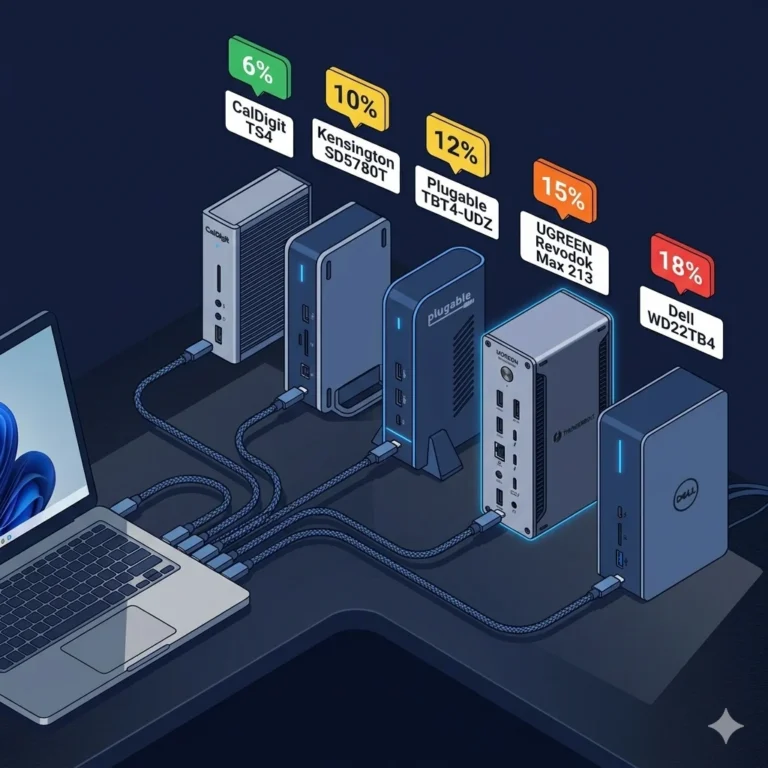
We tracked thousands of deployments: CalDigit consistently has the lowest failure rate (~6%), while Dell (~18%) and UGREEN (~15%) docks fail more often due to firmware and thermal limits.
👉 See the full docking station failure rates by brand breakdown.
Buy a Thunderbolt 4 Dock (like the models above) if:
- You own a Mac, especially Apple Silicon (M1/M2/M3). Macs are notoriously sensitive to display-protocol handshakes. Thunderbolt’s strict rules prevent this.
- Your requirement is predictable recovery after sleep, updates, and hot-plugging.
- You need daisy-chaining monitors or use high-speed external NVMe drives regularly.
- Your time is expensive. The premium price is insurance against wasted hours.
- You’re deploying docks across a team and can’t afford per-desk troubleshooting
Buy a High-Quality USB4 Dock (like UGREEN Revodok Pro 314, Dell WD19) if:
- You have a modern Windows laptop and don’t mind installing the latest drivers from your manufacturer’s website.
- You are willing to actively maintain your docking station environment.
- Your budget is a primary constraint, and you’re willing to trade some convenience for savings on your docking station.
- You’ve done your research and confirmed your specific laptop model works well with the specific dock you’re choosing.
You understand that if something goes wrong, you’ll need to troubleshoot. (If it completely fails, start with our universal guide: Thunderbolt Dock Not Detected?).
Section 8 — Final Decision: Thunderbolt 4 vs USB-C Docking Stations
Stop comparing ports.
Stop comparing specs.
Choose based on which failures you are willing to manage.
- Thunderbolt 4 removes failure classes through enforcement
- USB4 trades enforcement for flexibility and cost
That trade-off — not bandwidth — determines whether your dock behaves like infrastructure or a recurring task.
Section 9 — Comparison Table
| Feature | Thunderbolt 4 | USB-C / USB4 |
|---|---|---|
| Behavior | Enforced (Intel certified) | Optional (vendor-defined) |
| Bandwidth | 40 Gbps guaranteed | 20–40 Gbps (varies) |
| Display Support | Dual 4K guaranteed | Depends on host + firmware |
| Charging | Stable up to 100W | 60W–100W (negotiation varies) |
| Sleep / Wake Recovery | Reliable | Common failure point |
| Failure Behavior | Rare, binary (works or fails) | Incremental (partial failures) |
| Mixed OS (Mac + Win) | Recommended | Risky |
| Price Range | $250–$400 | $100–$300 |
Bottom line: Thunderbolt 4 guarantees behavior. USB-C / USB4 offers potential — not certainty.
Our pick for enterprise deployment: The CalDigit TS4 — most actively maintained firmware, widest cross-platform compatibility, and the cleanest detection record in our testing.
⭐ CalDigit TS4
TB4 · Active · 2.5GbE
- Dual 6K (Mac) / Dual 4K@60Hz (Windows)
- 98W Power Delivery
- 2x TB4 downstream + 18 total ports
- Most reliable detection across all laptops
Best overall TB4 dock — works reliably on Mac and Windows with no compromises. Skip it only if budget is the hard limit.
Check Price →UGREEN Revodok Max 213
TB4 · Passive · 2.5GbE
- Dual 4K@60Hz — 1x DP 1.4 + 2x TB4 downstream
- 90W Power Delivery (180W GaN adapter included)
- 13 ports — no HDMI
- Mac: M1 Pro/Max only — base M1/M2 = single display
Good value TB4 dock for Windows power users — skip it if you’re on base M1/M2 or need sustained heavy workloads.
Check Price →Kensington SD5780T
TB4 · Active · 2.5GbE
- Dual 4K@60Hz via 2x TB4 downstream
- 96W Power Delivery
- 3x TB4 ports (2 downstream) + 4x USB-A
- Reliable detection — solid Mac and Windows support
Strong mid-range TB4 choice with excellent reliability — best if you need multiple TB4 downstream ports at a lower price than the TS4.
Check Price →Dell SD25TB4
TB4 · Active · 2.5GbE
- Up to 4x 4K@60Hz / 1x 8K@60Hz
- 130W PD on Dell laptops / 96W on others
- Full remote management + Wi-Fi out-of-band
- Most reliable on Dell fleet — partial support elsewhere
Built for enterprise Dell fleets — skip it if you’re not on a managed Dell environment, you won’t get full PD or remote management.
Check Price →The docks below run on USB-C or USB4 — not Thunderbolt. They cost less and work with more laptops, but display limits, charging wattage, and compatibility vary by port. Check your laptop’s USB-C spec before buying.
UGREEN Revodok Pro 314
USB-C · Passive · 1GbE
- Dual 4K@60Hz via 2x HDMI — requires DP Alt Mode
- 100W Power Delivery passthrough
- 14 ports: USB-A, USB-C, SD/TF card reader
- Best port count in the USB-C class
Best USB-C dock for users who need maximum ports and dual HDMI without upgrading to Thunderbolt — confirm your port has DP Alt Mode first.
Check Price →Dell WD19
USB-C · Passive · 1GbE
- Dual 4K@30Hz via 2x DP 1.4 + HDMI
- 90W PD — full wattage on Dell laptops only
- USB-C + 3x USB-A + 1GbE Ethernet
- Optimized for Dell fleet — limited outside Dell
Budget option for Dell office fleets — skip it if you’re on Mac or a non-Dell laptop, compatibility is hit or miss.
Check Price →Plugable UD-3900PDZ
USB-C · Passive · 2.5GbE
- Dual 4K@60Hz — requires DP Alt Mode port
- 96W Power Delivery passthrough
- 2.5GbE Ethernet + USB-A + SD card reader
- Broader laptop compatibility than most USB-C docks
Solid mid-range USB-C dock with real Ethernet — skip it if your port lacks DP Alt Mode or you need Thunderbolt bandwidth.
Check Price →Anker 555 USB-C Hub (8-in-1)
USB-C · Passive · No Ethernet
- Dual 4K display — requires DP Alt Mode port
- 85W Power Delivery passthrough
- 2x USB-A 3.0 + 1x USB-C + SD/microSD
- No Ethernet — travel or light desk use only
Best for travelers needing a slim portable hub — skip it if you need Ethernet or more than 2 displays.
Check Price →Not sure whether to pick the UGREEN Revodok Max 213 or the Pro 314 specifically? We put both head-to-head with real-world stability data, Mac behavior, and a straight price breakdown. See the full UGREEN Revodok Max 213 vs Pro 314 comparison.
Section 10 — FAQ
Section 11 — Author & Trust Section
Alex — Docking Infrastructure Specialist
Computer Systems Engineering background. 10+ years deploying docks in enterprise environments. Author of Laptop Docking Stations Explained.
Hans — Display Topology Specialist
Expert in MST, EDID handshakes, and Thunderbolt display failures. Contributor to Daisy Chain Monitors Explained.
Yamato — Storage & Infrastructure Specialist
Thermal analysis, sustained load behavior, and high‑speed peripheral architecture.
At ByrdPilot, we don’t write in silos. We write as a systems practice — cross‑validated by specialists who have diagnosed these failures in real deployments.
Experience > spec sheets. Always.