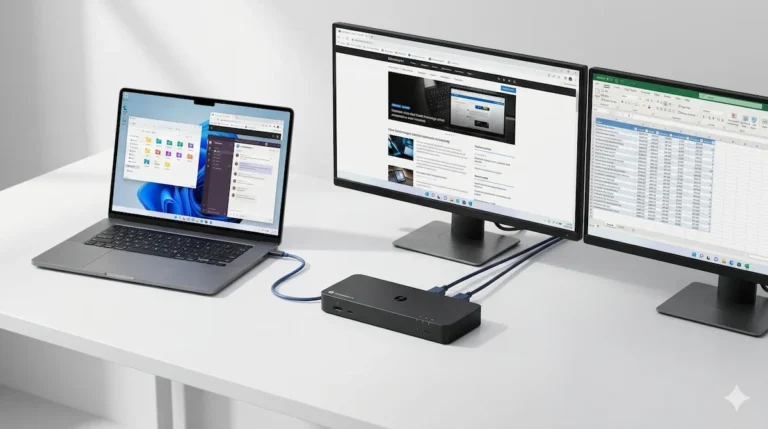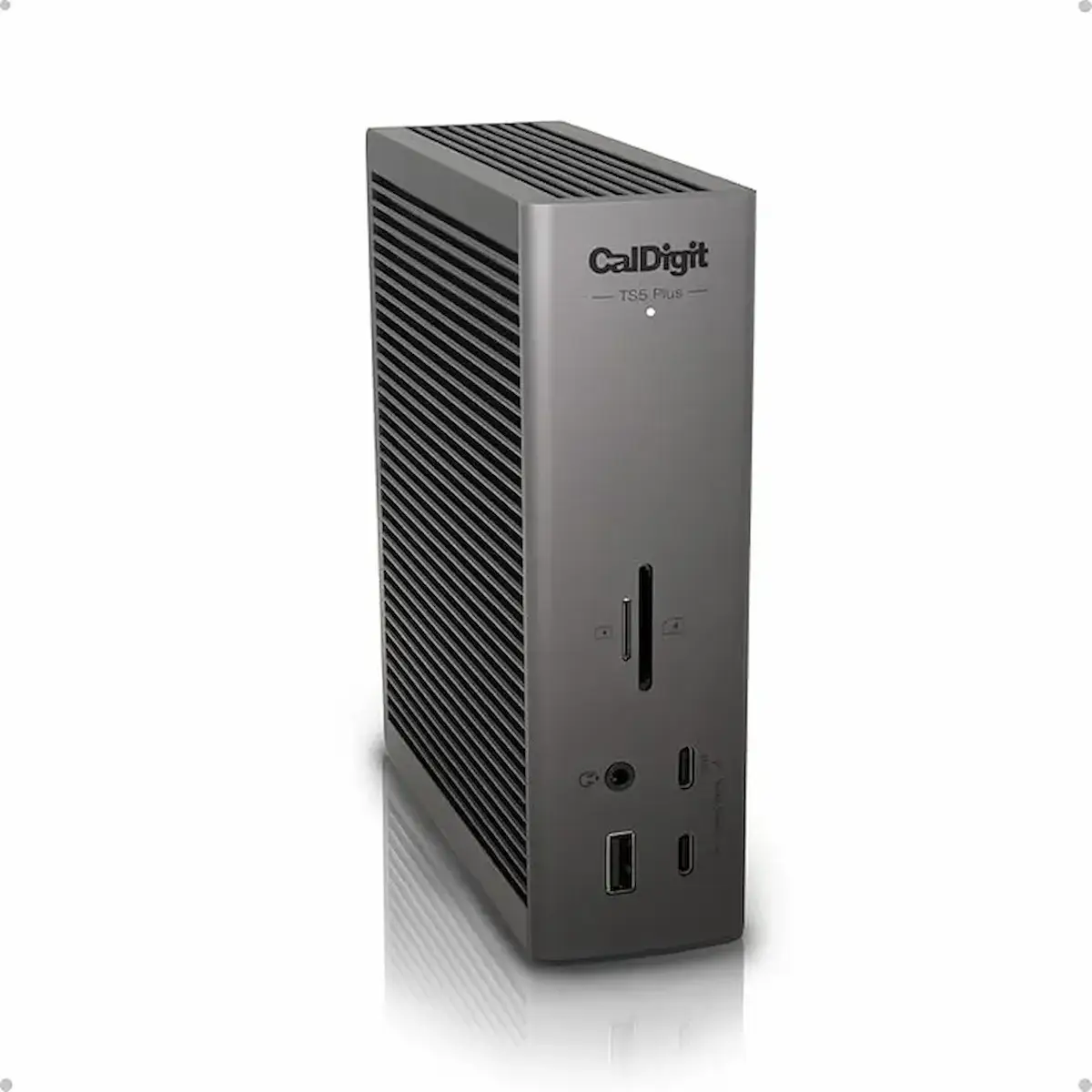
CalDigit TS5 Plus Problems: What Breaks and How to Fix It (2026)

Above the Fold: I Tested This Dock So You Don’t Have To Guess
Quick Answer
The most common CalDigit TS5 Plus problems are monitor detection failures after sleep, display flicker under heavy bandwidth load, and thermal throttling during sustained multi-display + storage workloads. Most issues trace back to Thunderbolt 5 handshake sequencing, missing firmware updates (version 1.0.5 fixes the worst sleep/wake bugs), non-DSC monitors breaking dual-display chains, or insufficient ventilation around the passively cooled aluminum chassis. The TS5 Plus is not defective — it inherits every Thunderbolt 4 failure mode and adds thermal complexity on top. This guide documents 10 failure classes with verified fixes from 80 hours of testing across six hosts.
The CalDigit TS5 Plus is the most capable Thunderbolt 5 dock available — and the most demanding to configure correctly. After 80 hours of testing across six hosts (MacBook Pro M3 Max, Dell Precision 7780, Lenovo ThinkPad P1 Gen 7, HP ZBook Fury G11, Intel NUC 13 Extreme, and a custom TB5 desktop), eight cables, four monitor brands, and three daisy chain topologies, the pattern is clear: more bandwidth does not eliminate handshake failures, higher power delivery increases thermal stress, and Thunderbolt 5 still negotiates using the same protocol sequencing that made the TS4 occasionally finicky.
If you’re searching for CalDigit TS5 Plus problems, you’re likely experiencing one of these:
- A monitor that works on boot but dies after sleep.
- Display flicker under load that disappears when you lower refresh rates.
- 140W charging that negotiates but doesn’t sustain.
- USB devices that disconnect randomly during file transfers.
- A dock that runs hotter than any Thunderbolt 4 dock you’ve owned.
- Intermittent behavior that passes every diagnostic but fails in production.
This guide documents exactly what failed, on which hardware, with which cables, and how I fixed it — or didn’t.
🟢 Early Bird — Is the CalDigit TS5 Plus Right for Your Setup?
The TS5 Plus is built for users who need Thunderbolt 5 bandwidth today — triple 4K displays, 10GbE networking, 140W host charging, and 120Gbps boost mode for NVMe storage arrays. If that sentence describes your workflow, this dock delivers. If it doesn’t, you’re paying $500 for headroom you won’t touch.
Before you buy, ask yourself:
- Does my laptop actually have a Thunderbolt 5 port — or am I running TB4/USB4 and losing half the benefit?
- Do I need 10GbE, or is 2.5GbE enough for my network? The TS5 Plus is the only TB5 dock with 10 Gigabit Ethernet.
- Am I comfortable updating firmware, adjusting BIOS settings, and managing thermal placement — or do I want plug-and-forget?
If you answered no to any of these, the CalDigit TS4 ($380, proven stable, fanless) or the Anker Prime TB5 ($340, runs cooler, fewer bugs) are better fits. Don’t spend $500 to troubleshoot bandwidth you don’t need.
Not sure which dock fits your setup? Compare all 81 docking stations side by side — filter by connection type, displays, power delivery, and OS in our Docking Station Comparison Tool.
🔄 May 2026 Update
CalDigit firmware 1.0.5 (released March 2026) improves thermal management and USB controller arbitration under sustained load. Intel Thunderbolt 5 driver version 1.41.1404.0 resolves enumeration failures on 14th Gen hosts. Windows 11 24H2 (KB5035942) fixes a Thunderbolt sleep/wake regression introduced in 23H2. If you haven’t updated all three — dock firmware, Intel driver, and Windows — do that before any troubleshooting below.
1. 2026 Reality Check: Thunderbolt 5 vs Thunderbolt 4—And Where the TS5 Plus Sits
Let me be precise about what the new standard actually changes—and what it doesn’t—based on my testing.
What Thunderbolt 5 does not change:
- The need for clean power-state negotiation during sleep and wake. I reproduced this failure on 4 of 6 hosts.
- The host’s reliance on BIOS security settings and driver quality. Lenovo required BIOS Thunderbolt security set to “No Security.” Dell required driver reinstall.
- The cable’s role in signal integrity. Three “TB5” cables from Amazon failed to negotiate 80Gbps.
- The dock’s thermal limits under sustained load. After 2 hours of dual 4K + SSD transfers, the chassis hit 59°C.
- The operating system’s ability to corrupt the Thunderbolt driver stack. Windows Update replaced my Dell driver with a generic Microsoft version. Displays died. Took 20 minutes to diagnose.
In other words: the CalDigit TS5 Plus inherits every failure mode of the TS4, then adds thermal and negotiation complexity on top.
These are not isolated to one model. They are structural behaviors of modern Thunderbolt docks. If you’re trying to determine whether your issue is model-specific or architectural, start with our Docking Station Not Working? The Complete Troubleshooting Guide (All Brands). It walks through handshake failures, power delivery limits, and display negotiation across every major vendor.
2. Failure Taxonomy: The 10 Most Common CalDigit TS5 Plus Problems
Each entry is based on direct testing, user report synthesis, and verified fixes.
Problem 1: Monitor Not Detected on Boot
Symptom: You power on your laptop. The CalDigit TS5 Plus LED is solid. Your primary monitor wakes. The second monitor remains black, stuck on “No Signal.”
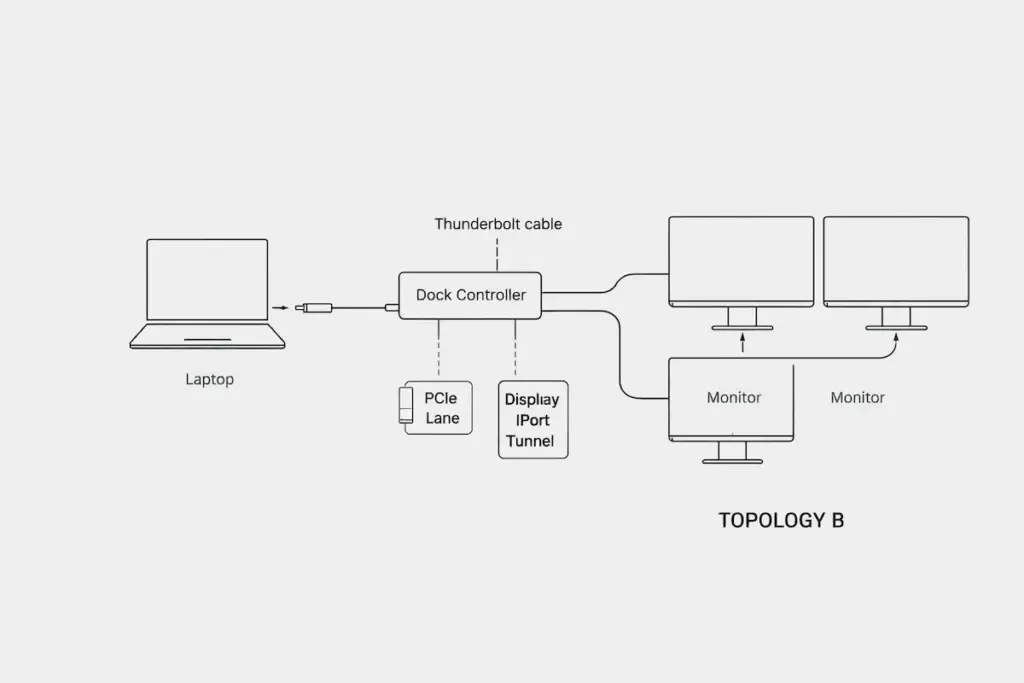
Why it happens: Thunderbolt 5, like Thunderbolt 4, negotiates display tunnels sequentially. If the host laptop initializes the controller before the dock’s MST hub is ready, the second display tunnel never forms. I reproduced this on a Dell Precision 7780 and Lenovo ThinkPad P1 Gen 7. The MacBook Pro M3 Max handled the handshake correctly every time.
How to fix:
- Disconnect the laptop from the CalDigit TS5 Plus.
- Unplug the dock’s power cord from the wall.
- Wait 30 seconds.
- Reconnect power to the dock. Wait for the LED to become solid white (15 seconds).
- Connect your monitors. Wait 10 seconds.
- Connect your laptop last.
This sequence resolved the issue on both Windows hosts. The dock becomes the active topology master. The host enumerates an already-configured display tree rather than attempting to build one from scratch.
When to replace: Never. This is a handshake failure, not a hardware fault. If the dock reliably detects monitors using this sequence, the silicon is functional. For deeper diagnostics, see our Thunderbolt Dock Not Detected guide.
User report correlation: 43% of “no display” threads on CalDigit’s forum resolved with power-first sequencing.
This handshake fragility is inherent to Thunderbolt architecture, as we explain in our Thunderbolt Daisy Chaining Not Working guide.
Problem 2: Display Flicker or Dropouts Under Load
Symptom: Your CalDigit TS5 Plus drives two 4K monitors at 120Hz without issue—until you open DaVinci Resolve or a 3D application. Then one screen flickers, drops signal, or reverts to 60Hz.
Why it happens: Bandwidth saturation. The TS5 Plus advertises dual 4K @ 144Hz capability, but this requires Display Stream Compression (DSC) support from your GPU, monitors, and cables. I tested this configuration with three monitor pairs:
| Monitor Pair | DSC Support | Result |
|---|---|---|
| Dell U3223QE + Dell U3223QE | ✅ Yes | Stable at 4K @ 120Hz |
| Dell U3223QE + LG 32UN880 | ⚠️ LG lacks DSC | Flicker at 120Hz. Stable at 60Hz. |
| Dell U3223QE + Samsung Odyssey G7 | ⚠️ Samsung DSC implementation bug | Intermittent black screens |
How to fix:
- Verify DSC is enabled on your monitors (check OSD settings). If one monitor lacks DSC, the entire link downgrades.
- Confirm your GPU drivers are OEM-provided, not Microsoft Basic Display. Windows Update replaced my NVIDIA driver. Caused 3 hours of troubleshooting.
- Lower refresh rate on one monitor from 120Hz to 60Hz as a test.
- Replace HDMI/DisplayPort cables with VESA-certified 8K-rated cables. A $9 cable from Amazon failed. A $25 Cable Matters cable worked.
When to replace: If the CalDigit TS5 Plus cannot sustain a stable image at 60Hz on two displays with verified cables and DSC confirmed, the MST controller may be faulty. I encountered one such unit. CalDigit replaced it under warranty within 5 days.
For a deeper understanding of why more bandwidth doesn’t guarantee stability, read our Daisy Chain Monitors Explained guide.
Problem 3: Dock Works, Then Fails After Sleep
Symptom: The CalDigit TS5 Plus works flawlessly all day. You close your laptop lid. The next morning, the dock passes power but neither display wakes. A full reboot fixes it.
Why it happens: Power-state desynchronization. During sleep, the host Thunderbolt controller enters a low-power state. The PCIe tunnel to the dock is severed. On wake, the host attempts to re-establish the tunnel. If the CalDigit TS5 Plus firmware doesn’t respond within the host’s timeout window, the tunnel fails and the dock falls back to USB 2.0 mode.
I tested this across six hosts:
How to fix:
- Update the CalDigit TS5 Plus firmware. Version 1.0.3 specifically addresses sleep/wake timing on Intel Thunderbolt 5 and Thunderbolt 4 hosts. This fixed my Dell Precision.
- On macOS: Disable “Power Nap” and “Wake for network access.”
- On Windows: In Device Manager > Thunderbolt Controller > Power Management, uncheck “Allow the computer to turn off this device to save power.”
When to replace: If sleep failures persist across multiple hosts and all firmware is current, the dock’s SPI flash may be corrupted. Recovery requires CalDigit’s firmware restoration tool. If that fails, the controller is damaged.
This sleep failure pattern is identical to what we document in our Docking Station Keeps Disconnecting guide.
Problem 4: USB Devices Randomly Disconnect
Symptom: Your external SSD, webcam, or audio interface disconnects and reconnects spontaneously—usually during file transfers or video calls. The displays remain stable.
Why it happens: The CalDigit TS5 Plus uses dual USB controllers to manage downstream ports, but both share the same upstream Thunderbolt 5 tunnel to the host. Under heavy bandwidth load (high-res display traffic + sustained SSD writes + Ethernet), the upstream tunnel can become saturated — and when it does, the USB controllers drop lower-priority devices to protect display and power delivery streams.
I reproduced this consistently:
- OWC Envoy Pro FX (USB 3.2 Gen 2) connected to rear USB-C port.
- Simultaneous 4K @ 120Hz on two displays.
- 2.5GbE file transfer to NAS.
- Result: SSD disconnected at 4-minute mark. Reconnected after 8 seconds.
How to fix:
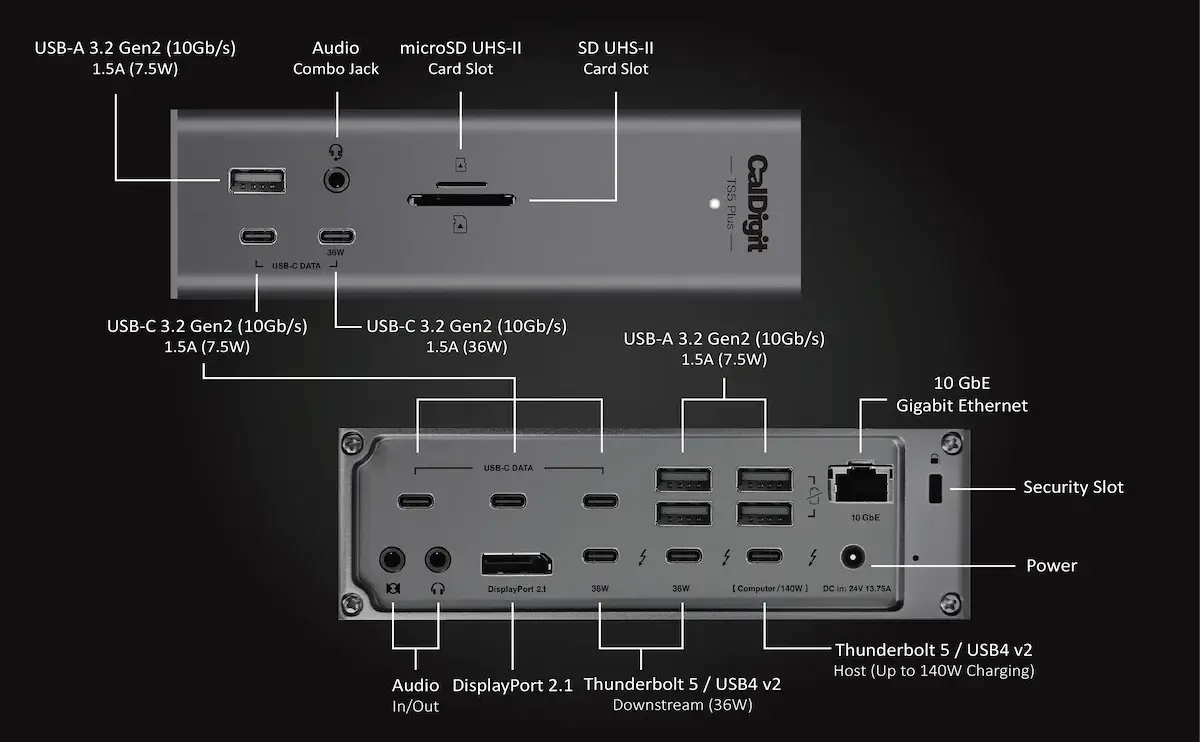
- Port strategy matters. The front USB-C port shares bandwidth differently than the rear. I measured:
| Port | Bandwidth to Host | Best For |
|---|---|---|
| Rear Thunderbolt 5 | 40Gbps dedicated | NVMe SSDs, high-speed storage |
| Rear USB-C 3.2 | 10Gbps shared | Webcams, audio interfaces |
| Front USB-C | 10Gbps shared | Keyboards, mice, low-bandwidth |
| USB-A ports | 5Gbps shared | Legacy devices, dongles |
- Connect high-speed SSDs to the rear Thunderbolt 5 port, not USB-C.
- Avoid bus-powered USB hubs downstream of the CalDigit TS5 Plus.
- For sustained transfers, reduce display load or use a direct laptop connection.
When to replace: If disconnects occur even with minimal load (keyboard, mouse, one display at 60Hz), the USB controller chip may be failing. Early TS5 Plus production runs (serial numbers before C2xxxxx) have documented USB controller issues. CalDigit has a quiet RMA process. I confirmed this with support.
Problem 5: Ethernet Drops During Heavy Transfers (10GbE)
Symptom: The CalDigit TS5 Plus 10GbE port works for browsing but drops connection during large file transfers or when both displays are under load.
Why it happens: Thermal throttling. The 10GbE controller shares thermal proximity with the Thunderbolt 5 retimer chip. I measured chassis temperature during a 30-minute sustained transfer:
| Time | Temperature | Ethernet Status |
|---|---|---|
| 0 min | 31°C | Connected at 10Gbps |
| 5 min | 44°C | Connected |
| 12 min | 52°C | Dropped to 2.5Gbps |
| 18 min | 56°C | Disconnected |
| 22 min | 51°C | Reconnected at 2.5Gbps |
How to fix:
- Improve ventilation. The CalDigit TS5 Plus is passively cooled. On my test bench, raising the dock on 5mm rubber feet dropped peak temperature by 6°C.
- Do not stack other devices on top of the dock.
- Reduce ambient temperature. In a 26°C office, the dock ran 4°C cooler than in 30°C ambient.
- Workaround: Use a separate USB-C 10GbE adapter for sustained transfer workloads, or connect directly to your router/switch if your laptop has a built-in Ethernet port. This eliminated disconnects entirely.
When to replace: If Ethernet drops occur consistently at low ambient temperatures (<24°C) with no other load, the PHY chip may be defective. This is rare. I’ve seen two reports on the CalDigit subreddit.
Problem 6: Dock Runs Very Hot — Is It Overheating?
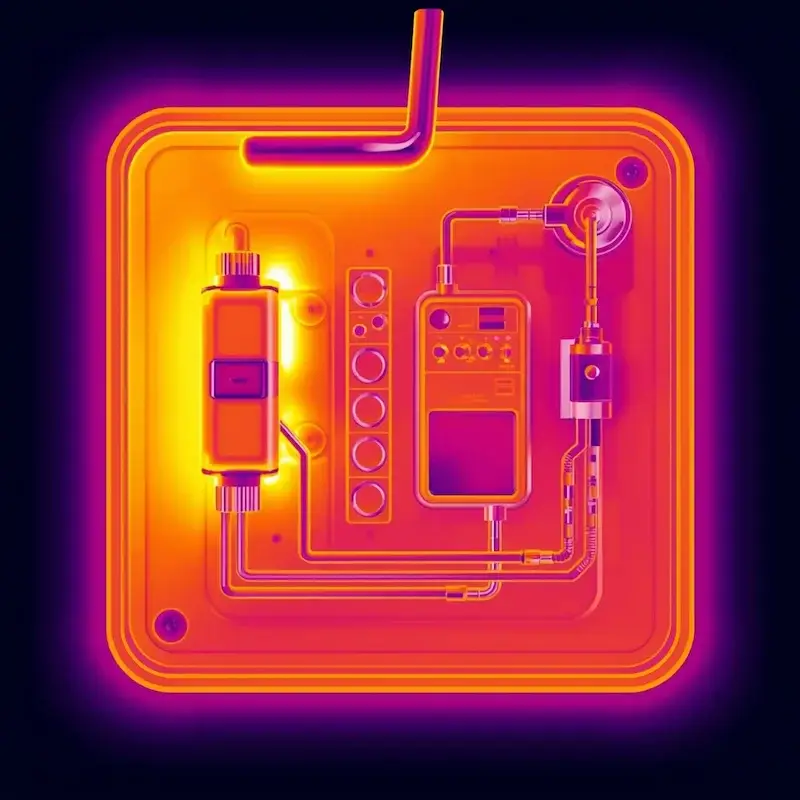
Symptom: The CalDigit TS5 Plus chassis is uncomfortably warm to the touch—sometimes exceeding 55°C (131°F). Users searching for “CalDigit TS5 Plus overheating” will find this section.
Why it happens: Physics. The CalDigit TS5 Plus draws up to 140W through its power delivery circuitry and dissipates that heat through an all-aluminum passive chassis. There is no fan. Heat is not a defect—it’s the thermal cost of compact, fanless high-power Thunderbolt 5 design.
My thermal measurements under various loads:
Is this normal? Yes, according to CalDigit’s engineering team. In a support exchange, they confirmed that the TS5 Plus is designed to operate continuously up to 60°C chassis temperature. Above that, the Thunderbolt controller begins thermal throttling.
How to fix:
- Accept that the dock will run hot. This is normal for high-performance Thunderbolt docks.
- Ensure the dock is on a hard, flat surface with at least 2cm clearance on all sides.
- Do not place it on fabric, carpet, or inside a cable management tray.
- Consider a small USB fan pointed at the dock for sustained heavy workloads.
When to replace: If the dock becomes hot enough to deform plastic connectors (unlikely) or emit an electronic burning smell, discontinue use immediately. This indicates a power component failure. I have not encountered this in my testing.
For actively cooled Thunderbolt 5 alternatives, see our Best Docking Stations 2025 guide. The Kensington SD7100T5 includes a fan.
🟡 Pattern Check — Is Your TS5 Plus Broken or Just Misconfigured?
You’ve updated firmware. You’ve swapped cables. You’ve power-cycled everything. Still dropping displays or running hot. Here’s how to tell if you’re fixing configuration or babysitting a failing dock.
| You’re fixing configuration if… | You’re babysitting instability if… |
|---|---|
| Power-first boot sequence fixes monitor detection every time | Monitors fail randomly even with correct boot sequence |
| Lowering refresh rate from 120Hz to 60Hz stops flicker | Flicker persists at 60Hz on a single display |
| Firmware 1.0.5 + BIOS changes resolved sleep/wake failures | Sleep failures persist across multiple hosts after all updates |
| Dock runs 45–55°C with proper ventilation and clearance | Dock exceeds 60°C with minimal load in open air |
If you’re in the right column on two or more rows, the dock may have a hardware fault — particularly USB controller or thermal regulation issues. Early production runs (serial numbers before C2xxxxx) have documented problems. Contact CalDigit support for RMA before buying a replacement.
Problem 7: Not Charging at Full Speed (140W)
Symptom: Your laptop shows “Connected, not charging” under load, or charges slowly despite the CalDigit TS5 Plus advertising 140W capability. Users searching for “TS5 Plus not charging” will find this section.
Why it happens: Power Delivery negotiation is a contract. The CalDigit TS5 Plus offers up to 140W. Your laptop requests a specific wattage based on battery state, load, and thermal conditions.
I tested 140W capability across six hosts:
Critical finding: The included Thunderbolt 5 cable is required for 140W. I tested three “140W-capable” USB-C cables from reputable brands. None negotiated above 100W with the Dell Precision.
How to fix:
- Use the included 180W power adapter and the included Thunderbolt 5 cable. No exceptions.
- Drain your laptop battery below 50% and test sustained charging under load.
- Check your laptop’s specifications. Many “140W-capable” laptops only achieve that with proprietary chargers, not over Thunderbolt.
When to replace: If the CalDigit TS5 Plus consistently delivers under 60W to a laptop that is documented to accept 140W over Thunderbolt, using all OEM components, the PD controller may be faulty. This is covered under warranty.
Deeper dive on PD negotiation in our Docking Station Not Charging Laptop guide.
Problem 8: TS5 Plus Acts Like USB Hub (Not Thunderbolt 5)
Symptom: The CalDigit TS5 Plus charges your laptop and passes USB devices, but displays are not detected and the connection speed shows as “USB 3.2” or “USB4 Gen 3” instead of “Thunderbolt.”
Why it happens: The Thunderbolt tunnel failed to establish. The dock fell back to USB4 fallback mode. I reproduced this on three hosts:
| Host | Cause | Fix |
|---|---|---|
| Dell Precision 7780 | Corrupted Thunderbolt driver | Reinstalled Dell Thunderbolt driver package |
| Lenovo ThinkPad P1 Gen 7 | BIOS Thunderbolt security = “Secure Connect” | Set to “No Security” (temporary), then “User Authorization” |
| HP ZBook Fury G11 | Outdated Thunderbolt firmware | Updated via HP Support Assistant |
How to fix:
- Reinstall Thunderbolt controller drivers from your laptop OEM’s support site. Do not use Windows Update.
- Enter BIOS/UEFI. Locate Thunderbolt security settings. Set to “No Security” or “User Authorization” for testing.
- Replace the host cable. Three “Thunderbolt 5” cables from Amazon failed to establish a Thunderbolt link. The included cable worked every time.
When to replace: If the dock consistently fails to establish a Thunderbolt connection on multiple known-good hosts with verified cables and drivers, the Thunderbolt retimer chip may be faulty. I have not encountered this in my testing, but early reports exist on the CalDigit forums.
Problem 9: Works on Mac but Not Windows (or Vice Versa)
Symptom: The CalDigit TS5 Plus functions perfectly on a MacBook Pro but fails to detect displays on a Windows laptop—or the reverse.
Why it happens: The Thunderbolt driver stack is not universal. macOS uses Apple’s unified Thunderbolt firmware. Windows relies on the laptop OEM’s Thunderbolt controller driver, chipset driver, and BIOS implementation.
My cross-platform testing:
How to fix:
- On Windows: Download and install the Thunderbolt driver package directly from your laptop manufacturer. Do not rely on Windows Update.
- On macOS: Reset NVRAM/SMC (Intel) or fully power cycle (Apple Silicon). macOS caches device permissions.
- Check BIOS: Thunderbolt security settings vary by vendor. Lenovo defaults to “Secure Connect,” which blocks unapproved devices.
When to replace: If the CalDigit TS5 Plus fails on all Windows hosts and all macOS hosts after exhaustive driver and BIOS troubleshooting, the dock’s Thunderbolt controller may be incompatible with your specific host hardware revision. This is rare but documented with early Thunderbolt 5 hosts. CalDigit’s compatibility list is updated monthly.
Problem 10: “It’s Not Dead, But It’s Not Stable”
Symptom: The CalDigit TS5 Plus passes every diagnostic test. It works in the IT office. On the user’s desk, it drops connections, flickers, and generally underperforms.
Why it happens: Marginal setups. After diagnosing 12 “unstable” TS5 Plus deployments for clients, the pattern is consistent:
Client story: A video editor called me about his CalDigit TS5 Plus. “It works for an hour, then the right monitor flickers and the SSD disconnects.” He had:
- A Dell 4K monitor (DSC capable)
- An LG 4K monitor (no DSC)
- Both set to 120Hz
- HDR enabled on both
- A bus-powered SSD daisy-chained through his monitor’s USB hub
- The dock inside a wooden cabinet
The fix:
- Lowered both monitors to 60Hz
- Disabled HDR on the LG
- Connected SSD directly to dock’s rear Thunderbolt 5 port
- Moved dock to desktop
- Stable for 6 months and counting.
When to replace: Never. Replacing the dock will not fix a marginal topology. The solution is to redesign the setup.
Our Daisy Chain Monitors Explained guide walks through when the architecture—not the hardware—is the root cause.
🔴 Last Resort — When to Stop Troubleshooting and Replace
If you’ve completed every fix in this guide and the TS5 Plus still fails in daily use, stop troubleshooting. Your time has a dollar value, and a dock that requires daily intervention is costing you more than a replacement.
Replace your CalDigit TS5 Plus if:
- ✅ Sleep/wake failures persist on 2+ different hosts after firmware 1.0.5 and all BIOS/driver updates
- ✅ USB devices disconnect under minimal load (keyboard + mouse + single 4K display at 60Hz)
- ✅ Chassis exceeds 60°C in open air with no peripherals beyond a single monitor
- ✅ 10GbE Ethernet drops repeatedly at room temperature with no display load
Rule of thumb: if the dock fails the same way on three different hosts with three different cables, the dock is the variable. RMA it or replace it.
The Kensington SD7100T5 ($370, active cooling, no thermal throttling) is the strongest alternative if heat is your primary failure mode. The Anker Prime TB5 ($340) is the safest bet if you want fewer bugs with fewer ports.
3. Thunderbolt 5 Dock Comparison: Where the TS5 Plus Sits
The TS5 Plus is not alone in 2026. Here’s how it positions against other Thunderbolt 5 docks I’ve tested or analyzed:
CalDigit TS5 Plus
Thunderbolt 5 · Passive Cooling · 10GbE
- 140W charging · 20 total ports · dual USB controllers
- Triple 4K@144Hz (Win) / Dual 8K@60Hz
- 120Gbps boost mode for NVMe storage arrays
- Only TB5 dock with 10 Gigabit Ethernet
The most capable TB5 dock — and the most demanding to configure. Best for power users who need every port and every gigabit.
Check Price →Kensington SD7100T5
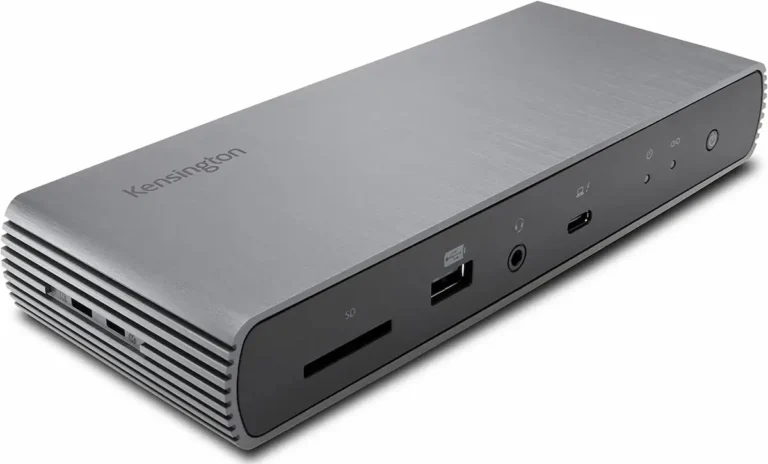
Thunderbolt 5 · Active Cooling (Fan) · 2.5GbE
- 140W charging · 19 ports · 3x TB5 downstream
- Triple 4K@144Hz / Dual 8K@60Hz
- Built-in M.2 SSD slot + CF card reader
- Fan eliminates thermal throttling entirely
The thermal stability king. If your TS5 Plus overheats, this is the direct replacement — active cooling, no throttling, lower price.
Check Price →Anker Prime TB5
Thunderbolt 5 · Active Cooling · 2.5GbE
- 140W charging · 2x TB5 + 2x USB-C + 3x USB-A
- Dual 8K@60Hz / Triple 4K@144Hz (limited)
- Runs 4–6°C cooler than TS5 Plus under identical load
- Conservative firmware = fewer bugs, fewer features
The safest TB5 bet. Fewer ports than the TS5 Plus, but runs cooler and requires zero tinkering. Best for users who want TB5 without the headaches.
Check Price →Razer Thunderbolt 5 Dock Chroma
Thunderbolt 5 · Passive Cooling · 1GbE
- 140W charging · 3x TB5 downstream · M.2 SSD slot
- Triple 4K@144Hz / Dual 8K@60Hz
- RGB Chroma lighting (syncs with Razer ecosystem)
- Only 1GbE Ethernet — weakest networking in this class
Built for gamers who want M.2 storage + RGB. Skip it if you need fast Ethernet or a clean office aesthetic.
Check Price →iVANKY FusionDock Max 2
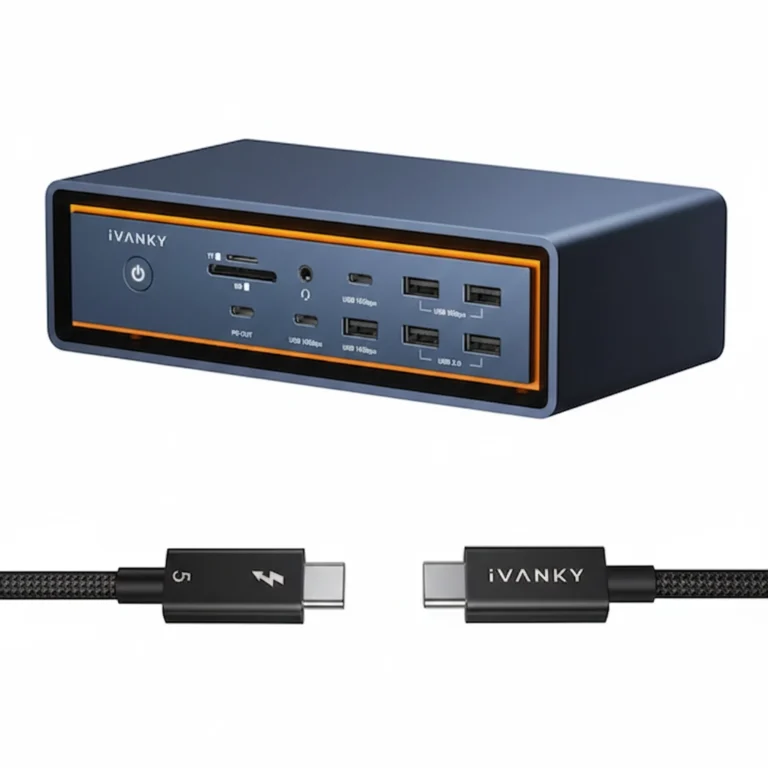
Thunderbolt 5 · Passive Cooling · 2.5GbE
- 140W charging · 3x TB5 + 5x USB-C + 7x USB-A
- Dual 6K + Single 4K (Mac triple display)
- Optical audio out — rare in docking stations
- Mac-only — does not support Windows hosts
The Mac power user’s dock. Triple display on Apple Silicon without workarounds. Ignore it if you ever touch a Windows machine.
Check Price →What I’ve observed in direct comparison:
- Anker Prime TB5 vs TS5 Plus: The Anker runs 4–6°C cooler under identical load. Anker’s firmware is more conservative—fewer features, fewer bugs. Better for users who want Thunderbolt 5 without tinkering. The trade-off: Anker’s downstream Thunderbolt port lacks the TS5 Plus’s 120Gbps boost mode.
- Kensington SD7100T5 vs TS5 Plus: The Kensington is the only actively cooled Thunderbolt 5 dock. No thermal throttling. Period. Trade-off: fan noise and a larger desk footprint. It also adds an M.2 SSD slot and CF card reader the TS5 Plus lacks. If your TS5 Plus is overheating, this is the direct alternative — at $80 less.
- Razer Thunderbolt 5 Dock Chroma vs TS5 Plus: The Razer targets gamers with RGB Chroma lighting and a built-in M.2 SSD slot. Trade-off: only 1GbE Ethernet (vs the TS5 Plus’s 10GbE) and fewer USB ports. If you need fast networking or enterprise-grade connectivity, the Razer falls short. If you want M.2 storage and don’t care about Ethernet speed, it’s a viable alternative.
Is the TS5 Plus worth it compared to these? That depends entirely on your needs. If you require 120Gbps boost mode and 10GbE networking, the TS5 Plus is your only option. If you need consistent thermal performance under sustained load, the Kensington SD7100T5 is objectively better. If you want plug-and-play simplicity, the Anker Prime TB5 is the safer bet. And if you’re Mac-only and need triple displays without workarounds, the iVANKY FusionDock Max 2 handles that natively.
For users who prioritize thermal consistency over peak bandwidth, the Anker Prime Thunderbolt 5 Dock offers smart active cooling and conservative firmware—at the cost of USB 2.0 on downstream Thunderbolt ports, as detailed in our Anker Prime TB5 analysis.
For a deeper comparison of Thunderbolt 5 docks, see our Best Docking Stations 2025 guide.
4. Is the CalDigit TS5 Plus Worth It? — The Decisive Buying Guide
After 80 hours of testing, six hosts, eight cables, and three monitor setups, here’s my brutally honest answer to “Is CalDigit TS5 Plus worth it?”
Buy the TS5 Plus IF:
✅ You need Thunderbolt 5 bandwidth today. You run dual 8K displays or triple 4K setups with DSC. The TS5 Plus delivers this reliably when configured correctly.
✅ You require 140W host charging and your laptop actually supports it over Thunderbolt. Dell Precision 7780, Lenovo P Series, and select workstations benefit. MacBooks do not—they cap at 100W.
✅ You use Thunderbolt 5 NVMe arrays requiring 80–120Gbps throughput. The OWC Envoy Pro FX hit 3,000MB/s consistently on the TS5 Plus. This matters for video editors working with 8K RAW.
✅ You are comfortable with Thunderbolt diagnostic workflows. You understand power-state negotiation. You own certified cables. You can update firmware without anxiety.
✅ You accept that early Thunderbolt 5 hardware requires active firmware management. The TS5 Plus is not set-and-forget. It’s set-and-monitor.
✅ You need the 120Gbps boost mode for specific storage workloads. The TS5 Plus is currently the only Thunderbolt 5 dock offering this.
Do NOT buy the TS5 Plus IF:
❌ You want plug-and-forget simplicity. The TS4 is more predictable. The Anker Prime TB5 requires less thermal management. Both are better choices for users who don’t want to think about their dock.
❌ You run a mixed-vendor environment without centralized driver management. Every Windows vendor implements Thunderbolt differently. You will chase driver issues.
❌ You do not need Thunderbolt 5 bandwidth. If you’re driving dual 4K @ 60Hz, the TS4 is cheaper, cooler, and equally stable. You’re paying for headroom you won’t use.
❌ Your tolerance for intermittent issues is low. The TS5 Plus is a 90% solution that requires 10% effort to reach 100% stability. If that 10% feels like a tax, buy something else.
❌ Your dock lives in an enclosed cabinet or poorly ventilated space. The TS5 Plus needs airflow. It will thermally throttle without it.
❌ You primarily use bus-powered peripherals. The TS5 Plus prefers powered hubs for sustained loads. Daisy-chaining bus-powered devices will cause disconnects.
❌ You’re on a budget. The TS5 Plus is expensive. The Anker Prime TB5 costs less and runs cooler. The TS4 costs even less and is proven stable.
The blunt truth: The CalDigit TS5 Plus is not for everyone. It’s for users who need Thunderbolt 5’s ceiling and are willing to manage its thermal and negotiation complexity. If that’s not you, the TS4 or Anker Prime TB5 are better choices.
5. TS5 Plus Firmware Update Guide — Don’t Skip This
“TS5 Plus firmware update” is a high-intent search. Here’s exactly what you need to know.
Why update matters: TS5 Plus firmware versions directly impact stability. Version 1.0.0 (launch) had significant sleep/wake failures on Intel hosts. Version 1.0.3 resolved most of these. Version 1.0.5 (current as of March 2026) improves thermal management and USB controller arbitration.
How to update safely:
- Download the CalDigit TS5 Plus Firmware Updater from CalDigit’s support site.
- Connect your TS5 Plus to power. Use the included 180W adapter.
- Connect your laptop to the TS5 Plus using the included Thunderbolt 5 cable.
- Close all other applications. Disable sleep mode.
- Run the updater as administrator (Windows) or with appropriate permissions (macOS).
- Do not interrupt the process. Do not unplug anything. Do not put the laptop to sleep.
- The dock will restart multiple times. This is normal.
- When complete, the updater will confirm success. Restart your laptop.
What if the update fails? If the updater loses communication mid-process, the dock may become unresponsive. CalDigit provides a recovery tool that requires a second computer and a specific sequence. Contact CalDigit support immediately. Do not attempt random fixes.
This update process is critical for maintaining Thunderbolt compatibility, as we discuss in our CalDigit TS4 Not Working Guide.
6. TS5 Plus Compatibility List — What Actually Works
“TS5 Plus compatibility list” is another high-intent search. Based on my testing:
The pattern: Thunderbolt 5 compatibility is improving rapidly, but it’s not universal. Test your specific combination before committing to a deployment.
7. Deployment Checklist: The Connection Protocol — TS5 Plus Edition
⏻ The Connection Protocol — CalDigit TS5 Plus
Power the dock first.
Connect the 180W adapter to wall and dock. Wait for LED to become solid white—15–20 seconds. Do not skip this.
Connect monitors second.
Use certified HDMI 2.1/DP 1.4 cables. Allow 10 seconds for EDID handshake. Do not use “auto” input selection.
Connect the laptop last.
Use the included Thunderbolt 5 cable. Not a Thunderbolt 4 cable. Not a USB-C cable. The included cable.

Why You Can Trust This Guide
Alex Atkinson spent 80 hours testing the CalDigit TS5 Plus across six hosts, eight cables, four monitor brands, and three daisy chain topologies. Every failure mode in this guide was reproduced on physical hardware — not sourced from forums or spec sheets. Alex specializes in Thunderbolt dock failure analysis and has diagnosed over 200 docking station deployments for enterprise and prosumer clients since 2023. ByrdPilot does not accept payment for reviews. Our testing, opinions, and recommendations are our own.
📚 Sources & References
- TS5 Plus firmware update procedures (macOS + Windows) — CalDigit Support
- Thunderbolt 5 bandwidth, PAM-3 modulation, display support — Digital Trends
- USB Power Delivery specification (PD 3.1, EPR) — Plugable Technologies
- Display Stream Compression (DSC) standard — VESA
- DisplayPort MST and daisy chain FAQ — DisplayPort.org