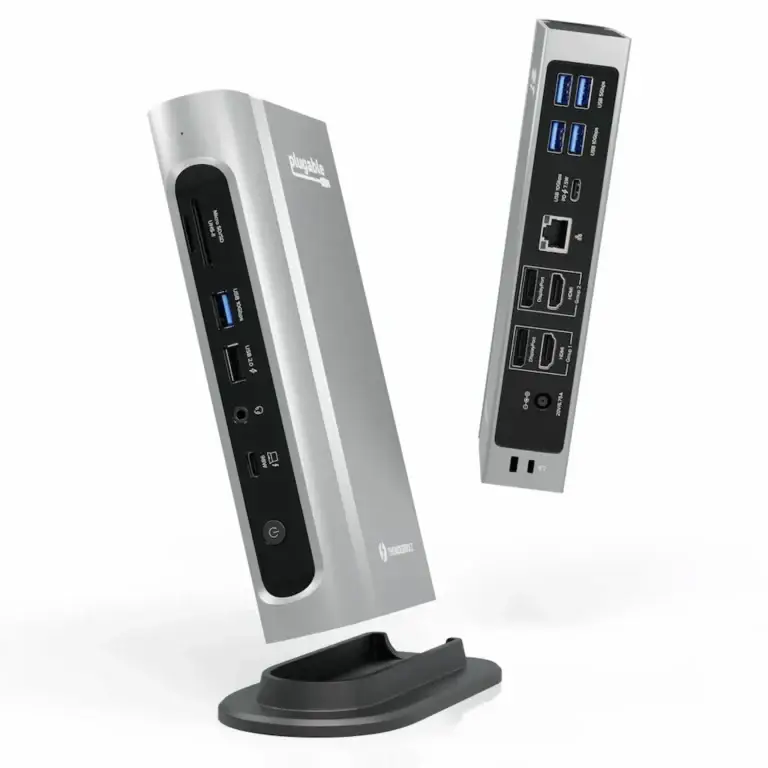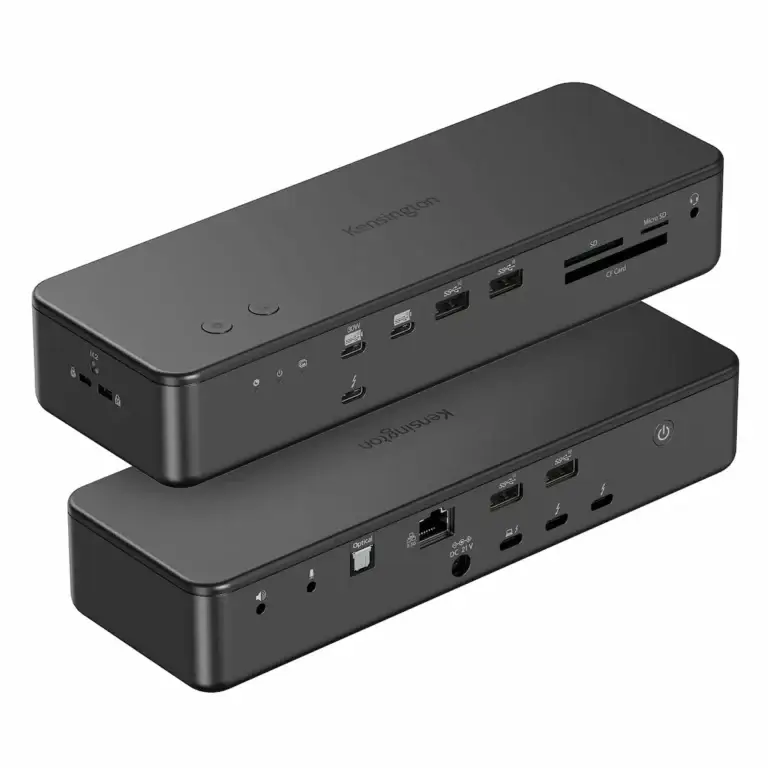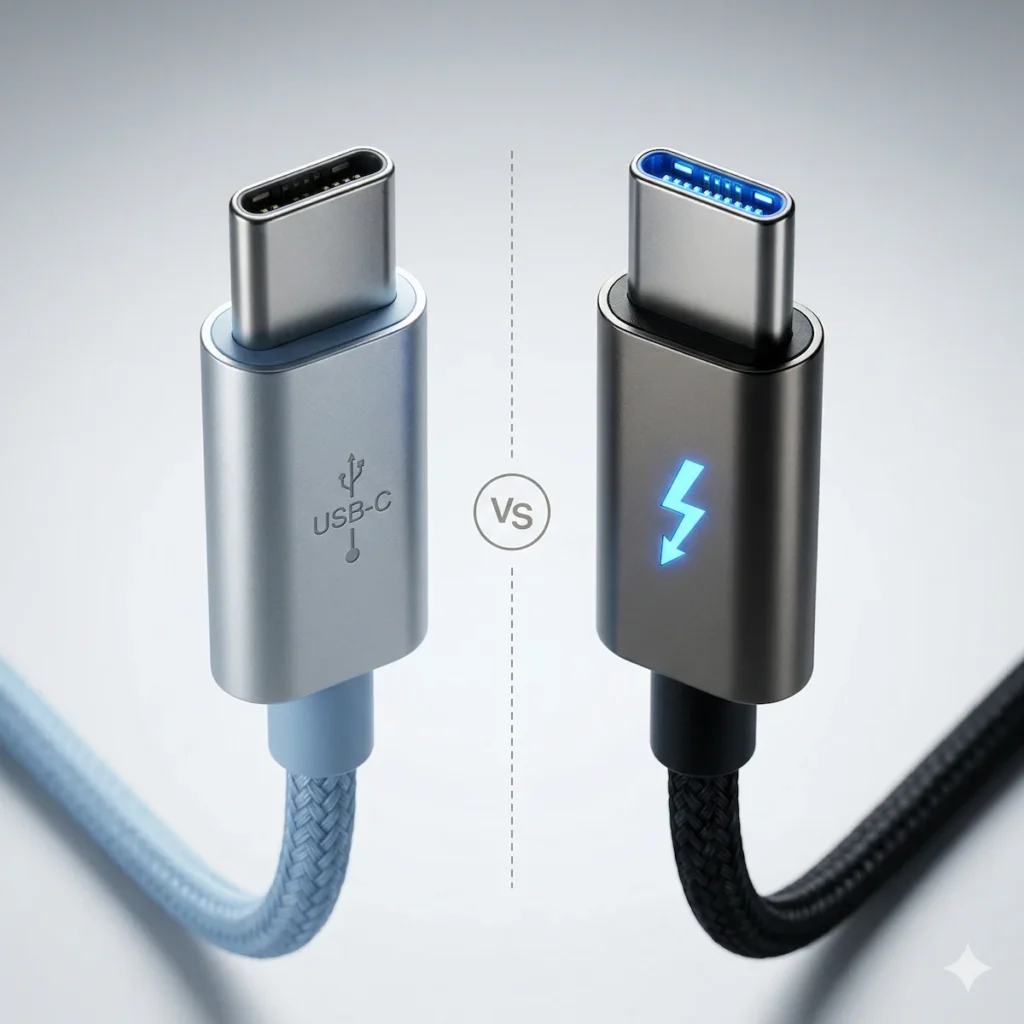
⚡ Quick Answer — Thunderbolt 4 vs USB-C
In a Thunderbolt 4 vs USB-C docking station decision, your laptop’s port sets the ceiling and the dock decides how much of it you reach. Thunderbolt 4 requires the computer to support two 4K displays, wake from sleep and PCIe tunneling. On USB4 and USB-C, the minimums are lower or optional.
- Choose Thunderbolt 4 if your laptop has a Thunderbolt port and you want PCIe features, two displays or extra Thunderbolt ports.
- Choose USB-C or USB4 if your port is USB-C and you mainly need displays, Ethernet and charging.
A dock can’t add Thunderbolt to a port that lacks it, so check your port first.
You’re comparing two docking stations that look identical. Both use USB-C. Both promise dual 4K, fast charging, and a one-cable setup. One says Thunderbolt 4. The other says USB-C / USB4 and looks like the better deal.
This is where most Thunderbolt 4 vs USB-C docking station problems start. Not because one is “bad” and the other is magic, but because they follow different rules.
Thunderbolt 4 sets minimums that your laptop’s port has to meet. USB-C and USB4 allow more variation. That difference decides what a dock can actually do for you, and whether your setup stays stable or slowly breaks over time.
🟢 Early Bird: Skip the Deep Dive
🟢 Early Bird: Skip the Deep Dive
Thunderbolt 4 vs USB-C, by the laptop you own:
- Mac with a Thunderbolt-symbol port: buy a Thunderbolt 4 dock, then check your chip’s display limit in the Mac section.
- Windows laptop with the lightning logo: a Thunderbolt 4 dock should deliver its full feature set, though display counts still depend on your graphics. Two monitors and Ethernet alone don’t need one.
- Windows laptop with USB-C or USB4 and no logo: buy a USB-C dock, unless the spec sheet lists PCIe support.
- MacBook Neo or another USB-C-only Mac: a USB-C dock. Check the dock maker’s Mac list for your model before buying.
Three quick checks:
- Does your port carry the lightning symbol?
- How many displays do you run, and how many can your chip or graphics handle?
- Do you need wired Ethernet or fast storage through the dock?
Section 1 — The Analogy That Actually Makes Sense
Think of it like this:
- USB-C is the shape of the plug. It’s the physical oval port on your laptop. That’s it.
- USB4 and Thunderbolt 4 are the rules of the highway inside that cable.
Imagine two highways. Both can have eight lanes and a 100 mph speed limit.
- Thunderbolt 4 is a strictly managed turnpike. The minimum speed is certified, and there are mandatory service stations (like video signal support) at every exit. It’s predictable. You pay a toll (the Intel certification fee) to use it. The catch: the toll booth sits at your laptop’s port, not at the dock.
- USB4 is a state highway with the same potential. It can have eight lanes and 100 mph limits, but the state (the manufacturer) decides exactly how to build it. Maybe one on-ramp is closed. Maybe the fast lane is only open sometimes. It can be fantastic, but the experience isn’t guaranteed.
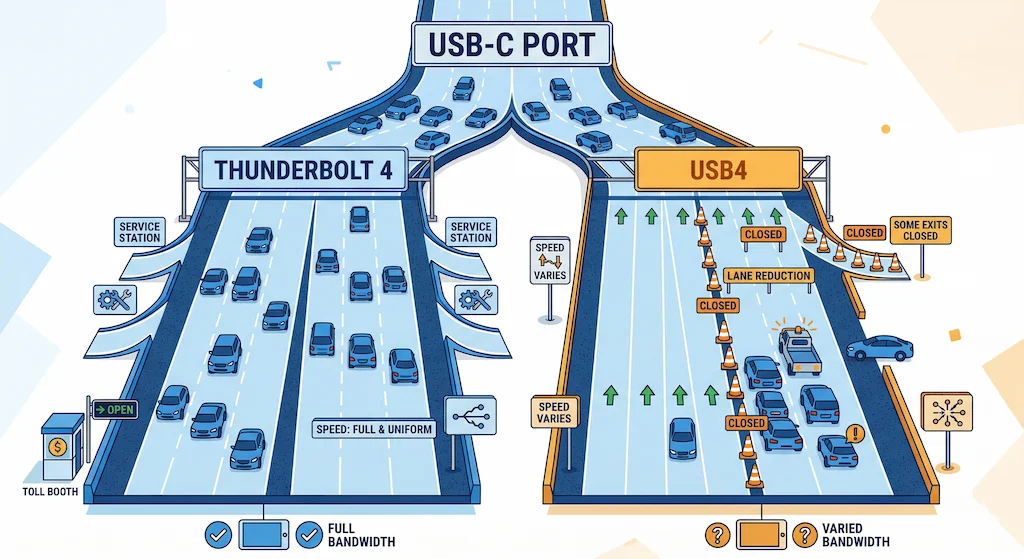
The kicker? Both highways use the same on-ramp: the USB-C port. This is why confusion around Thunderbolt 4 vs USB-C docking stations keeps causing bad buying decisions.
Section 2 — Thunderbolt 4 vs USB-C: Direct Comparison
| Feature | Thunderbolt 4 | USB-C / USB4 |
|---|---|---|
| Minimum speed | 40Gbps | 20Gbps |
| Displays | Two 4K minimum from the computer | One display minimum |
| Laptop charging | Required on at least one computer port; the dock maker sets the wattage | Not required |
| Wake from sleep | Required when connected to a Thunderbolt dock | Not listed |
| Best for | Thunderbolt-port laptops, PCIe features | USB-C or USB4 laptops with simpler needs |
Bottom line: Thunderbolt 4 raises the floor on the laptop. A dock can’t raise it for you.
Section 3 — Thunderbolt 4 vs USB-C: What the Labels Mean
USB-C is the connector, the small oval port. That’s all it tells you. A USB-C port can be data-only, carry a display signal, or run at USB4 or Thunderbolt speeds, and the shape is identical in every case. Ask whether Thunderbolt 4 is the same as USB-C and Intel’s answer is no: Thunderbolt 4 isn’t the same thing, it just uses that connector.
USB4 is a protocol that runs over USB-C. USB-IF says it’s based on the Thunderbolt specification Intel contributed, and it comes in 20Gbps and 40Gbps versions, with USB4 Version 2.0 reaching 80Gbps. Thunderbolt 4 sits on top of that. It’s USB4 compliant, plus a longer list of things that have to work.
| Label | What it is | What it promises |
|---|---|---|
| USB-C | The connector: the small oval port | Nothing about speed, video or charging |
| USB4 | A protocol that runs over USB-C, based on the Thunderbolt spec Intel contributed | A 20Gbps or 40Gbps link. Intel’s table lists 20Gbps and one display as the PC minimum |
| Thunderbolt 4 | Intel’s certified set of minimums, also USB4 compliant | 40Gbps, two 4K displays, PCIe at 32Gb/s, wake from sleep, charging on one port, DMA protection |
So the Thunderbolt 4 vs USB4 gap is a raised floor, not a different connector.
Want the longer version on what a Thunderbolt dock does for ports and cables? Our Thunderbolt Docking Station Explained guide covers it.
Section 4 — What Thunderbolt 4 Requires, and Who Has to Deliver It
Intel’s Thunderbolt 4 launch deck (2020) has a side-by-side table of the minimums. Here it is in plain form.
| Requirement | Thunderbolt 4 | USB4 | Who it applies to |
|---|---|---|---|
| Minimum speed | 40Gbps | 20Gbps | The computer |
| Minimum video | Two 4K displays | One display, no further minimum | The computer |
| Minimum data | PCIe at 32Gb/s plus USB 3.2 at 10Gbps | USB 3.2 at 10Gbps; PCIe is optional | The computer |
| Laptop charging | Required on at least one computer port, for thin-and-light laptops under 100W | Not required | The computer |
| Wake from sleep | Required when the computer is connected to a Thunderbolt dock | Not listed | The computer |
| Port power for accessories | 15W | 7.5W | The computer |
| DMA protection | Required, Intel VT-d based | Not listed | The computer |
| Cables | Universal 40Gbps cables up to 2 meters | No equivalent in the rows used here | The cable |
Read the last column. Every row here except the cable is a requirement on the computer. Intel certifies accessories too, but Plugable’s support documentation draws the practical conclusion: it isn’t possible to add Thunderbolt capability to a non-Thunderbolt host through a dock.
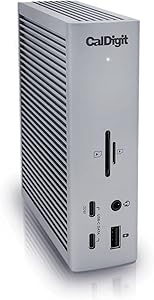
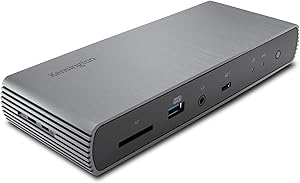
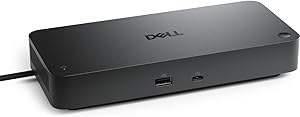
Two things follow from that table. First, Thunderbolt 4 doesn’t guarantee 100W to your laptop. Intel requires the computer to be able to charge from at least one port and describes the standard as up to 100W for laptop charging. What a dock actually sends is the maker’s number: up to 98W from the CalDigit TS4, 96W from the Kensington SD5780T, and 130W to Dell laptops but 96W to everything else from Dell’s SD25TB4.
Second, wake from sleep isn’t a dock feature. Intel’s wording is that the PC must wake when it’s connected to a Thunderbolt dock, so the promise lives on the laptop side.
Windows laptops: what Microsoft now requires
Microsoft’s certification rules tighten USB4 on Windows PCs. For PCs certified under its 24H2 requirements, a system that supports USB4 at all must support it on every user-accessible USB-C port, unless a port is visibly marked as non-USB4. Microsoft’s USB4 requirements call for sourcing 15W, though not on every port at once, and tablets only need 7.5W. Its requirement list for USB4 systems also includes DisplayPort Alt Mode and PCIe tunneling support.
That doesn’t make USB4 as strict as Thunderbolt 4. The link can still be 20Gbps, and the rules cover PCs that went through that certification, not every laptop on a desk. Intel’s own page still calls PCIe optional for USB4. Check your laptop’s spec sheet instead of assuming either way.
Section 5 — What Changes When a Thunderbolt 4 Dock Meets a USB-C Port
A Thunderbolt 4 dock plugged into a USB-C port still works. It works like a USB-C dock, with whatever that port allows. Here’s what the makers say you lose.
- Displays. CalDigit’s host table lists two external displays on Windows Thunderbolt PCs and one on Windows USB-C hosts. Kensington’s page says a USB-C Alt Mode laptop supports only a single external display on its SD5780T.
- Ports that need PCIe. CalDigit says the TS4’s Ethernet port won’t function on USB-C computers, because USB-C doesn’t support PCIe. It does work on Thunderbolt hosts and on USB4 hosts that support PCIe. Plugable’s documentation lists Ethernet as likely to work on a USB-C host, so how a dock wires Ethernet matters. Check the dock’s own page.
- Downstream Thunderbolt ports. Plugable’s documentation says a dock’s Thunderbolt ports typically only match the bandwidth and capabilities of the host.
- Charging. Not every USB-C port or host supports charging a laptop, per Plugable.
- Video on data-only ports. Plugable says data-only USB-C ports won’t support displays at all, and a host that does support DisplayPort Alt Mode may not manage the advertised resolution and number of displays.
The reverse case is fine. A USB-C dock on a Thunderbolt laptop just runs at USB-C speeds. Dell’s WD25, for example, connects over a 10Gbps USB-C link with DisplayPort 1.4 Alt Mode and is listed for both Thunderbolt and plain USB-C computers.
When two monitors and a fast drive share one cable
Microsoft’s USB4 guidance for Windows explains why one cable can feel crowded. At most 90 percent of a USB4 link can be explicitly allocated, and that bandwidth starts out assigned to USB 3.x and PCIe, two thirds and one third. A DisplayPort tunnel draws on that allocation. On systems that support DisplayPort bandwidth allocation mode (Windows 11 build 22621.1344 and later), Windows can allocate display bandwidth dynamically. On systems without it, DisplayPort bandwidth is first come, first served, and Microsoft says a tunnel’s capabilities can be masked off to fit, which can mean a lower resolution than the monitor’s maximum, or no tunnel at all.
None of that is a Thunderbolt-versus-USB-C verdict. It’s a reminder that bandwidth on one cable gets divided, and that adding a monitor can change what another one gets.
Section 6 — Check Your Port Before You Buy
You can settle most of this in a minute. On Windows, the spec sheet still has the last word.
- Look for the symbol. Intel marks Thunderbolt with a lightning symbol. The oval shape alone doesn’t tell you anything, because USB uses the same connector.
- Windows 11. Open Settings, then Bluetooth & devices, then USB, then USB4 Hubs and Devices (Windows 11 build 22621.1778 or later). If the page isn’t there, the PC may not be USB4-capable. On some systems it only shows up once a USB4 device is plugged in, so try that first. If it’s there, you have USB4. Whether it’s Thunderbolt 4 still takes the logo or the spec sheet.
- Spec sheet. Search your laptop’s model plus “tech specs” and look for “Thunderbolt 4”, “USB4 40Gbps” or “USB-C with DisplayPort”.
- Mac. Apple’s port guide lists which Macs have Thunderbolt 4, which have Thunderbolt / USB 4 and which have plain USB-C, and it marks Thunderbolt ports with the Thunderbolt symbol. For your exact model, open its Tech Specs page. The MacBook Air (2022) page, for example, lists two Thunderbolt / USB 4 ports.
- The cable. Intel’s table lists universal 40Gbps cables up to 2 meters as part of Thunderbolt 4. Use the cable that came with the dock, or one marked with the Thunderbolt symbol.
Port checked? Match it to the table further down.
Section 7 — Mac: Your Chip Sets the Native Display Limit
In the Thunderbolt 4 vs USB-C debate, a Mac adds its own rule: the chip sets how many displays the laptop can drive on its own, and a normal Thunderbolt or USB-C dock can’t raise it. Here are Apple’s numbers for the base chips, with lid state, because the lid changes the answer on the M3.
| Mac chip (base) | Lid open | Lid closed |
|---|---|---|
| M3 | With the lid open: one external display, up to 6K at 60Hz | With the lid closed: two external displays, the second limited to 5K at 60Hz |
| M4 | With the lid open: two external displays, each up to 6K at 60Hz | Still two; closing the lid adds none |
| M5 (per Apple’s MacBook Air page) | With the lid open: two external displays, each up to 6K at 60Hz | Still two; closing the lid adds none |
Apple’s tech specs for the MacBook Air (2022) list one external display at up to 6K and 60Hz. Apple’s port labels trip people up too. That Air’s two ports are labeled Thunderbolt / USB 4, not Thunderbolt 4, while Air models introduced in 2025 or later are listed with Thunderbolt 4.
The MacBook Neo is the one to watch. Apple’s guide says its left port is USB 3 and supports one external display, its right port is USB 2, and Thunderbolt-only devices aren’t compatible. CalDigit says its TS4 works with USB-C computers, with results limited by what the computer’s port offers, and lists no dual-monitor support for the Neo through USB-C.
If your chip’s count is the problem, DisplayLink docks draw displays with software instead of the laptop’s own outputs. The Plugable UD-3900PDZ below lists Apple Silicon support including M4 and M5, and it comes with trade-offs worth reading first.
Buying for a MacBook Air? Our Best Docking Station for MacBook Air guide matches docks to each chip.
➡️ Deep dive: Best Docking Station for MacBook Pro • MacBook Docking Station
🟡 Where USB-C Docks Fall Short, and Where They’re Fine
A USB-C docking station covers more desks than the Thunderbolt 4 vs USB-C label gap suggests. Displays, Ethernet, a few USB ports and laptop charging can all run over a USB-C link, and Dell’s WD25 does it with 2.5GbE. Where USB-C falls short is anything that depends on PCIe, like the TS4’s Ethernet, or Thunderbolt ports on the dock, which Plugable says only match the host.
Already own a dock that keeps misbehaving? Check which column you’re in before you replace anything.
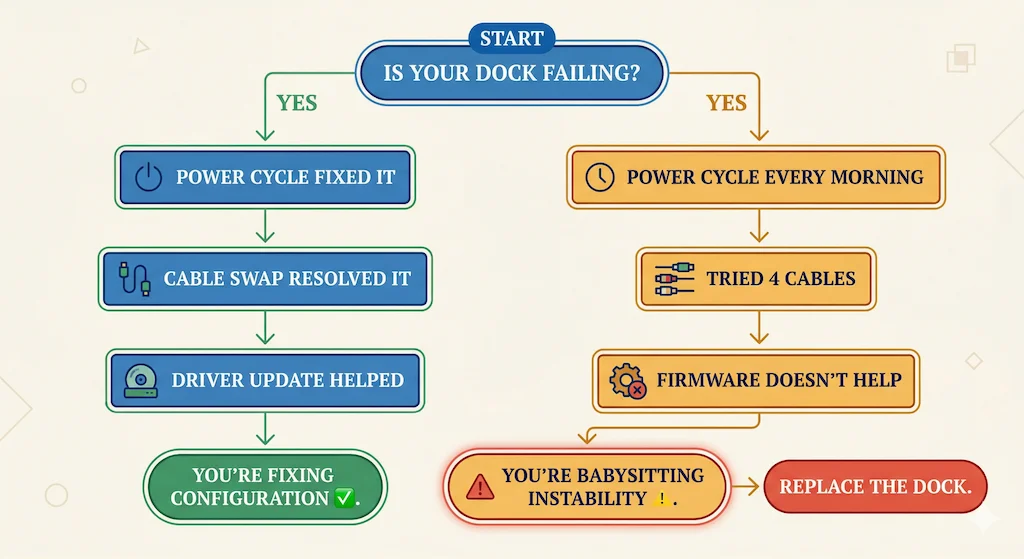
🟡 Pattern Check: Fixing Setup or Babysitting a Dock?
Fixing configuration ✅
- A power cycle fixes it for weeks
- Swapping the cable fixed it
- A driver or firmware update helped
- It started after an OS update
Babysitting instability ⚠️
- You power cycle it every morning
- Four cables, same failure
- Updates change nothing
- It’s been this way since day one
Stuck in the right-hand column on a USB-C or USB4 port? Check the port type first. A Thunderbolt 5 dock is the upgrade path, but it runs at reduced performance on a Thunderbolt 4 laptop, so it only pays off if your laptop has a Thunderbolt 5 port.
See Docks That Don’t Need Babysitting → Find My Dock in 60 Seconds →Section 8 — Which Dock for Which Laptop
Here’s how Thunderbolt 4 vs USB-C plays out by port. The port sets the ceiling, and the dock decides how much of it you reach: the TS4 has no native HDMI port while the SD5780T has one, and Plugable’s second and third HDMI outputs top out at 1080p. Match your port to a row first, then pick a dock. For a wider shortlist across every setup, see our best laptop docking station roundup. Below are five docks, three that need a Thunderbolt host to give you everything and two that don’t.
| Your port | Buy | Why |
|---|---|---|
| Thunderbolt (lightning symbol; spec sheet says Thunderbolt 4) | A Thunderbolt 4 dock | The host-side minimums apply, and PCIe-based dock features such as the TS4’s Ethernet have a host that supports them. Display counts still depend on your graphics or Mac chip |
| USB4 that supports PCIe (check the spec sheet) | A USB-C dock, or a Thunderbolt 4 dock if you need PCIe features | CalDigit lists TS4 Ethernet on USB4 hosts that support PCIe; displays still depend on the laptop |
| USB4 without PCIe, or USB-C with DisplayPort | A USB-C dock | Intel says PCIe is optional for USB4, and a dock can’t add Thunderbolt to the port |
| Data-only USB-C | Neither dock will drive displays | Plugable says data-only USB-C ports won’t support displays |
| Mac port labeled Thunderbolt / USB 4 | A Thunderbolt 4 dock | Apple marks these ports with the Thunderbolt symbol; the chip still caps displays |
| MacBook Neo | A USB-C dock; check the dock maker’s Mac list | Apple lists one display on its left USB 3 port and says Thunderbolt-only devices aren’t compatible |
Want to filter instead of read? The Docking Station Comparison Tool lets you filter and sort 80+ docks by connection type, operating system and display count.
Thunderbolt 4 docks
If your port is Thunderbolt 4, pick the Thunderbolt 4 docking station that has the ports you need.
USB-C docks
If your port is USB-C or USB4 without PCIe, these two are built for it.
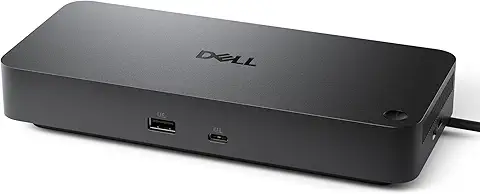
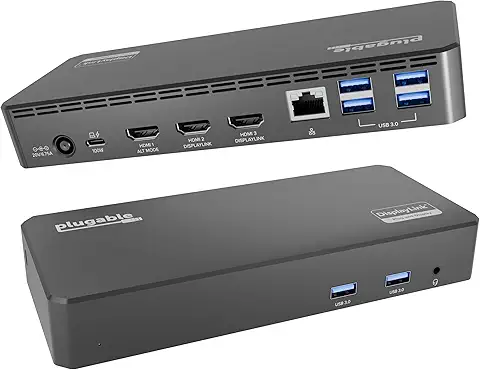
If you need three screens from a USB-C port on Windows, the Minthouz MT-UMD27 Pro and Minthouz MT-UMD29 Pro reviews list what DSC changes.
UGREEN shows how thin the labels can be. It sells the Revodok Max 213 as a Thunderbolt 4 dock, and the Revodok Pro 314 as a USB-C dock that its Amazon listing marks “Only for Win Host”. If you’re weighing those two, our UGREEN Revodok Max 213 vs Pro 314 comparison takes them head to head.
Section 9 — Thunderbolt 4 vs USB-C Docks at a Glance
| Feature | CalDigit TS4 | Kensington SD5780T | Dell SD25TB4 | Dell Pro Dock WD25 | Plugable UD-3900PDZ |
|---|---|---|---|---|---|
| Protocol | Thunderbolt 4 | Thunderbolt 4 | Thunderbolt 4 | USB-C (DisplayPort Alt Mode) | USB-C + DisplayLink |
| Host charging | Up to 98W | 96W | 130W Dell / 96W others | 100W Dell / 96W others | See Plugable’s page (it conflicts with itself) |
| Displays | 2 on Thunderbolt Windows PCs, 1 on USB-C | Dual 4K/6K, depends on the chip | Up to 4 external | Up to 4 external | Up to 3 HDMI |
| Video ports | 1 DisplayPort 1.4; HDMI needs an adapter | 3 Thunderbolt 4 + 1 HDMI 2.1 | 2 DisplayPort 1.4 + HDMI 2.1 + USB-C | 2 DisplayPort 1.4 + HDMI 2.1 + USB-C | 3 HDMI |
| Ethernet | 2.5GbE (not on USB-C hosts) | 2.5GbE | 2.5GbE | 2.5GbE | Gigabit |
| Mac | Yes; Apple’s chip limits apply | macOS 11+; Apple’s chip limits apply | Listed, with some limitations | Not on Dell’s list | Yes, with DisplayLink Manager |
| Price | Check Price → | Check Price → | Check Price → | Check Price → | Check Price → |
Specs come from each maker’s own page. Charging and display limits depend on your laptop, so treat the dock’s number as a ceiling.
🔴 When It’s the Dock, Not the Port
Sometimes the port is fine and the dock is the problem. If you can tick every box below, replace it.
🔴 Last Resort: Time to Replace the Dock
You’ve troubleshot. It’s still failing. Stop.
- ✅ Tested on two different laptops: fails on both
- ✅ Swapped to the cable that came with the dock, or a certified Thunderbolt 4 cable: still fails
- ✅ Updated dock firmware and laptop BIOS: no change
- ✅ Tried every USB-C port on the laptop: same result
Rule of thumb: a dock that needs weekly intervention isn’t a dock, it’s a maintenance task.
Check docking stations → Find My Dock in 60 Seconds →Before you pick a replacement, our docking station failure rates by brand breakdown lays out failure reports by brand.
Section 10 — Thunderbolt 4 vs USB-C for Enterprise Fleets and Rollouts
An enterprise dock rollout comes down to repeatability: the same behavior at every desk, and a purchase that survives the next laptop refresh. Four points from the sources decide most of it.
- Certification. Intel makes certification mandatory for every Thunderbolt 4 computer, accessory and cable, and requires DMA protection on Thunderbolt 4 computer ports. Windows also enables DMA remapping for USB4 host routers, per Microsoft, so DMA protection isn’t a Thunderbolt-only feature there.
- Spec to the weakest laptop. Intel’s USB4 minimum for a PC is 20Gbps and one display, against 40Gbps and two 4K displays for Thunderbolt 4. A mixed fleet gets the behavior of its lowest laptop, whatever the dock can do.
- Check the firmware setting. Microsoft’s guidance lets laptop makers offer a setting that turns PCIe tunneling off as a security feature, so the same dock can behave differently on two laptop models. Test each exact laptop model with the exact dock before a fleet deployment.
- Future-proofing. Intel calls Thunderbolt 4 a fully compatible extension of Thunderbolt 3 accessories and cables, and USB4 Version 2.0 reaches 80Gbps. Docks still follow the host: CalDigit says a Thunderbolt 5 dock on a Thunderbolt 4 host gets reduced performance, so buy Thunderbolt 5 docks for Thunderbolt 5 laptops, not ahead of them.
In a Thunderbolt 4 vs USB-C rollout, the dock decision follows the laptop standard. Standardize the laptop port first, then match the dock to it.
Section 11 — FAQ

Alex Atkinson
Hardware Analyst, Docking Station Specialist, ByrdPilot.com
Alex covers docking stations, Thunderbolt and USB-C for ByrdPilot, checking every spec against the manufacturer’s own pages before it is published. This guide was last checked against those pages on October 9, 2026.
Requirements and specs on this page were last checked on October 9, 2026 against the sources below.
Sources & References
- Intel: Thunderbolt 4 announcement deck — the requirements comparison of Thunderbolt 4, Thunderbolt 3 and USB4
- Intel: Thunderbolt 4 vs USB-C — Intel’s own statement that Thunderbolt 4 is not the same as USB-C
- USB-IF: USB4 — what USB4 is and the speeds it defines
- Microsoft: USB4 systems support all Type-C connectors — the rule that USB4 PCs support it on every user-accessible USB-C port
- Microsoft: USB4 design details and general requirements — bandwidth sharing, DisplayPort tunnels and the PCIe tunneling setting
- Microsoft: USB4 settings enablement — where Windows shows USB4 hubs and devices
- Apple: Identify the ports on your Mac — which Macs have Thunderbolt 4, Thunderbolt / USB 4 or USB-C
- Apple: displays supported by MacBook Pro — external display counts and lid-closed behavior by chip
- Apple: dual monitors with the M3 chip — the M3 clamshell display limits
- Apple: MacBook Air (2022) tech specs — external display support and the Thunderbolt / USB 4 ports
- Apple: MacBook Neo ports — USB speeds, one external display and no Thunderbolt-only devices
- Plugable: Thunderbolt docks on USB-C-only laptops — what works and what doesn’t without a Thunderbolt host