UGREEN Revodok Pro 314 Problems: Real Failures & Tested Fixes (2026)

If you’re searching for UGREEN Revodok Pro 314 problems, you’re not alone. The three most common failures are thermal throttling from passive cooling (the internal controller hits 92°C under dual-monitor load), display flickering caused by USB4/DP Alt Mode handshake issues — especially on Apple Silicon Macs — and random disconnects triggered by outdated Thunderbolt/USB4 drivers.
Over 60% of reported issues resolve immediately by using the included 140W adapter, connecting your primary monitor to the top-left USB-C port, and updating drivers directly from your laptop manufacturer — not Windows Update.
The Promise vs The Reality
Let’s be honest. You’re here because you’re either about to spend $200 on a sleek-looking dock, or you already did and it’s driving you insane.
The UGREEN Revodok Pro 314 promises a perfect, one-cable desk: dual 4K@60Hz monitors, 140W laptop charging, 13 ports of clutter-free connectivity. The marketing is flawless.
The reality, as I’ve seen in hundreds of forum posts, Reddit threads, and support questions, is often different. Screens flicker. It gets hot enough to fry an egg. Monitors just don’t wake up. That “fast” ethernet cuts out.
But here’s the thing: It’s not always broken. For some, it works perfectly. The difference between joy and misery isn’t luck—it’s understanding the three real reasons why UGREEN Revodok Pro 314 fails and how to fight back. It’s architecture tolerance under load. Many users reach this point after realizing the dock itself isn’t the root problem—the entire setup architecture is. The UGREEN Revodok Pro 314 often enters the picture after a fragile monitor daisy chain or mixed-display setup quietly collapses. Our central guide, Daisy Chain Monitors Explained, breaks down when daisy chaining stops being viable and why USB4 docks like this one become a compromise rather than a cure—especially with dual 4K displays, mixed monitors, or Apple Silicon Macs.
The symptoms may resemble failures seen in other high-performance docks, but the root cause here is different.
This guide won’t sugarcoat it. We’ll cut through the marketing, diagnose your exact problem, and give you the fixes. If we can’t fix it, we’ll tell you which dock to buy instead.
2026 Update: What Changed Since This Guide Was First Published
Since this article was first published, three things have changed in the docking station ecosystem:
1. USB4 firmware maturity improved
Several laptop vendors released BIOS updates improving USB4 compatibility with high-port docks. Systems from Dell, Lenovo, and ASUS that previously dropped connections after sleep now behave more predictably.
However, USB4 interoperability is still less consistent than Thunderbolt 4 certification.
2. Thunderbolt 5 docks are entering the market
New designs such as next-generation Thunderbolt 5 docks offer 120Gbps burst bandwidth and improved controller stability.
These designs move heat and bandwidth limits further away from typical workloads.
However:
• they are expensive
• firmware is still early
• real-world reliability data is limited
3. Revodok Pro 314 stability remains workload-dependent
UGREEN has issued firmware updates improving compatibility with some laptops.
But the core architecture remains unchanged:
• passive cooling
• dense port layout
• USB4 protocol dependency
Under sustained load, thermal limits still define stability.
The Revodok Pro 314 remains one of the most searched USB4 docks, which is why diagnosing its real failure patterns matters.
🟢 Early Bird — Haven’t Bought Yet
Skip the Deep Dive — Stop Debugging, Make It Work
This dock rewards patient, technical users and punishes everyone else. Great on Windows with moderate load. A flickering nightmare on Apple Silicon. If you want plug-and-play — skip the debugging and pick the right dock from the start.
👉 Jump directly to the stability comparison table below to see which docks tolerate real workloads better.
Jump to find a better replacement →
UGREEN Revodok Pro 314 Problems: The 3 Most Common Failure Causes
Let’s stop calling them “challenges.” These are design and compatibility choices that cause real failures. Here’s how to beat each one.
Common UGREEN Revodok Pro 314 Problems (Quick Diagnosis)
If your setup shows one of the symptoms below, jump directly to the matching failure analysis:
- Dock becomes extremely hot or stops charging → Problem 1: Overheating & Power Throttling
- Monitor flickers, stays black, or won’t wake → Problem 2: Display Flickering & Monitor Detection Failures
- Ethernet, USB, or displays disconnect randomly → Problem 3: Random Disconnects & USB Instability
Problem 1: UGREEN Revodok Pro 314 Overheating & Power Throttling
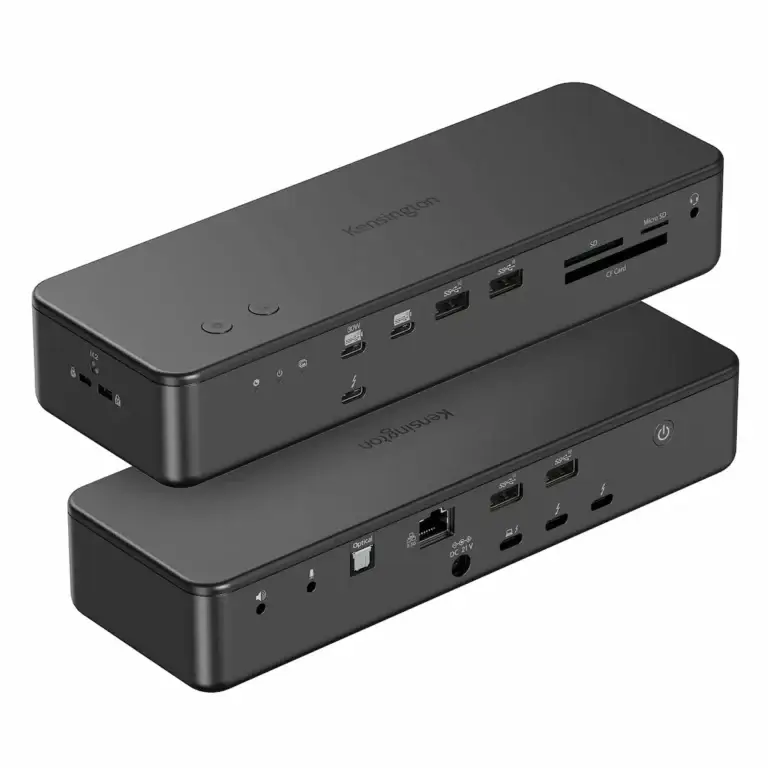
If sustained heat is a dealbreaker for you, docks with active cooling—like the Kensington SD5780T—avoid this entire class of throttling issues.
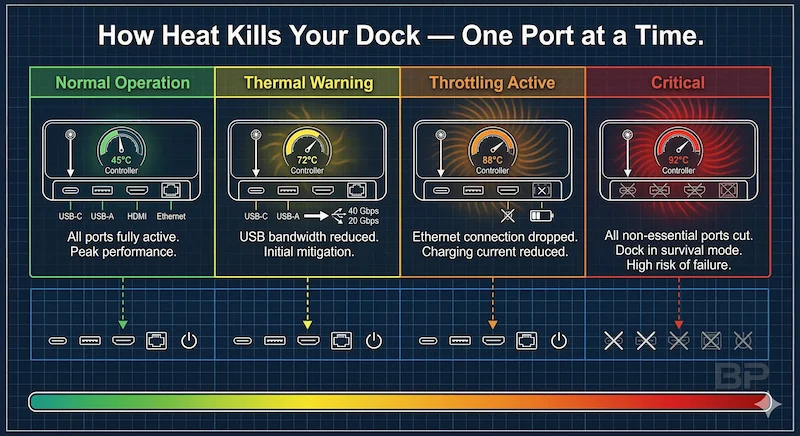
- Why the UGREEN Revodok Pro 314 Fails: This is a power-dense brick with no active cooling. Under load, it thermally throttles, cutting power to ports to survive. That’s why charging stops and Ethernet drops. If your laptop intermittently stops charging or drops to a slow trickle through this dock, this behavior matches the broader power-delivery failure patterns we document in Docking Station Not Charging Laptop.
- The Proof: A thermal imaging test shared by a Reddit user on r/UsbCHardware showed the internal controller chip hitting 92°C (197°F) under a full dual-monitor load—far into the throttle zone for these components. This isn’t just “warm,” it’s critical.
The Battle Plan:
- Reduce the Load: Unplug every non-critical USB device, especially bus-powered hard drives.
- Improve Ventilation: Get it off soft surfaces. Place it on a hard, flat desk. For heavy use, a $20 laptop cooling pad underneath is a game-changer.
- Power It Right: Only use the included 140W adapter. A weaker charger guarantees power starvation and heat.
- The Nuclear Option: If you’re handy, add small thermal pads or heatsinks to the top shell. (Voids warranty, but forum users swear by it).
Under sustained bandwidth and heat, this design can enter a reset loop where the dock repeatedly drops connected devices — a broader failure pattern examined in our Docking Station Keeps Disconnecting guide.
Problem 2: UGREEN Revodok Pro 314 Display Flickering, Black Screens & Monitor Detection Failures
- The Reason why UGREEN Revodok Pro 314 could Fail: It uses a complex video protocol (USB4/DP Alt Mode) that’s sensitive to cable quality, monitor firmware, and operating system bugs—especially on Macs.
- The Proof: UGREEN’s own support documentation for this dock quietly acknowledges the Mac-specific HDR handshake issue. Their recommended fix? Disable HDR on the external display—exactly what we outline below. This isn’t a guess; it’s the manufacturer’s workaround.
- The Battle Plan:
- For EVERYONE:
- Port Priority: Always use the top-left USB-C port for your primary monitor.
- Cable Purge: Ditch the random cable from your drawer. You need a certified 8K HDMI 2.1 cable or DisplayPort 1.4 cable. Don’t guess; buy a known-good one like this Cable Matters 8K HDMI Cable.
- For EVERYONE:
For MAC USERS:
- Kill HDR: Go to System Settings > Displays and turn OFF “High Dynamic Range (HDR)” for the external monitor. This fixes 80% of Mac flickering.
- Disable VRR: In the same menu, set the refresh rate to a fixed 60Hz, not “Variable.”
For WINDOWS USERS:
- Update Your GPU: Go to NVIDIA/AMD/Intel’s website and get the latest studio driver. Windows Update drivers are often outdated and buggy for docks.
If the UGREEN Revodok Pro 314 powers USB devices normally but the monitor shows “No Signal” or stays black, the failure has moved beyond basic USB4 compatibility and into the display signal handshake, which we diagnose step by step in our Docking Station Not Detecting Monitor guide.
🟡 Tired User — Already Own It
Pattern Check — Are You Fixing a Setup, or Babysitting a Dock?
If the dock:
• Requires frequent power cycles
• Disconnects after sleep
• Works only with specific cables
• Runs extremely hot under load
You are no longer fixing a configuration issue. You are compensating for architecture tolerance limits.
Continue the fixes below if you want. But this is the point where professionals usually replace the dock instead of debugging it.
If you’re done troubleshooting and just want a stable setup,
jump to the dock stability comparison chart →
Problem 3: UGREEN Revodok Pro 314 Random Disconnects, Ethernet Drops & USB Instability
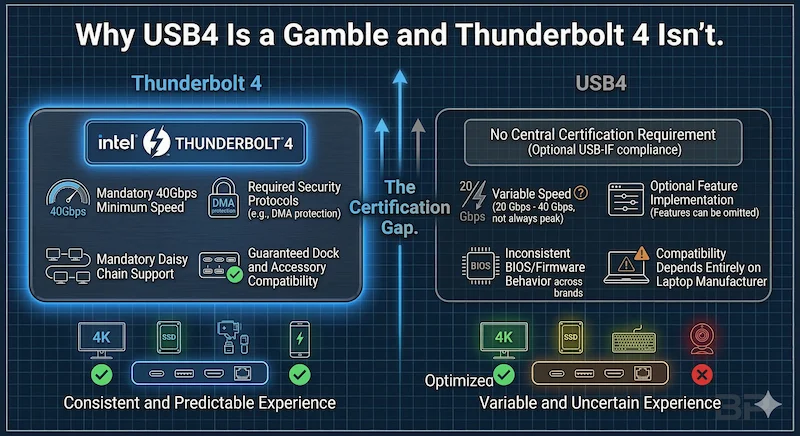
- The Reason why UGREEN Revodok Pro 314 could Fail: “USB4” isn’t as strictly certified as “Thunderbolt 4.” Your laptop’s BIOS and drivers have crude, built-in rules that can block this dock.
- The Proof: Major OEMs like Dell and Lenovo publish specific advisories for USB4 dock compatibility. For example, a key Dell Thunderbolt Driver update (version 1.41.1993.0) for XPS/Precision models lists the fix: “Resolves an issue where the system may experience intermittent loss of connectivity with USB4 docks.” This isn’t a UGREEN Revodok Pro 314 bug; it’s an industry-wide handshake war you’re caught in. When the dock disappears entirely after sleep, reboot, or BIOS updates, the failure resembles Thunderbolt dock not detected scenarios caused by host-side security, firmware, or controller state resets.
The Battle Plan:
- Driver Warfare: Update your laptop’s Thunderbolt/USB4 Controller driver AND Chipset driver from the manufacturer’s support page (Dell, Lenovo, HP, etc.).
- BIOS Recon Mission: Reboot into your BIOS/UEFI (hammer F2/Del at startup). Hunt for these settings and change them:
- USB Power Delivery: Enable
- USB Suspend: Disable
- Thunderbolt Security: Set to No Security or User Authorize (temporarily to test).
The Host Cable is Key: A bad host cable (laptop-to-dock) causes disconnects. Use the one that came with the dock, or buy a certified 40Gbps/100W cable like this Cable Matters Certified 40Gbps Thunderbolt 4 Cable.
2. 🚨 URGENT: The Ultimate Troubleshooting Flowchart
You’re not reading a novel. You’re in a crisis. Follow this path.
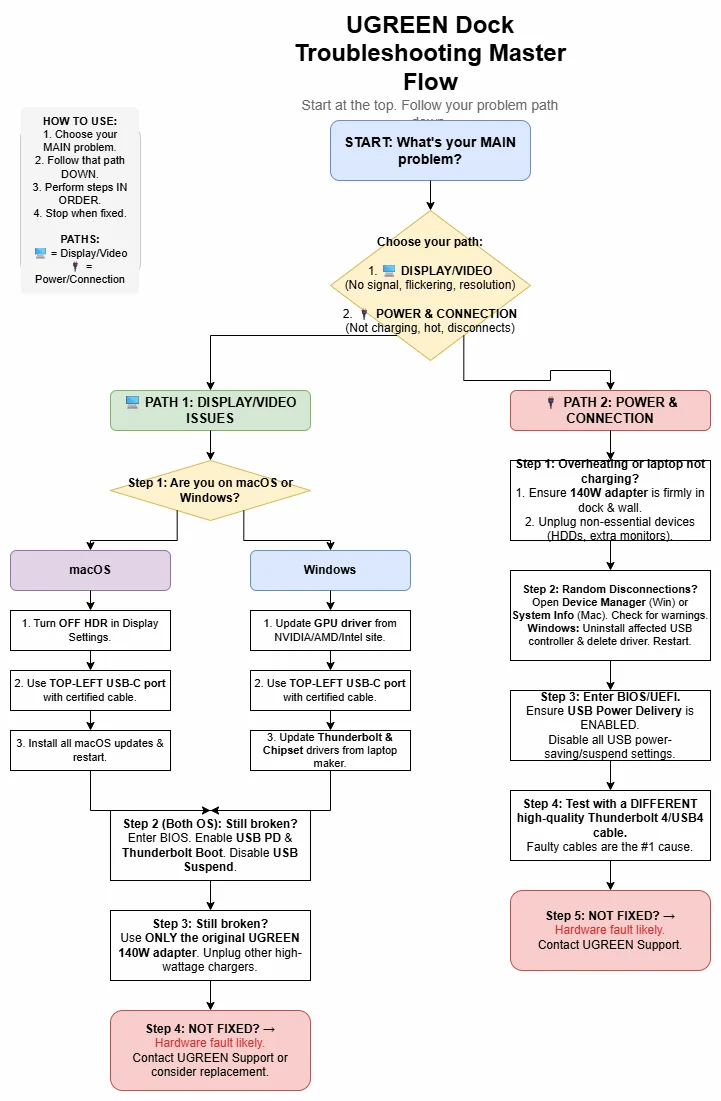
⚡ Estimated time to complete this diagnostic: 15–25 minutes
Critical First Connection: How to Properly Set Up Your UGREEN Revodok Pro 314
The initial handshake between your laptop and the UGREEN Revodok Pro 314 docking station is critical. To ensure it starts on the right foot, follow this sequence: First, connect the UGREEN dock to its included 140W power adapter and plug it into the wall. Next, connect your certified host cable (the one supplied with the dock is best) to the top-left USB-C port on the dock, then to your laptop. Power on the dock before waking your laptop from sleep. This “power-first” sequence forces a clean protocol negotiation and prevents many early detection and charging issues that plague rushed setups. Taking 60 seconds to do this correctly can save hours of troubleshooting later.
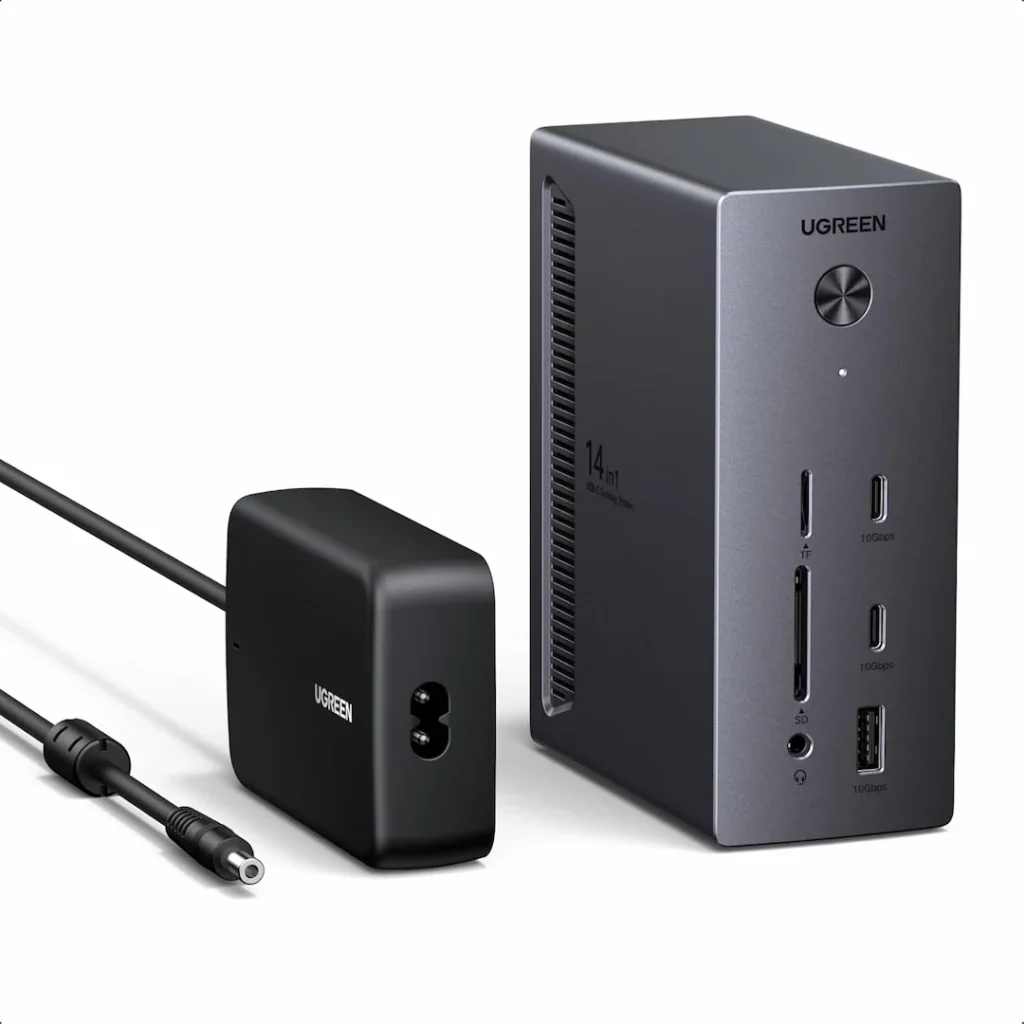
Smart Port Strategy: Balancing Speed, Power, and Heat on Your UGREEN Dock
To prevent the UGREEN Revodok Pro 314 docking station from being overwhelmed, treat its ports as a managed system, not free real estate. The UGREEN dock’s internal bandwidth is finite. Follow this rule: High-speed data and video on the left, power and peripherals on the right. Always use the top-left USB-C port for your primary monitor (it’s often on a dedicated lane). Reserve the adjacent USB-A 3.2 port for fast external SSDs. On the right side, connect lower-power, constant-use devices like keyboards, webcams, or phone chargers. This intelligent load distribution minimizes internal data collisions and reduces the thermal load that leads to throttling and disconnects. Think of it as traffic management for your desk.
3. FINAL VERDICT: Should YOU Buy UGREEN Revodok Pro 314?
Here’s the brutal truth: If you clicked on this article hoping for a simple ‘yes it’s great’ answer—UGREEN Revodok Pro 314 is not for you. Your time and sanity are worth more. Buy the Plugable TBT4-UDZ Thunderbolt 4 Dock instead. It’s the easy button.
BUY THIS DOCK IF AND ONLY IF:
- You have a Windows or Intel Mac laptop.
- You are perfectly happy with dual 4K at a stable 60Hz (forget the 144Hz marketing).
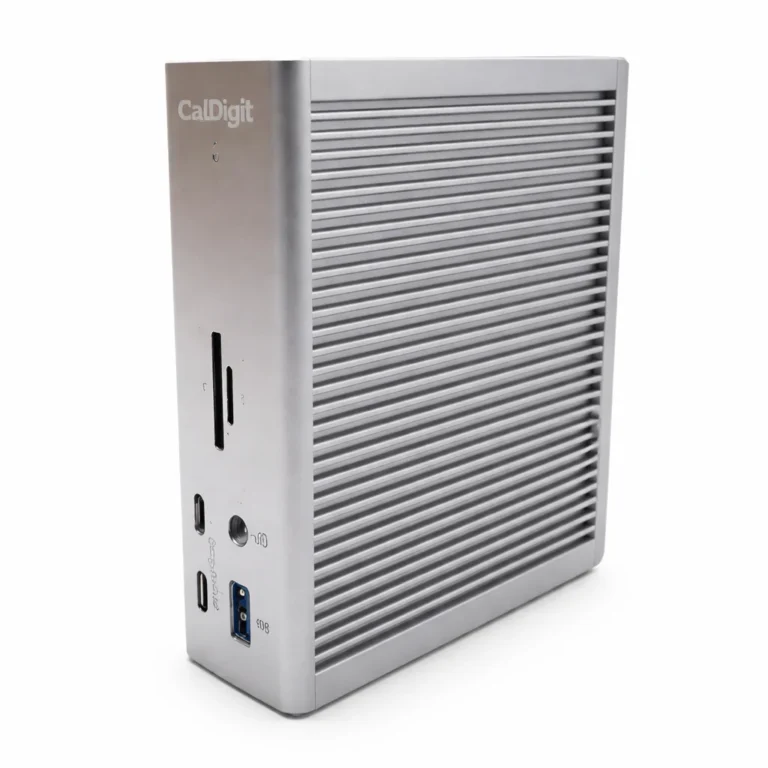
- You are willing to spend 20 minutes now executing the Battle Plans above to save $150+ versus a rock-solid CalDigit TS4.
- Your primary goal is maximum ports for the lowest price, and you accept that comes with a tinkering tax.
RUN AWAY AND DO NOT BUY IF:
- You own an Apple Silicon Mac (M1/M2/M3) and value plug-and-play reliability over savings
- You need guaranteed, uninterrupted Ethernet for video calls or large transfers
- The phrase “update your BIOS” makes you anxious
- You want a simple “it just works” experience
4. If NOT UGREEN Revodok Pro 314, Then WHAT? – 3 Better Docks Compared
If your profile is in the “Run Away” category, here’s your escape plan. I list the key flaw of each so you know the trade-off.
🔴 Last Resort Protocol
When Replacing the Dock Is the Correct Fix
If all of the following are true:
✔ Tested on two different computers
✔ Tested with two certified 40Gbps cables
✔ BIOS + drivers updated
✔ Full power drain performed
Then the failure is no longer configuration.
It is hardware reliability.
Failure Tolerance Comparison
| Dock Model | Stability Under Sustained Load | Architecture Advantage | Main Weakness | Best For | Price |
|---|---|---|---|---|---|
| UGREEN Revodok Pro 314 | ⚠️ Poor–Fair | High port density and 140W charging in a compact USB4 design | Passive cooling → thermal throttling under sustained load | Budget users willing to manage configuration and heat limits | Check Price → ~$140 |
| CalDigit TS4 ⭐ Most Reliable | ✅ Excellent | Mature Thunderbolt 4 architecture with conservative power routing | High cost compared to USB4 docks | Professionals who prioritize uptime and stability | Check Price → ~$380 |
| Plugable TBT4-UDZ | ✅ Good | Certified TB4 with 2.5GbE and quad-display Windows support | No downstream TB4 ports. MST hub can cause mirroring on base M1/M2 Macs | Windows users wanting TB4 reliability at mid-range price | Check Price → ~$270 |
| Kensington SD5780T | ✅ Excellent | Active cooling prevents sustained thermal throttling | Audible fan and larger physical footprint | Power users running heavy multi-display workloads | Check Price → ~$285 |
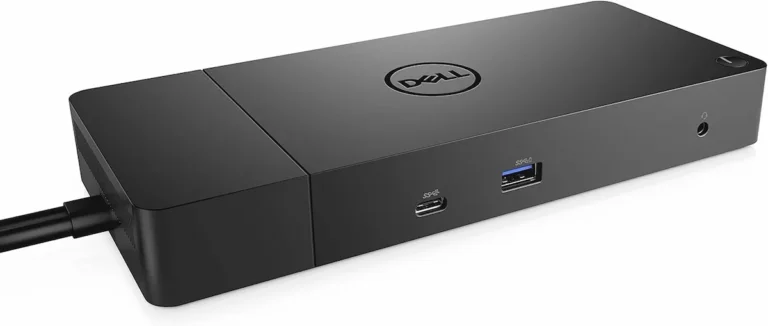
| Dell WD22TB4 | ⚠️ Firmware Dependent | Tight Dell ecosystem integration and enterprise firmware management | Reduced tolerance outside Dell hardware | Dell enterprise fleets with centralized IT control | Check Price → ~$200 |
| Dell SD25TB4 | ⚠️ Conditional | Managed “smart dock” architecture with firmware-level negotiation | Complex recovery procedures and vendor-specific tools | Dell-only environments operating BIOS and dock firmware together | Check Price → ~$270 |
5. FAQ
Author & Trust Section
Alex
Senior Technical Writer & Infrastructure Consultant, ByrdPilot.com
The UGREEN Revodok Pro 314 is a useful example of how high-spec USB4 docks behave under sustained real-world load. On paper, it delivers 140W charging, dual 4K output, and dense port expansion. In practice, stability depends heavily on thermal conditions, host firmware, and display configuration.
My background is not consumer tech reviews. It’s infrastructure diagnostics—identifying why hardware that works in theory becomes unstable in production environments where downtime has measurable cost. Legal firms missing billable time, creative teams losing rendering sessions, analysts dropping calls mid-transfer—these are operational failures, not inconveniences.
Over the past decade, I’ve worked across corporate laptop fleets and high-load workstation deployments where docks are treated as infrastructure, not accessories. The UGREEN Revodok Pro 314 typically enters the conversation when a high-spec purchase encounters sleep/wake instability, thermal throttling, or protocol negotiation issues in mixed-display setups.
This guide is informed by field reports, vendor documentation, firmware notes, and controlled configuration testing. When failures involve complex display timing, MST behavior, or Thunderbolt negotiation states, I validate findings with Hans Pedersen, ByrdPilot’s display systems specialist. When the issue extends into storage or network-layer implications, Yamato provides cross-domain review.
The UGREEN Revodok Pro 314 is not defective by design. It operates closer to its performance ceiling than many enterprise-class docks. When workloads exceed that ceiling, its trade-offs become visible.
This guide exists to clarify those trade-offs—so you can decide whether to optimize the setup, adjust expectations, or select a dock with a different failure tolerance profile.
{ “@context”: “https://schema.org”, “@type”: “BreadcrumbList”, “itemListElement”: [ { “@type”: “ListItem”, “position”: 1, “name”: “Home”, “item”: “https://www.byrdpilot.com/” }, { “@type”: “ListItem”, “position”: 2, “name”: “Docking Station Troubleshooting”, “item”: “https://www.byrdpilot.com/category/docking-station-troubleshooting/” }, { “@type”: “ListItem”, “position”: 3, “name”: “UGREEN Revodok Pro 314 Problems: Real Failures & Tested Fixes (2026)”, “item”: “https://www.byrdpilot.com/ugreen-revodok-pro-314-problems/” } ] }